
 Need help?
Do you have a question about the Thames & Kosmos Code Gamer and is the answer not in the manual?
General safety guidelines and warnings for users.
Compliance statement regarding FCC radio frequency regulations.
Compliance statement regarding FCC radio frequency exposure limits.
Compliance statement regarding Industry Canada radio frequency regulations.
Instructions for environmentally responsible disposal of electronic waste.
Guidelines for the proper disposal of batteries.
Specific safety precautions related to the rechargeable battery.
Precautions for safely handling electronic components.
Statement on the manufacturer's commitment to product quality and safety.
A detailed list of all components included in the experiment kit.
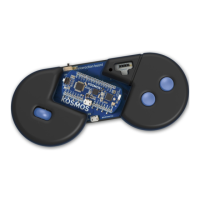
Step-by-step instructions for assembling the CodeGamer gamepad.
Instructions for assembling the housings for the sensorbot modules.
Specifies the hardware and software requirements for using the CodeGamer app.
Guide on how to download and install the CodeGamer mobile application.
Explains the fundamental concepts and components of a microcontroller.
Provides background on the Arduino platform and its development.
Steps required to prepare your computer for programming the KosmoDuino.
Instructions for downloading and installing the Arduino IDE.
Guide to installing necessary libraries and sample programs for KosmoBits.
Explanation of the structure and components of Arduino program code.
Introduces the first programming project to make an LED blink.
Detailed steps for uploading code from the Arduino IDE to the KosmoDuino.
Guidance on identifying and resolving common programming error messages.
Detailed explanation of the 'Blink!' program code and its functionality.
Explains the 'int' data type and its usage in Arduino programming.
Explains the concept and application of functions in programming for code organization.
Steps for preparing the hardware for the 'Off switch' project.
Explanation of the code used to control an LED with a switch.
Hardware setup for the 'On switch' project.
Explanation of the code to reverse the switch behavior for the LED.
Detailed explanation of the 'On switch' program code.
Description and explanation of different types of jumper wires.
Overview of the components and features of the interaction board.
Outlines the project goal: controlling the NeoPixel's color.
Explains how to use the NeoPixel to display different colors.
Explains the concept and usage of software libraries in programming.
Explains how red, green, and blue light mix to create colors.
Defines the project's behavior: NeoPixel changes color based on button presses.
Explains the code for controlling the NeoPixel with buttons.
Explains the process of code compilation and uploading to the microcontroller.
Introduces the 'if' statement for controlling program flow based on conditions.
Explains how to use 'else' and 'else if' for more complex conditional logic.
Outlines the project: turning the KosmoDuino into a random number die.
Explains the code for simulating a die roll with blinking LEDs.
Explains the custom 'roll()' function for generating random numbers.
Introduces the 'for loop' construct for repetitive tasks.
Detailed explanation of 'for' loop syntax, initialization, condition, and increment.
Describes sending messages from the KosmoDuino to the computer screen.
Explains the code for using the serial monitor to display output.
Explains the 'Serial.println()' command for outputting text with line breaks.
Instructions for mounting the temperature sensor on the interaction board.
Outlines turning the KosmoDuino into a thermometer.
Explains code to read temperature sensor and output readings.
Steps to update the code for displaying temperature in Celsius.
Explains arithmetic operators (+, -, *, /) used in programming.
Goal: create a finger-drumming disco lighting effect.
Explains code to control NeoPixel based on motion sensor input.
Explains how to calculate a baseline sensor reading and deviations.
Outlines turning the KosmoDuino into a sound producer.
Explains the code for producing sounds using the buzzer.
Random generator for pitch and duration of tones.
Explains code for generating random sounds.
Explains the physics of sound, frequency, and perception.
Explains code to create a rising and falling siren sound.
Explains how to declare, access, and use arrays in programming.
KosmoDuino plays a musical scale using programmed frequencies.
Explains code to generate a musical scale using frequency relationships.
Produce musical notes by moving the interaction board.
Explains code for a sensor-controlled musical instrument.
Using the serial plotter to visualize sensor data graphically.
Explains code to send sensor readings for plotting.
Turning the NeoPixel on/off with clap sound detection.
Explains code for a clap-activated switch using sound sensor.
Outlines the process for monitoring a drawer's state using a light sensor.
Steps to measure light sensor readings for determining open/closed states.
Describes the initial waiting state of the drawer monitor.
Describes the countdown sequence before monitoring begins.
Describes the state of waiting for the environment to become dark.
Describes the active monitoring of the drawer's closed state.
Describes detecting if the drawer was opened by an intruder.
Explains how to display the monitoring results via NeoPixel and serial interface.
Setting up the light sensor and jumper wires to monitor fridge light.
Using a sensor to measure fridge brightness and display it via NeoPixel.
Explains code for monitoring fridge light using a light sensor.
Making LED eyes blink colorfully and producing a hissing sound.
Assembling electronic components on a breadboard for the project.
Step-by-step guide for connecting components on the breadboard.
Explains code for flickering LEDs and a hissing sound effect.
Explanation of breadboard layout, connections, and power supply.
Encouragement and resources for further Arduino learning and projects.
Explains how indentation makes programming code easier to read and understand.
Historical account of the term 'bug' in computer programming, related to an actual insect.
Discusses the maker movement, hackerspaces, and Arduino's role in DIY electronics.
Explains the principles of 3D printing and its application in hobbyist projects.
Lists common error messages and provides solutions for fixing them.
 General
| Brand | Thames & Kosmos |
|---|---|
| Model | Code Gamer |
| Category | Game |
| Language | English |

 To Next Page