8
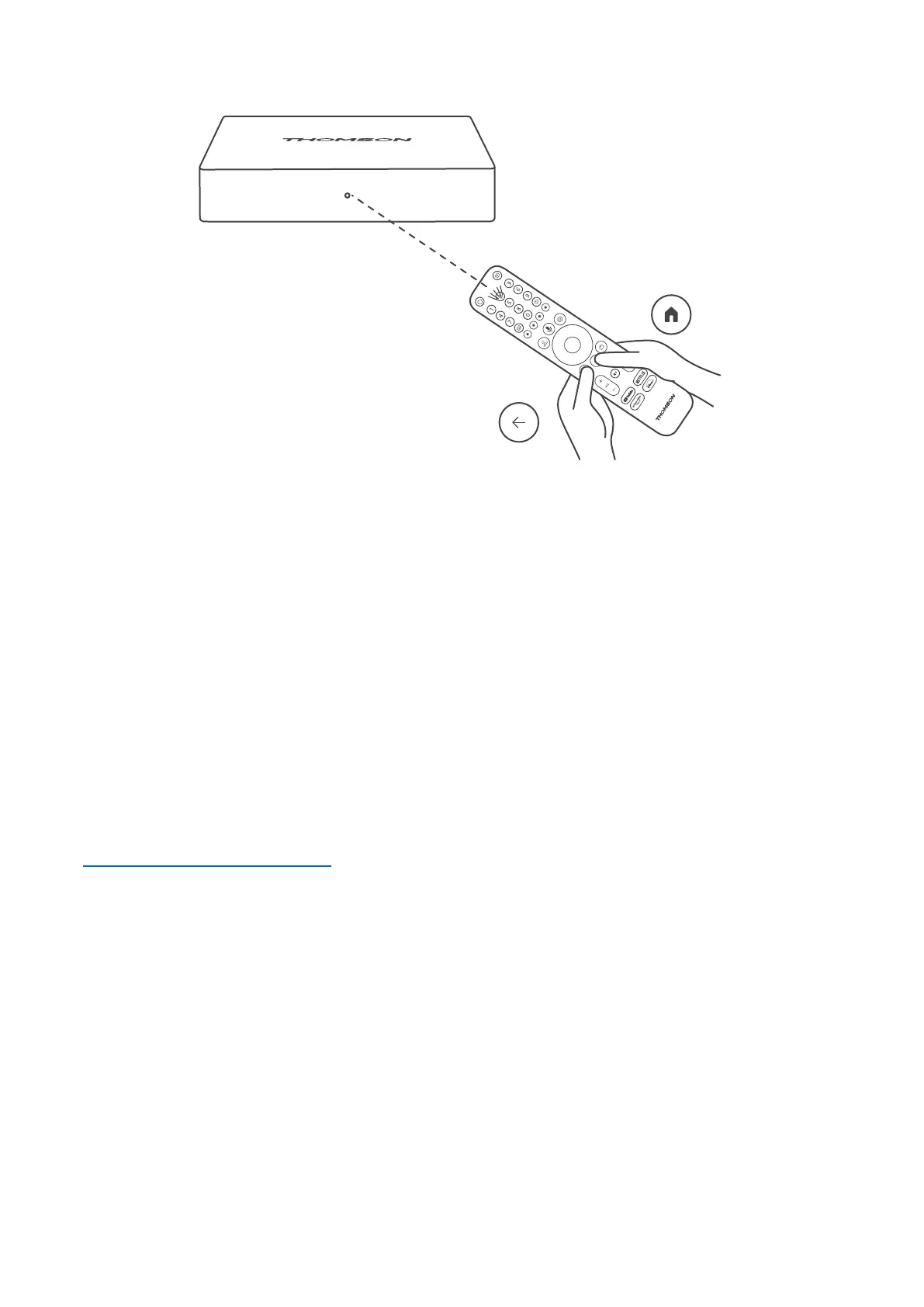
4.3. Remote Control Pairing
PAIR
5 - 15 sec
Turn on the TV and the Streaming Box and follow the on-screen instructions to pair the remote control.
4.4. First Installation
After you have successfully paired the remote control, select the installation language and your region, and
follow the installation instructions on your screen.
You can set up your Thomson Streaming Box 240G via the Google Home application on your mobile (phone or
tablet) or manually by selecting the "Set up on TV instead" option at the bottom of the screen.
Note:
A Google account is required to set up the Thomson Streaming Box 240G.
You must be signed in to your Google account to access the Google Play Store, Hey Google and your favorite
streaming applications.
If you do not have a Google account or want to create a shared account, you must register it before installing
the Thomson Streaming Box 240G on your computer or smartphone.
You can create a Google account by visiting the following website:
https://accounts.google.com/signup
After completing the initial installation of your Thomson streaming device, the Google TV home screen will be
displayed.
Please note that the illustrations of the menu screens shown in this user guide are for reference only and they
may dier in your country.
5. Installation of Apps
You have access to thousands of applications in the Google Play store ready for you to download. You can install
applications following the steps below:
1. Select Menu Apps on the Home Screen.
2. Select the Search for apps and games eld and enter the name of the application you want to download.
In the Apps Home Screen Menu there are also various submenus such as Your apps, App categories, Apps from
my other devices, Featured Apps and others that facilitate your selection and the installation of applications.
Note: some apps work only in your own network. These apps are not open internet services but only in-house



 To Next Page