To display the firmware version that your racing wheel is currently running and upgrade
it if required: on PC, connect to :// ts. Thrustmaster . com. In the Updates and
downloads section, click Xbox One / Wheels / TX Racing Wheel, then select Driver
/ Firmware and follow the instructions describing the download and setup procedure.
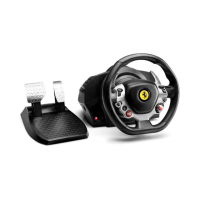
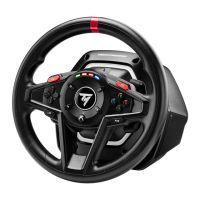
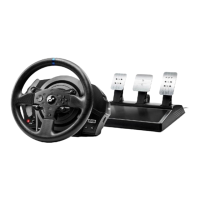
SETTING UP THE RACING WHEEL FOR THE XBOX ONE
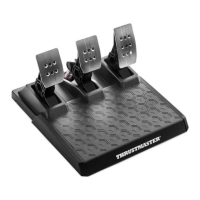
1. Connect the pedal set to the connector (17) located at the back of the racing wheel's
base.
2. Connect the power supply cable to the connector (14) located at the back of the
racing wheel's base.
3. Connect the power supply cable to a mains outlet with proper
voltage specifications.
For more information about this, please refer to the
CONNECTING THE RACING WHEEL TO THE MAINS section, on
page 3 in this manual.
4. Connect the racing wheel's USB connector (15) to one of the console's USB ports.
You are now ready to race!
AUTOMATIC RACING WHEEL AND PEDAL SET
CALIBRATION
The racing wheel automatically self-calibrates when you connect the racing wheel to
the mains and the racing wheel's USB connector to the console.
During this phase, the racing wheel will rotate quickly towards the left and the right,
covering a 900 degree angle, before stopping at the center.
AUTOMATIC CALIBRATION OF THE PEDAL SET
Never connect the pedal set to the racing wheel's base (or disconnect it from the base)
when it is connected to the console or during gameplay (this could cause incorrect
calibration).
Always connect the pedal set before connecting the racing wheel to the console. Once
the racing wheel's calibration is done and the game has been launched, the
pedals are automatically calibrated after a few presses.







 To Next Page