ㅣ
2322
ㅣ
6. Select “Internet Protocol Properties” again and then select “Obtain an IP
address automatically”.
Procedure to access Thuraya’s GmPRS network
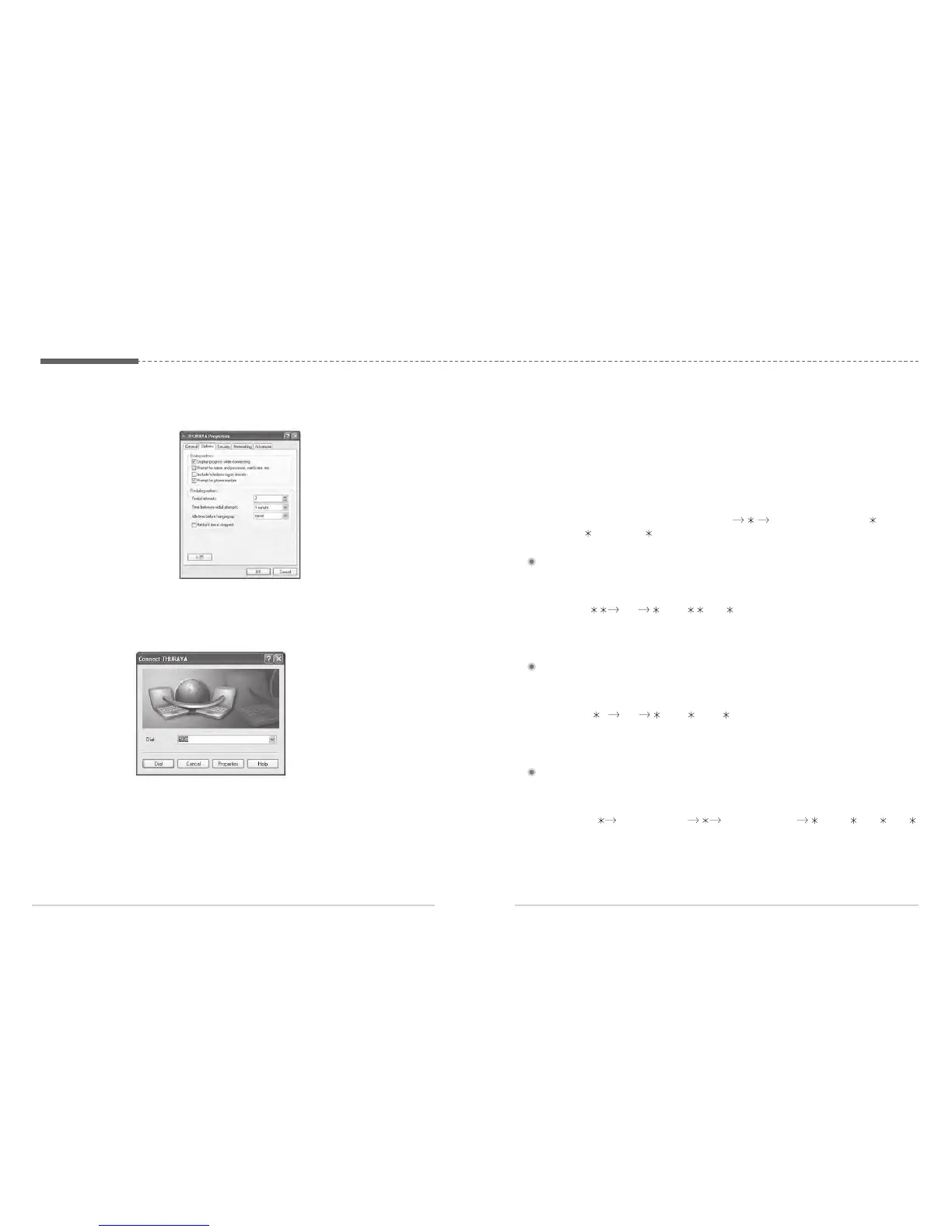
1. Click the phone connection icon on the main screen or from the program.
2. See if the dial number is set to “*99#” and then click “Dial”.
Procedure to disconnect from Thuraya’s GmPRS network
1. Click on the icon "Phone Connection Network" on the Windows task bar and
then select "End".
3. Afterwards the icon "Phone Connection Network" will be shown on the
Windows task bar and on the Thuraya handset you will see the "G" symbol.
9. Extension phone locking
If you use an external extension phone in combination with the FDU-XT, you can
protect the usage of the extension phone with a PIN code. After activating the PIN
locking function, a user will have to enter the correct PIN in order to make a phone
call from the extension phone.
The PIN code of the FDU-XT is per default set to "0000".
If the extension phone locking is enabled use the following procedure to make a call:
On the extension phone enter the PIN code
telephone number -> or #
(e.g.: 0000
123456789 )
1. Connect the extension phone to the RJ-11 interface marked "EXT" on the reverse
side of the FDU-XT.
2. Press
PIN (e.g.: 0000 )
3. Hang up the phone after hearing the beep which indicates the activation of the PIN
code.
9.1. Enable extension phone locking:
1. Connect the extension phone to the RJ-11 interface marked "EXT" on the reverse
side of the FDU-XT.
2. Press
#
PIN (e.g.: #0000 )
3. Hang up the phone after hearing the beep which indicates the deactivation of the PIN
code.
9.2. Disable extension phone locking:
1. Connect the extension phone to the RJ-11 interface marked "EXT" on the reverse
side of the FDU-XT.
2. Press #
Old PIN (4 digits) New PIN (4 digits) (e.g.: # 0000 1234 )
3. Hang up the phone after hearing the beep which indicates the confirmation of the PIN
change.
Please make sure you do not forget the new PIN code, otherwise you need to bring the FDU-
XT to the Service Center in order to reset the unit.
9.3. How to change the PIN code


 To Next Page