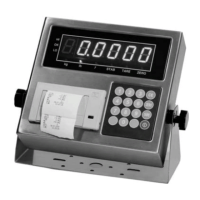
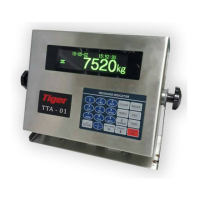
Piece Count,
Percentage,
Animal weighing
Check weighing (HI/LO check)
6.7 PIECE COUNT FUNCTION
6
Follow the below steps to enter Piece Count Function: -
a. select the desired weight unit,
b. If a container will be used, place this container to platform and press
[TARE] to tare off the weight of it,
c. Press [CNT] to enter counting function
d. Enter sample quantity through numeric keys,
e. Place samples (with same quantity) on platform then press [Tare],
f. Now the indicator display the sample quantity
g. Go to sampling process
7 before start counting.
h. Place the goods which desired to counting
Shift among Quantity, Average Piece Weight and Weight Info
a. Press [UNIT] to shift among quantity, average piece weight and
weight info,
b. Quantity Display format = numeric numbers & PCS (e.g1000 PCS) ,
c. Average piece weight display format = numeric numbers & weight unit
& / (slash) & PCS (e.g. 499.960g/PCS) ,
d. Weight display format (when Piece Count Function is in effect) =
numeric numbers & weight unit & PCS (e.g. 500 kg PCS).
Press
[Weigh] back weighing function.
6.8 PERCENTAGE FUNCTION
8
Follow the below steps to enter Percentage Function: -
a. select the desired weight unit,
b. If a container will be used, place this container to platform and press
[TARE] to tare off the weight of it,
6
Piece Count Function Mode does not support memory accumulation function.
7
Before this instrument starts counting, the average piece weight must be determined. The
process of getting the average piece weight is called sampling.
8
Percentage Function does not support memory accumulation (M+) function.


 To Next Page
 Loading...