Receive Audio Adjustment
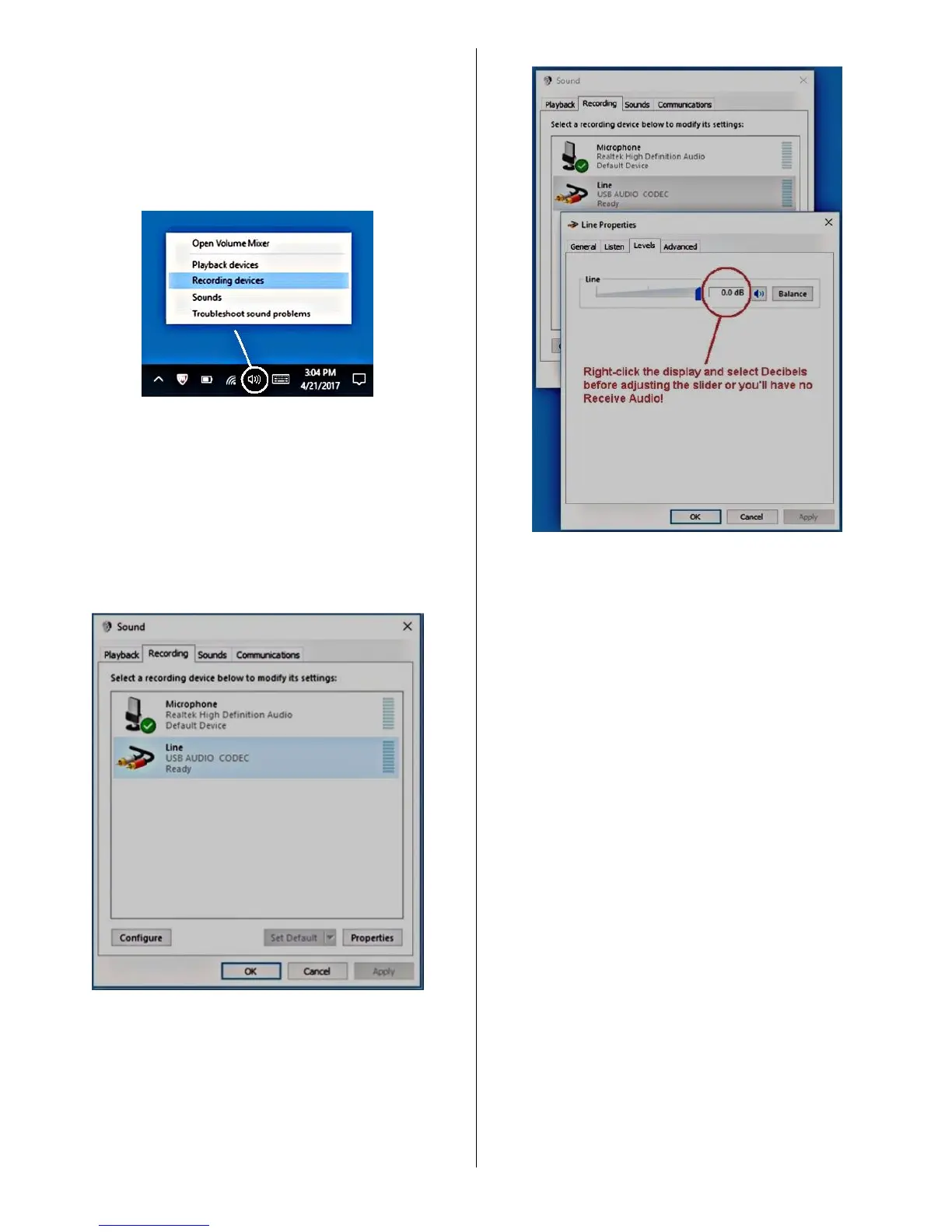
• As shown below in Figure 7, locate the white
speaker icon on the Windows task bar (lower right-
hand corner of the Windows desktop).
Right-click it and select "Recording Devices".
Figure 7 - White speaker icon
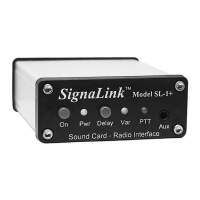
• In the Sound window that opens, select the
"Recording" tab as shown below in Figure 8. In the
list of displayed recording devices, click one time
on the SignaLink's "Line - USB Audio Codec"
sound card to select it (it should be highlighted).
Next, click the "Properties" button.
Figure 8 - Sound window Recording tab
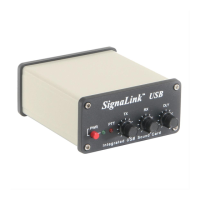
In the "Properties" window that opens, select the "Levels"
tab as shown below in Figure 9.
Figure 9 – Levels Tab
• Right-click the numerical display to the right of the
level slider and select "decibels".
• Adjust the slider for a setting of "0.0db" (or as close
as the operating system permits). Note that you
may find it easier to use the left and right arrow
keys to adjust the slider (click on the slider first and
then press the left or right arrow key).
• When you are done adjusting the slider, click the
OK button to close the Microphone Properties
window. Click OK again to close the Sound window.
The SignaLink's software recording control is now set to
provide a good receive audio level for most installations.
You should now be able to adjust the SignaLink's RX knob
for a good level as shown in your program's waterfall or
spectrum display. If you're not sure what this level should
be then you'll need to consult your program's documentation,
but a setting of 50% is usually a good starting point. If
you're unable to get a sufficient audio or if the RX knob has
no affect on your program's display, then see the
“Troubleshooting” section at the end of this manual.
Ready to Operate!
This concludes the setup of the SignaLink USB, radio and
computer. At this point the system should be ready to use.
If you are new to digital operation, then we suggest starting


 To Next Page