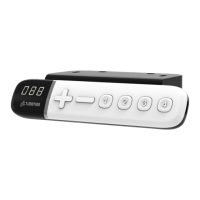
5. Setting the Upper and Lower Height Limit
A. Setting the upper height limit:
(1) Adjust the desk to the preferred upper height limit.
(2) Press + and - buttons together for less than 3 seconds, holding + and release - button. (Note 2)
(3) Re-press - for more than 3 times at a slow pace.
(4) A beeping sound will notify you that the process has been completed.
B. Disable the upper height limit:
(1) Move the desk to the upper height limit being set.
(2) Repeat the instructions #2~4 above to disable the upper limit setting.
C. Setting the lower height limit:
(1) Adjust the desk to the preferred lower height limit.
(2) Press + and - buttons together for less than 3 seconds, holding - and release + button. (Note 3)
(3) Re-press + for more than 3 times at a slow pace.
(4) A beeping sound will notify you that the process has been completed.
D. Disable the lower height limit:
(1) Move the desk to the lower height limit being set.
(2) Repeat the instructions #2~4 above to disable the lower limit setting.
Note 2: Some control boxes may not support setting the upper and lower height limit functionality.
Note 3: More than 3 seconds will direct to “Reset” mode.



 To Next Page