16 English
Note: Please remember the "Z" and "Y" are reversed. To congure, use the other
leer than the one desired to get the right result.
5.2.2 DPI
In the DPI sengs, you have the opon of conguring 6 individual DPI levels for
each prole.
5.2.3 LED
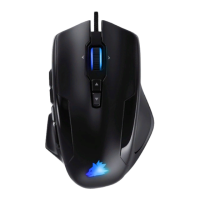
The logo light indicates which prole is currently acve. The following are the
default colours of the preset DPI levels:
• Red: DPI level 1
• Green: DPI level 2
• Blue: DPI level 3
• Violet: DPI level 4
• Turquoise: DPI level 5
• Yellow: DPI level 6
You can adjust the LED lighng of the logo separately for each DPI level. You can
select the colour, brightness and breathing-speed (pulsing) as desired to customise
the appearance. The respecve DPI colours can be adjusted under "Light seng".
5.3 Creang macros
Macros are recordings of specic key sequences, which can be run by pressing a
single mouse buon depending on the conguraon. This can, for example, be
keystrokes or mouse commands. To dene a macro, please click on the desired
buon and then select "Macro" and "Macro Manager" from the list as described
in secon 5.2.1.
To start recording a new macro, rst click on "NEW" and then specify a name. The
recording can be started using the "START" buon and stopped using the "STOP"
buon. Addional opons are available on the right side of the Macro Manager
for recording the steps. In this way, you can dene whether the me between
pressing the individual buons and the stop mes are measured and recorded,



 To Next Page