Settings
61
5
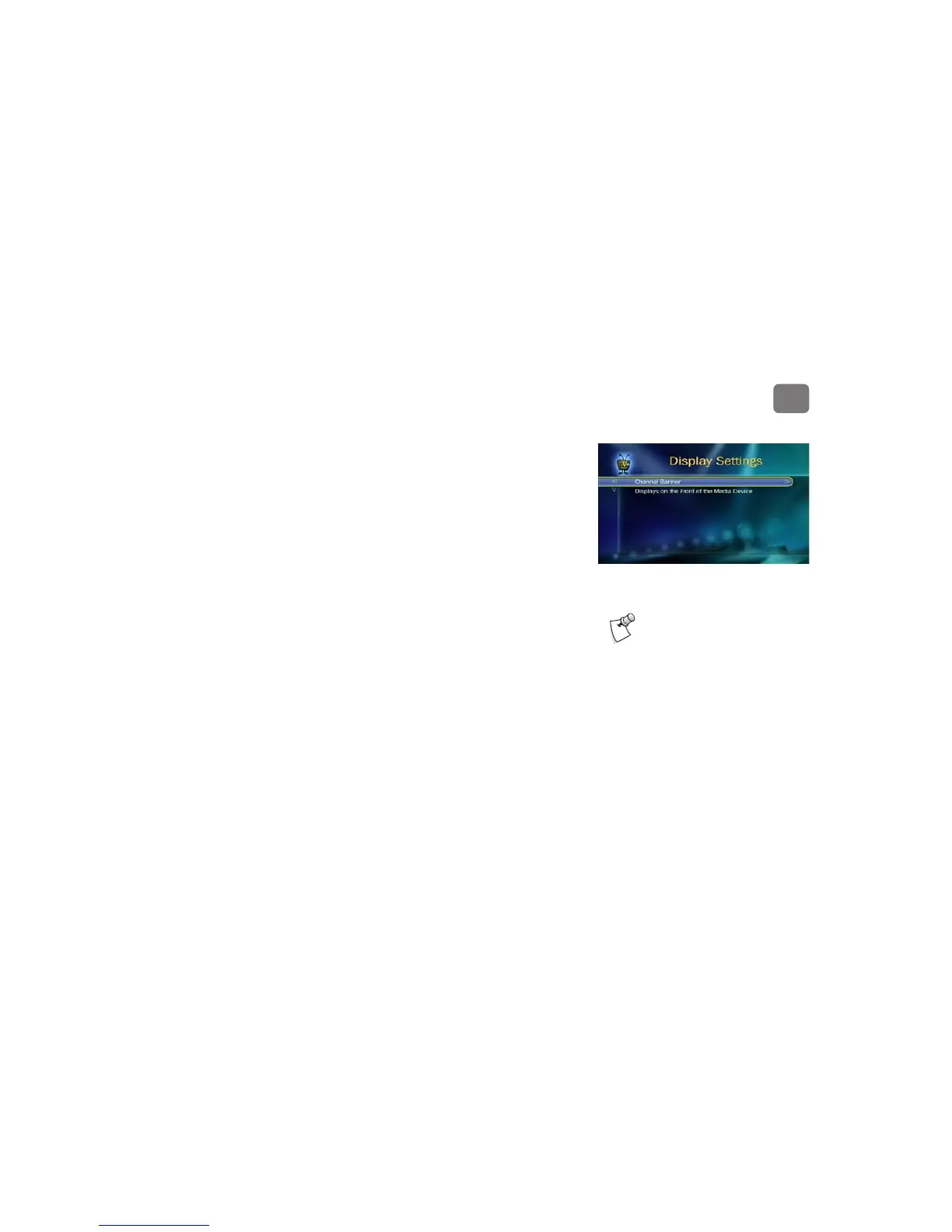
Display Settings
From the TiVo Central screen, select Messages & Settings, then Settings, then Displays.
• Channel Banner. Control how the channel banner is displayed. Normally, when you change
channels, the channel banner is displayed for a few seconds. If you want it to disappear
quickly, select Clear Banner Quickly.
• Displays on the Front of the Media Device. You can change the display of the media device’s
LEDs (the lights on the media device’s front panel). The LEDs (light emitting diodes)
indicate when the media device is receiving power, recording, or receiving information over
the broadband connection, as well as which video output format is selected. You can choose
to turn off all the LED lights, or just the video format indicators.
Even if you choose to turn off the front
panel lights, one of the LEDs on the
front panel will flash briefly when a button on
the remote is pressed. This indicates that the
media device is receiving a signal from the
remote.


 To Next Page