CABLE
(MoCA)
ETHERNET
RESOLUTION
DIGITAL
AUDIO
(OPTICAL)
HDMI
EXTERNAL STORAGE
(E-SATA)
USB
AC (In)
COMPONENT COMPOSITE
CableCARD
™
(MULTI-STREAM ONLY)
TiVo Inc.
Complete Guided Setup
Turn on your TV. After the TiVo
box starts up, you’ll see a
Welcome screen.
When you see the Welcome
screen, you’re ready to begin
Guided Setup. Just follow the
on-screen instructions.
You should complete Guided Setup even if you don’t yet have
a CableCARD decoder.
Note: If you don’t see the Welcome screen, use the Input,
Source, or TV/Video button on your TV remote or TV to select
the correct video input source.
Once you’ve completed Guided Setup, turn this poster over to
learn more about using your TiVo Roamio Plus/Pro!
7
Plug in the power cord
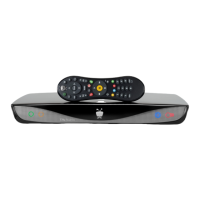
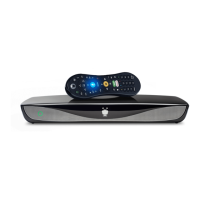
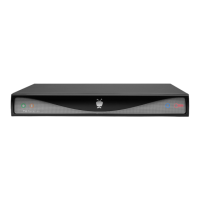
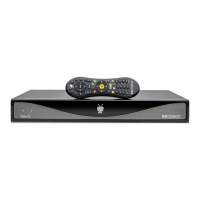
The TiVo Roamio Plus/Pro’s front panel
displays a green light at startup.
6
What’s MoCA?
A MoCA (Multimedia over Coax) connection gives you the same
high-speed connection you get with a wired Ethernet connection,
but it comes though your existing coaxial cable (the same one you
use to get cable TV). This is a great option if you have TiVo
boxes that connect to your home network wirelessly.
A MoCA network lets you:
• Stream shows to/from other boxes
• Transfer shows to/from other boxes
• Stream/transfer shows to iPad and iPhone
If you can connect an Ethernet cable to your Roamio Plus/Pro, you
can use the Roamio’s built-in MoCA network adapter to enable
MoCA networking throughout your entire home!
Simply connect an Ethernet cable from the TiVo
box’s ETHERNET port to an open port on your
router or to an Ethernet jack in your wall.
After Guided Setup, go to Settings > Network >
Change Network Settings. Then choose “Use this
DVR to create a MoCA network.”
To learn more about MoCA, including other setup
options and how to secure your MoCA network, visit
tivo.com/moca.
Connect to the Internet
The TiVo Roamio Plus/Pro needs a high-speed Internet connection to receive program listings, TiVo
®
service
updates, and on-demand content. The type of network connection you choose will depend on what you want to
do with your TiVo box(es), and whether it’s possible to connect an Ethernet cable to your TiVo box(es).
If you plan to stream shows from this TiVo box to other TiVo boxes, you must use a wired connection:
Ethernet (Option 1) or MoCA (Option 2). But don’t worry, no matter which one you pick, you can always change
your mind later.
Use this option if you have a MoCA home
network.
This option lets you:
• Stream shows to/from other boxes
• Transfer shows to/from other boxes
• Stream/transfer shows to iPad and iPhone
Because MoCA is delivered through your
coax cable, and you already connected
that cable in Step 2, you don’t need to
connect anything more here.
During Guided Setup (Step 7), choose
“MoCA” as your network connection type.
Use this option if you have wired Ethernet
connections available to all TiVo boxes on your
home network. Otherwise, use option 2 (MoCA
network).
This option lets you:
• Stream shows to/from other boxes
• Transfer shows to/from other boxes
• Stream/transfer shows to iPad
®
and iPhone
®
Connect an Ethernet cable from the
TiVo box’s ETHERNET port to an open
port on your router or to an Ethernet
jack in your wall.
During Guided Setup (Step 7), choose
“Ethernet” as your network connection
type.
Use this option if you don’t plan to stream
shows between TiVo boxes.
This option lets you:
• Transfer shows to/from other boxes.
• Stream/transfer shows to iPad and iPhone
Note that this option uses the TiVo box’s built-in
wireless capabilities. You don’t need to connect
anything in this step.
During Guided Setup (Step 7), choose
“Wireless” as your network connection type.
Option 1: Use Ethernet network Option 2: Use MoCA
®
network Option 3: Use wireless network
5
CABLE
(MoCA)
Did you know? You can use the MoCA network
adapter built in to your TiVo Roamio Plus/Pro to
enable a MoCA network throughout your
home. See the “What’s MoCA?” box at left to
learn more.
INPUT 3
HDMI
Connect to your TV
Connect an HDMI cable from the HDMI port of the TiVo box
to the HDMI IN port on the back of your TV.
If your TV does not have an HDMI port, see tivo.com/support
for additional installation instructions.
4
Television
Connect to the
cable service
Connect the coaxial RF cable
coming from the wall to the
CABLE (MoCA) port on the
back of the DVR.
If this cable is connected to
the TV or cable box, disconnect
it and connect it to the TiVo
DVR instead.
3
2
Get to know your cables
HDMI
®
cable for high denition
video and digital audio -
recommended for HD setup
Coaxial RF cable for receiving a cable
signal and for connecting to the
Internet through a MoCA network.
Power cord (included)
Ethernet cable for connecting to
the Internet through a wired
network if not using MoCA.
Order a CableCARD from your cable company
The TiVo Roamio Plus/Pro uses a multi-stream CableCARD decoder to receive
HD and digital cable channels.
Order one Multi-Stream CableCARD (M-CARD) from your cable company
and disconnect your digital cable box (if you have one). The M-CARD will
replace your digital cable box. For CableCARD installation instructions, see the
“Installing a CableCARD” insert that came with your TiVo Roamio Plus/Pro.
You don’t have to wait for your CableCARD to set up your
TiVo Roamio Plus/Pro. Continue to step 2.
1
CableCARD
TM
M
-CARD
Welcome! Start Here
Setting up your TiVo
®
RoamioPlus/Pro DVR is easy.
Activate the TiVo
®
service (if you haven’t already).
The TiVo service is what makes your TiVo Roamio Plus/Pro smart. It includes everything from your program
listings to Season Pass
®
recordings and WishList
®
searches—all the cool features you’ve heard about.
Some TiVo DVRs are sold with a TiVo service plan. If yours was not, activate the TiVo service at
www.tivo.com/activate
or call TiVo Customer Support at 1-877-367-8486. You’ll need your 15-digit TiVo
Service Number, found on the label on the back of the Roamio Plus/Pro.
Write it here for reference ___________________________.
About CableCARD
™
decoders
Do I need a CableCARD decoder for this TiVo Roamio Plus/Pro?
YES. The TiVo Roamio needs a CableCARD decoder to receive any cable programming. To
receive digital cable channels, and to watch and record multiple channels at the same time,
you need one Multi-Stream CableCARD decoder (M-CARD) from your cable company.
Do I need to wait for CableCARD installation?
NO, don’t wait. Start connecting your TiVo Roamio Plus/Pro now. You can install the
CableCARD decoder later. For instructions, see the “Installing a CableCARD” insert that came
with your TiVo Roamio Plus/Pro.
To get started connecting your TiVo Roamio Plus/Pro, go to step 1.
CableCARD
TM
M-CARD
Start Here
Follow these easy steps to connect
your TiVo Roamio Plus/Pro DVR
Set up your TiVo
®
Roamio Plus/Pro in 7 easy steps.
C
M
Y
CM
MY
CY
CMY
K
RoamioPlusPro_StartHere_Front_A2.pdf 1 4/17/2013 11:36:24 AM

 Need help?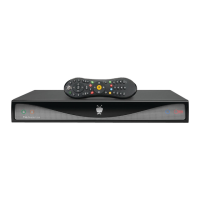

 To Next Page
 General