Hardware Version : 5.02 Document Version : 0
TECHMAN ROBOT INC. 5F., No. 58-2, Huaya 2nd Rd., Guishan Dist., Taoyuan City, 333411 , Taiwan
Techman Confidential 36
Software Update
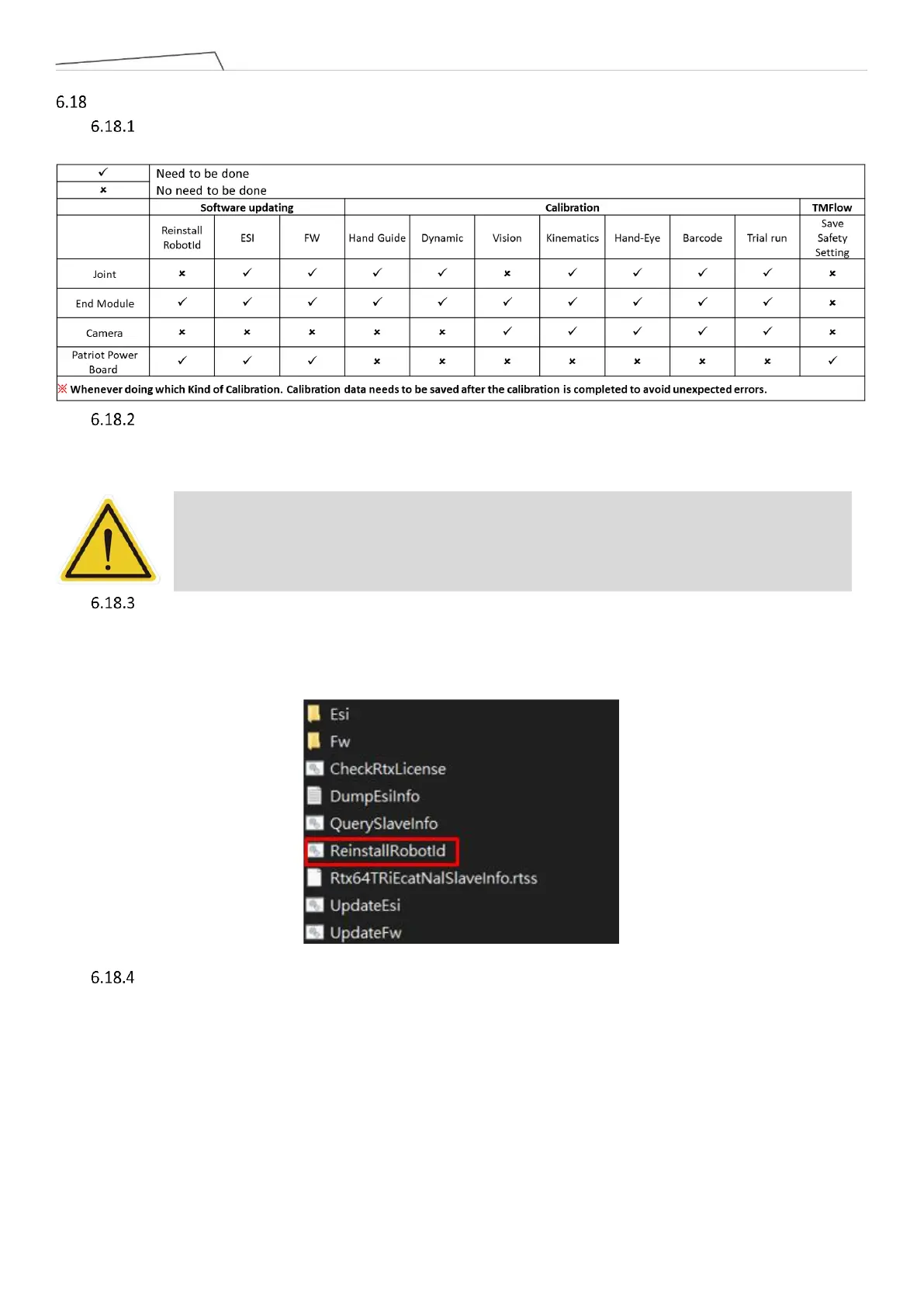
After replacing the hardware components, perform the relevant software updates and calibrations
according to the chart below.
Accessing Windows: In the powered-off state, press the emergency stop switch and install the
Maintenance Dongle on the control box. After turning on, an error code will be displayed on the TM Flow
screen due to the emergency stop switch cutting off the power between the control box and the robot.
Click Exit in the bottom left corner of the screen to enter Windows.
ReinstallRobotId: After entering Windows, execute the file "ReinstallRobotId" in the path "D:\Techman
Robot\TM Flow\ModuleRelease". After completion, it is necessary to completely turn off the power to
the control box and the robot before restarting. It is recommended to unplug the external power cord
after shutdown and then reconnect it before turning the power back on, ensuring a complete power
shutdown.
UpdateEsi: After entering Windows, execute the file "UpdateEsi" in the path "D:\Techman Robot\TM
Flow\ModuleRelease". After completion, it is necessary to completely turn off the power to the control
box and the robot before restarting. It is recommended to unplug the external power cord after
shutdown and then reconnect it before turning the power back on, ensuring a complete power
shutdown.
Note: After entering Windows, be sure to release the emergency stop switch. After releasing
the emergency stop switch, check if the End module indicator lights are flashing. If the
indicator lights are not flashing, it means the control box is not correctly connected to the
arm. Do not proceed with the subsequent steps and prioritize troubleshooting.



 To Next Page