Pro Fusion User Manual v.2.2 14
When using the Type-A to Type-C adapter, you should also use the AC power adapter
since Type-A ports can deliver less power. Your computer’s power settings can also influ-
ence the amount of power delivered to peripherals.
4.6 How to use the USB Type-A to Type-C adapter
Pro Fusion is connected to a computer via a standard USB Type-C interface.
The USB Type-C interface enables a better user experience over the older Type-A interface due to
its higher data transfer rate, symmetrical connector which eliminates the “right side up” problem, and
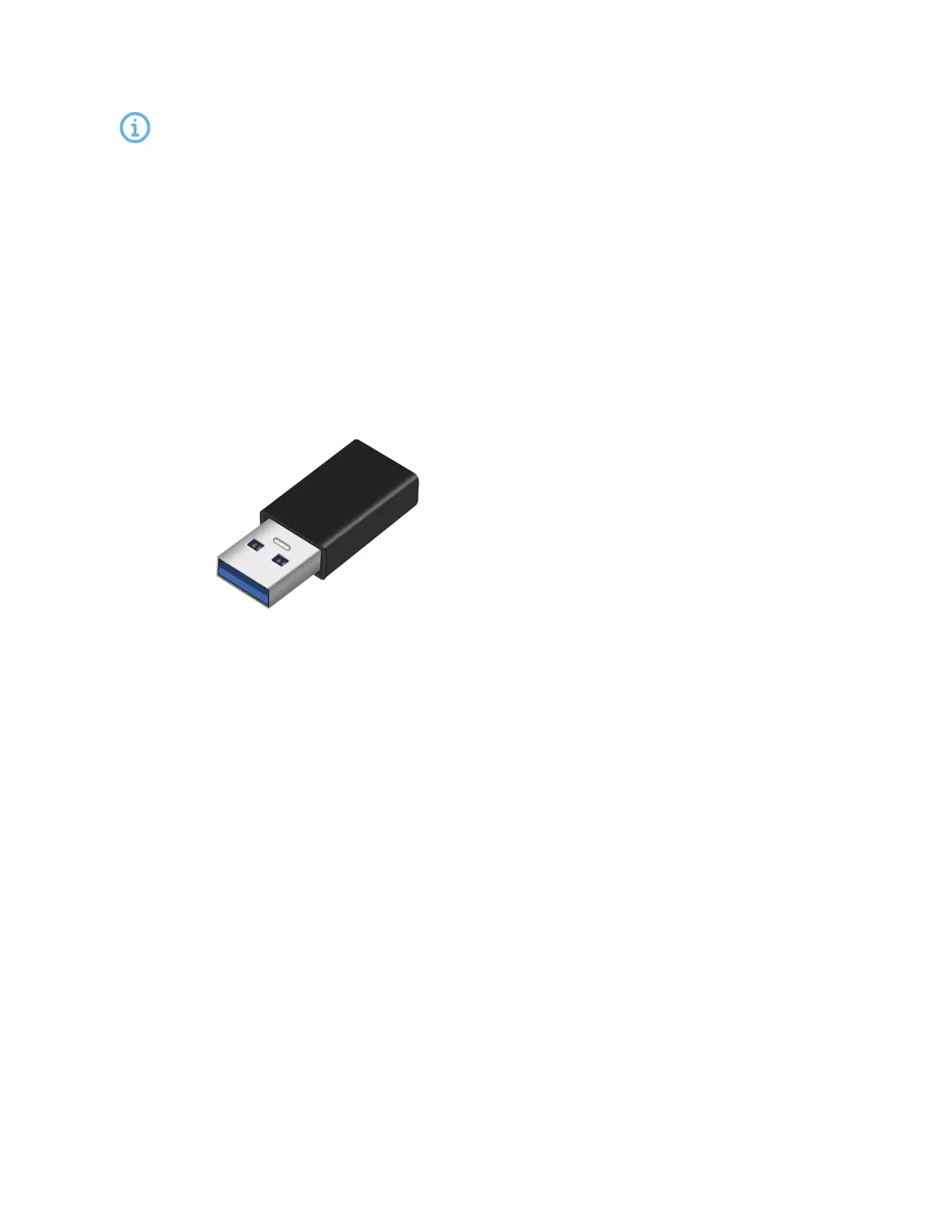
increased power. If your computer doesnot have a USB Type-C connection, you must use the
included USB Type-A to Type-C adapter
and
the power adapter with your Pro Fusion.
Figure 2. USB Type-A to Type-C adapter
What to do:
1. Plug the USB Type-A to Type-C adapter into the USB end of the cable.
2. Plug the cable with the adapter into the computer.
3. Attach the correct adapter plug for your country to the AC power adapter. For more inform-
ation, read Attach the adapter plug.
4. Plug the AC power adapter into the left-hand side jack on the eye tracker.
5. Plug the AC power adapter and adapter plug into a power outlet.


 To Next Page