Pro Fusion User Manual v.2.2 24
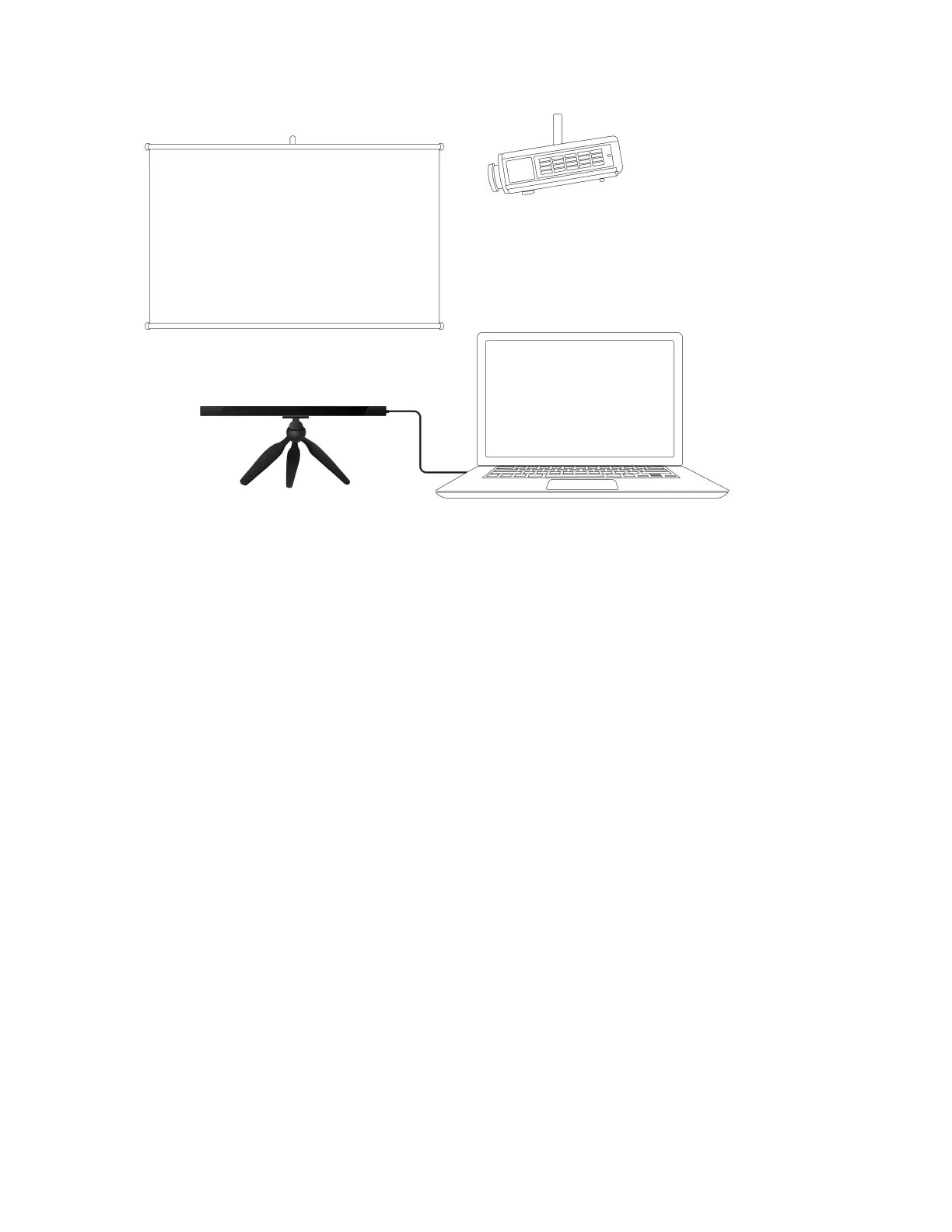
Figure 8. Tobii Pro Fusion with the Tripod Stand and projected screen
How to set up Pro Fusion with a large monitor or projector screen:
1. Select a suitable location and set up the monitor/screen.
2. Set up the monitor/screen and connect it to the laptop.
3. Mount the eye tracker on a separate tripod and connect it to the laptop. If the USB Type-A to
Type-C adapter is needed, use it along with the AC power adapter.
4. Place the participant 50–80 cm from the eye tracker and use the Position Guide in Pro Eye
Tracker Manager’s Overview to ensure that the eye tracker can detect the participant’s eyes.
5. Select “New” in the drop-down Display Setup menu.
6. Select Advanced setup and click the Next button.
7. Enter the width and height of your screen in millimeters. The width must be at least 10 mm.
Click the Next button.
8. Enter the angle of your screen in degrees. Click the Next button.
9. Enter the height difference in millimeters between the top of the eye tracker and the bottom of
your screen. Click the Next button.
10. Enter the position of the eye tracker in relation to the screen. Use the radio buttons to select
whether the eye tracker is positioned under or over the screen and enter a measurement in
millimeters.
11. Enter the angle of your eye tracker in degrees. Click the Next button.
12. Save your display by naming the setup and clicking the Save button.


 To Next Page