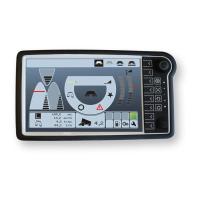
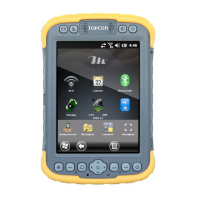
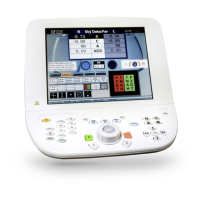
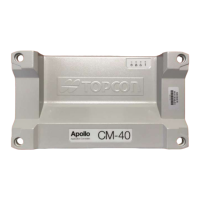
Linux system console:
- baud rate 115200
- 8 data bits
- 1 stop bit
- no parity
- no flow control
With these settings you are able to connect to the device. Please note, if you connect to
a running device, chances are that there is no output in the beginning. Press Enter to
check if the login prompt emerges. Use the following login data:
username: root
password:
- OPUS A3: opusa3
- OPUS A6 G1: opusa6
- OPUS A6 G2: egspro
- OPUS A8: egspro
The OS for A6 G2 and A8 is identical, hence the identical password.
You should find a document called console commands in the manuals folder of your soft-
ware package with an overview of interesting commands for testing and debugging.
3.4 How can I download my project to the device?
OPUS Projektor:
There are 3 ways: via USB, Ethernet or CAN. USB is the most straightforward. Open the
dialog through the menu Update -> Project Update. Then select the USB symbol. Put a
USB stick in the PC and change the directory to that of the USB stick. Then press Trans-
fer. After the process is finished, unplug the USB stick and plug it into the device while it
is running. The project should load and start automatically.
CODESYS:
The main way in CODESYS is through Ethernet. If you don’t have a device with Ethernet
port, you need to use an adapter USB <-> Ethernet. Several things need to be consi-
dered for this to work:
- same versions of CODESYS runtime and package on the PC
- set the IP on the device (see chapter 3.3): ifconfig eth0 192.168.135.6
- make sure your PC is in the same subnet as the device (e.g. 192.168.135.1)
- try if ping works from the PC to the device
3.5 How can I change what is displayed when the device is powered on?
The first image you see is called boot logo. This can easily be changed through your ap-
plication.
OPUS Projektor:
Create a project, open the project properties. In the General category you can load a
boot logo image. Make sure it has the resolution of the device. Load the project on the
display. Then restart and you should see the new boot logo.


 To Next Page