English 7
Cinema/Sports/Game Optimiser,and press OK button to
setup.
. Vivid: Sharpens the image by increasing the contra,
brightness and sharpness.
. Standard: The default mode, to make users experience
high-quality images under normal light.
. Basic: Basic picture eect.
. Cinema: Is suitable for watching TV or movies in a dark
room.
. Sports: Suitable picture for sports games. Sharpens the
image of rapid movements such as kicking or throwing a
ball.
. Game Optimiser: Suitable picture for games. Get better
game vision
Panel Brightness
- Press left/right/up/down button to select the Panel
Brightness
- Press the <OK> key to enter the sub-menu.
- Press up/down button to adju the panel brightness.
- Sound Mode
- Press up/down/left/right button to select the Sound Mode.
- Press the <OK> key to enter the sub-menu.
- Press left/right button to select Standard/ Cinema/ Clear
Voice / Sports/ Music,and press OK button to setup.
. Standard: Optimises the sound for all types of content.
. Cinema: Optimises the sound for cinemas.
. Clear Voice: Boos voice clarity.
. Sports: Optimises the sound for sports games.
. Music: Enhance the high pitch and reduce the bass.
Sound Out
- Press up/down/left/right button to select the Sound Out.
- Press the <OK> key to enter the sub-menu.
- Press left/right button to select TV Speaker/ Optical Out
Device/ Optical Out Device+TV Speaker/ HDMI (ARC)
Device/ Bluetooth Device/ Bluetooth Device +TV Speaker/
Wired Headphones/ Wired Headphones + TV Speaker/
Mobile Device, and press OK button to setup.
Sleep Timer
- Press up/down/left/right button to select the Sleep Timer.
- Press the <OK> key to enter the sub-menu.
- Press left/right button to select O/ 10 min(s)/ 20 min(s)/
30 min(s)/ 1 hour(s)/ 1 hour(s) 30 min(s)/ 2 hour(s)/ 3
hour(s)/ 4 hour(s).
Screen O
- Press up/down/left/right button to select the Screen O.
- Press the <OK> key to enter the screen o ate.
Game Optimizer
- Press up/down/left/right button to select Game Optimizer.
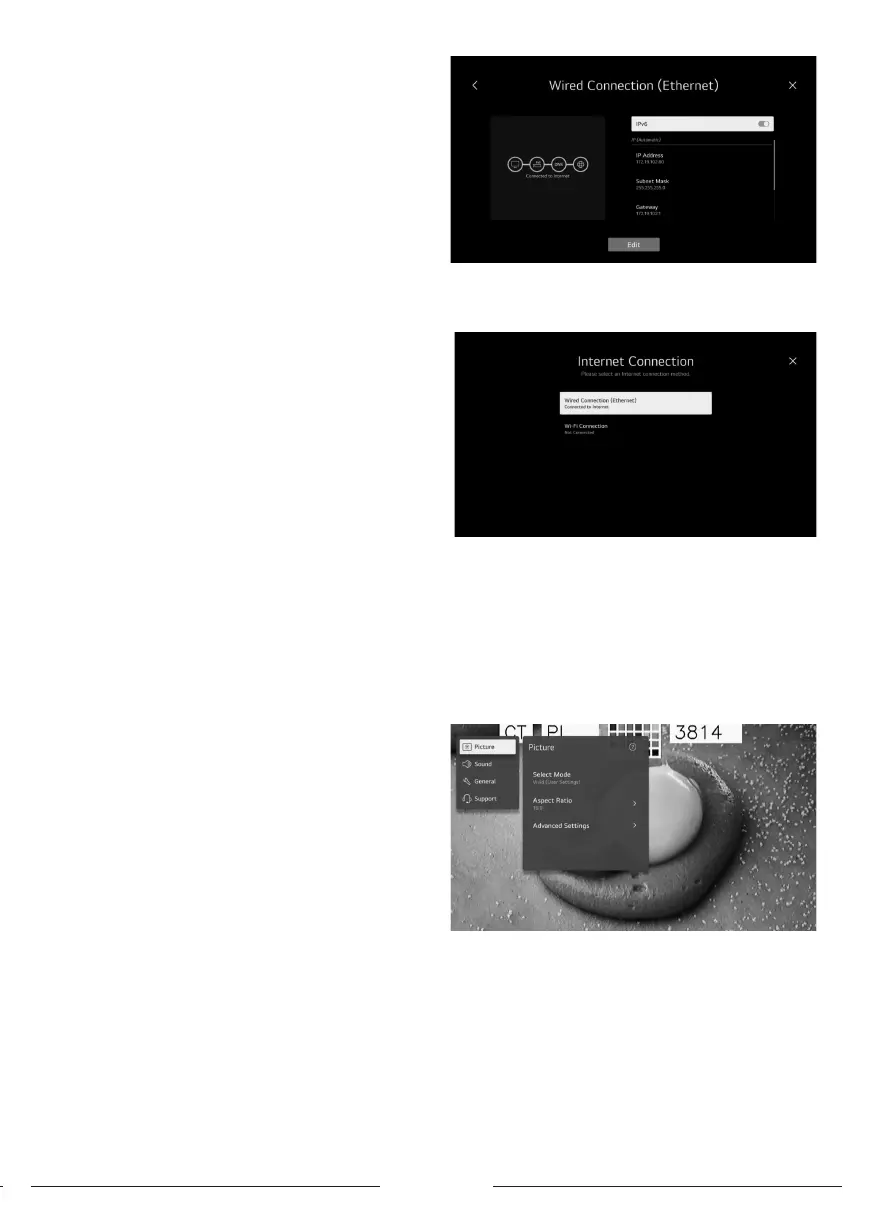
Network
- If you congure settings for the network, you can use
various services such as online contents and applications.
- Press up/down/left/right button to select the Network.
- Press the <OK> key to enter the sub-menu.
. Wired Connection (Ethernet)
- Press left/right button to select Wired Connection
(Ethernet).
. Wi-Fi Connection
- Press up/down button to select Wi-Fi Connection.
- Press OK button to enter sub-menu and setup.
All Settings
- Press up/down/left/right button to select the All Settings.
- Press the <OK> key to enter the sub-menu.
- Press up/dwon button to select Picture/Sound/General/
Support.
1- Picture
- Press up/down button to select Picture.
- Press OK button to enter sub-menu and setup.
- (option: Select Mode/Aspect Ratio/Advanced Settings)
Select Mode
Press up/down button to select the Select Mode.
Press the <OK> key to enter the sub-menu.
Press up/down button to select Vivid/Standard/Basic/
Cinema/Sports/Game Optimiser.
Aspect Radio
You can change the screen size according to the type of
content you are watching.
Press up/down button to select User Selection/ Ju Scan.
. User Selection
Press up/down button to select Aspect Ratio.
(Optional: 16:9/ Original/4:3/ Vertical Zoom/ 4-Way Zoom)



 To Next Page