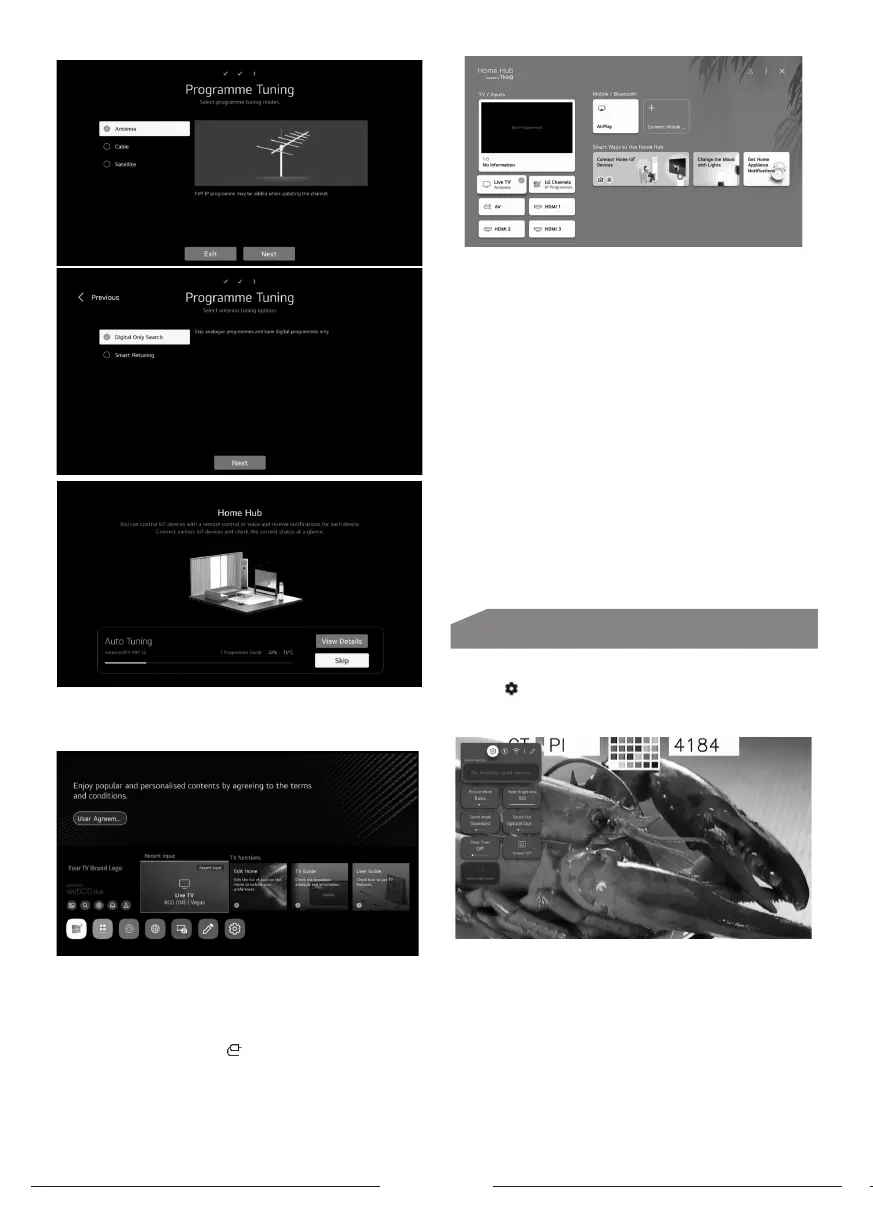
English 6
Note: After nishing tuning, TV turned automatically to
home page.
Home Page
In the li of apps select the app you want to enter.
Home Hub
- From Home page, Press left/right button on remote to
select home page.
- Or Press on Input button to open Home hub page.
1- you can check and select external device connected
through the external input port or network.
2- Use apple home, air play2 to control your TV and watch
content from your iphone on the TV Screen.
Note: Make sure TV and mobile device on same network.
3- You can coonect your mobile to tv to share the mobile
screen and enjoy the ored contents
Note: Make sure TV and mobile device on same network.
Also, view the li of connected Bluetooth devices and
select one
4- You can check the connection guide for each type
of home Iot devices, you can connect and see devices
regiered with your ThinQ account or Iot devi
Pairing Remote control with TV
- Press on Back and home button at same time for about
5 sec then press ok button to complete pairing.
- to disconnect between remote control and TV press back
and home button at same time for about 5 Sec.
General Settings
TV Setting
- Press button to enter the TV Setting.
- Press up/down/left/right button to highlight the desired
menu icon , and press OK button to select.
- You can set Picture Mode, Panel Brightness, Sound
Mode, Sound Out, Sleep Timer, Screen O and Game
Optimizer.
- Also, You can add/delete the quick setting items or
change their order.
Picture Mode
- Press up/down/left/right button to select the Picture
Mode.
Press the <OK> key to enter the sub-menu.
- Press left/right button to select Vivid/Standard/Basic/



 To Next Page