English 8
. Ju Scan
Press up/down button to select Ju Scan.
If you turn this feature On, you can view the content in
the aspect ratio that is in the broadca signal or content
source. If the edge of the screen is not clean, please turn
it O.
Advanced Settings
Press up/down button to select the Advanced Settings.
Press the <OK> key to enter the sub-menu.
Press up/down button to select Brightness/Color/Clarity/
Apple to all inputs/Reset.
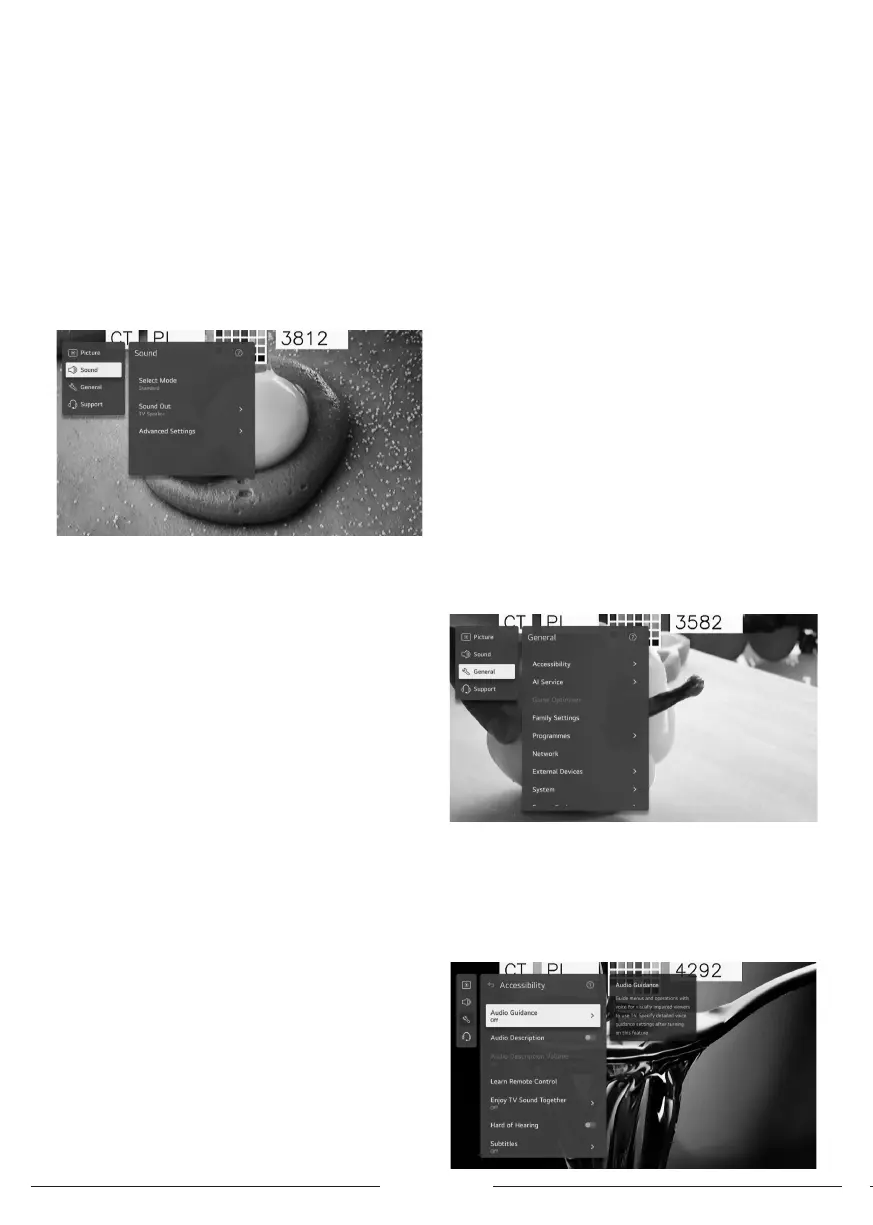
2- Sound
- Press up/down button to select Sound.
- Press OK button to enter sub-menu and setup.
- (Optional: Select Mode/Sound Out/Advanced Settings)
Select Mode
Press up/down button to select the Select Mode.
Press the <OK> key to enter the sub-menu.
Press up/down button to select Standard/ Cinema/ Clear
Voice / Sports/ Music.
Sound Out
Press up/down button to select the Sound Out.
Press the <OK> key to enter the sub-menu.
Press up/down button to select Use TV Speaker/Use
Wired Speaker/Use Wireless Speaker/Use External
Speakers with TV Speaker.
Advanced Settings
Press up/down button to select the Advanced Settings.
Press the <OK> key to enter the sub-menu.
Press up/down button to select Balance/ Equalizer/Apply
to All Inputs/ Reset/ Inallation Type/ Automatic Volume
Adjument/ DTV Audio Setting/ Match Screen and Sound/
Select HDMI Input Audio Format/ Digital Sound Output/
eARC Support.
. Balance
Balanced left and right channels.
Press OK button to select Balance.
Press up/down button to adju.
. Equalizer
Press up/down button on to select Equalizer.
Press OK button to enter sub-menu then press up/down/
left/right button to adju.
. Apply to All Inputs
Press up/down button on to select Apply to All Inputs.
. Reset
You can reset the sound eect settings.
Press up/down button to select Reset.
. Inallation Type
Press up/down button on to select Inallation Type.
Press up/down button to select Stand/ Wall-mounted.
. Automatic Volume Adjument
Press up/down button on to select Auto Volume.Press OK
button to select On/O.
. DTV Audio Setting
Press up/down button on to select DTV Audio Setting.
Press up/down button to select MPEG/ Dolby Digital/
Dolby Digital Plus/ HE-AAC/ Auto.
. Match Screen and Sound
Press up/down button on to select Match Screen and
Sound.
(Optional:TV Speaker Delay/ Bypass)
. Select HDMI Input Audio Format
Press up/down button on to select HDMI Input Audio
Format.
You can set the audio format for each HDMI input.
When the voice delivered through the HDMI port is not
synchronized, set it to PCM.
Digital Sound Output
Press up/down button on to select Digital Sound Out.
(Optional: PCM/Auto/Pass Through)
eARC Support
Press up/down button on to select eARC Support.
3- General
- Press up/down button to select General.
- Press OK button to enter sub-menu and setup.
- (option: Accessibility/ Al Service/ Game Optimiser/
Family Settings/ Programmes/ Network/ External Devices/
Syem/ Energy Saving)
Accessability
- Press up/down button to select Accessibility.
- Press OK button to enter sub-menu.
- (option: Audio Guidance/ Audio Description/ Learn
Remote Control/ Enjoy TV Sound Together/ Hard of
Hearing/ Subtitles/ High Contra/ Greyscale/ Invert
Colours)



 To Next Page