61
The T-1 Notebook : Reference & Guide
60
The T-1 Notebook : Reference & Guide
NOTESNOTES
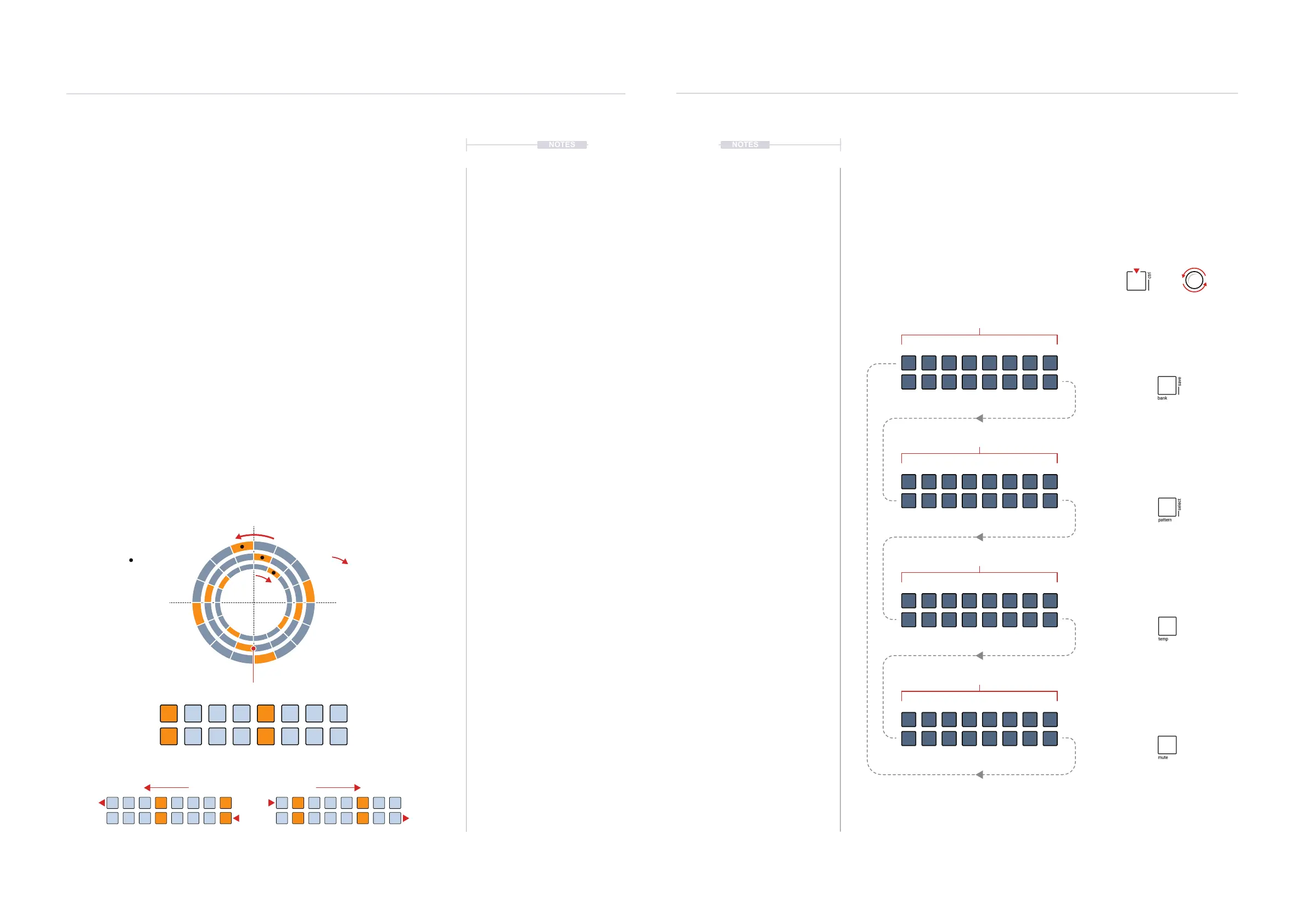
Rotate
The start point in a Euclidean pattern can be rotated. While this is ok for
adjusting a xed patterns start, it is even more interesting as a performance
option by making adjustments on-the-y.
Note that changing the start using the (ROTATE) function will shift all pulses
in the track, both Euclidean generated and manually placed pulses.
▌ ADJUSTING START OF A EUCLIDEAN PATTERN - ROTATE
1. Press [BANK] to ensure the ‘home’ mode is in focus.
2. Select an existing track to edit. Press [VBx], where ‘x’ is the value
button that represents the desired track. Example, Press [VB1] to select
Track 1 for editing.
3. Optionally view the pulse sequence. Double tap (PULSES) to retain the
pulse sequence view even when the control knob is released.
4. To rotate the start point. Press [CTRL] + Turn (PULSES). Each rotation
click clockwise will shift the entire track pattern one step later. Each
rotation click anti-clockwise will shift by one step earlier. When rotating,
a pulse at the start will wrap around to the end or a pulse at the end will
wrap around to the start depending on direction of rotation.
Original Pattern State
1 Step Rotation to Start Earlier.
Anti-Clockwise
1 Step Rotation to Start Later
Clockwise
Rotation
First Step
Rhythmic Patterns
3
Rhythmic Patterns
3
Extending Pattern Step Count
The default sequence length is 16 steps. This can easily be adjusted with
the (STEPS) control. A maximum of 64 steps are available. These are
managed in groups of 16 steps, and made visible through 4 pages. Pages
are accessed with the bank, pattern, temp and mute buttons. Euclidean
pulses are re-distributed when extending steps.
1
33
17
49
Pattern 1-16
Default
Pattern 33-48
Pattern 17-32
Pattern 49-64
PAGE 1
Show Steps 1-16
Hold [CTRL] + [BANK]
Double tap (STEPS) to lock the view
+
PAGE 3
Show Steps 1-16
Hold [CTRL] + [TEMP]
PAGE 2
Show Steps 1-16
Hold [CTRL] + [PATTERN]
PAGE 4
Show Steps 1-16
Hold [CTRL] + [MUTE]
Extend step count:
Hold [CTRL] + Turn (STEPS)
View step pages:
Hold (STEPS) + [CTRL] + Page Button
Or if steps view is locked by double tapping (STEPS), then use [CTRL] + Page Button.
16
48
32
64


 To Next Page