163
The T-1 Notebook : Reference & Guide
162
The T-1 Notebook : Reference & Guide
NOTESNOTES
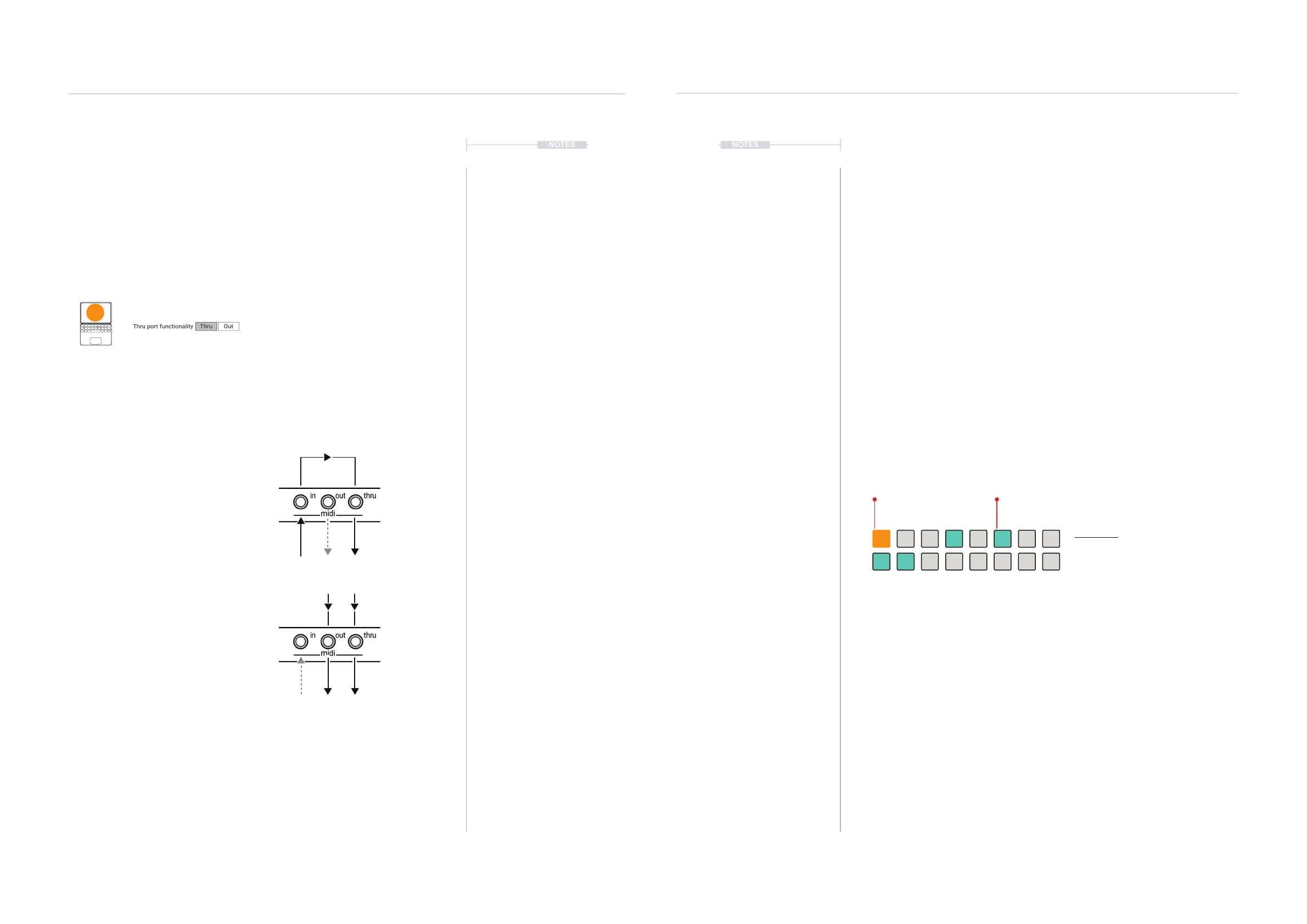
The option to re-congure the MIDI Thru connection as a second MIDI out
is possible within the cong options. Instead of the default behaviour where
the MIDI through reects the MIDI incoming messages, the MIDI thru will
reect the MIDI Out messages.
T-1 Cong - MIDI i/o Page
Thru Port Functionality
When set to ‘Thru’ the MIDI Thru trs port located at the rear of the device will act as
normal, reecting any incoming MIDI messages from the MIDI in connection also to the
thru port. When this is set to ‘Out’ the MIDI Thru trs port at the rear will operate as a
second MIDI output port. This will reect the MIDI messages sent to the out also at the
thru trs port. An additional set of MIDI trs ‘Out2’ options will also be available for
conguration specically of this second output.
MIDI Thru
Default behaviour is for the MIDI in
messages to be also directed to the MIDI
Thru port. MIDI out is independent.
MIDI Out 2
Optional behaviour is for MIDI Out messages
to be also directed to the MIDI Thru port as a
2
nd
Output. MIDI In is independent.
t|so
8.5 MIDI CC Track Overview
So far all the descriptions and guides have focussed on note based
sequencing. T-1 also has the ability to sequence and communicate MIDI
CC - Control Change messages. Tracks by default are note tracks, signied
by the ORANGE ⬛ track colours. CC Tracks are coloured CYAN ⬛. FX
Tracks are coloured MAGENTA ⬛.
What is MIDI CC?
In the standard MIDI protocol CC represents Control Change messages.
Instead of triggering and controlling note data, CC controls a specic
parameter and its values. MIDI implementation for devices usually has CC
assignments pre-mapped to specic parameters.Some devices can be
mapped peer to peer manually. The device documentation will usually
identify and tabulate details of Control Change implementation and which
CC number represents which of its parameters and the ranges applied.
T-1 MIDI CC Track
The CC track mode can be selected when working with control change
sequencing as opposed to note message sequencing.
▌ SELECTING CC MODE FOR A TRACK
1. Press [BANK] to ensure the ‘home’ track view is in focus. The track view
will be shown by default at start up. Currently playing tracks will ash.
2. Track view will be displayed which by default allows editing of notes and
therefore the active tracks will illuminate ORANGE ⬛.
3. Select a track in CC mode. Hold [CTRL] + [VBx] where ‘x’ is the value
button for the track to select. CC Tracks will illuminate CYAN ⬛.
Pressing [CTRL] + [VBx] cycles through note, CC or FX track mode.
Track View
Default ‘home’ view. Shows the selected
track(s) with the value buttons.
ORANGE ⬛
Selected Note Track(s)
CYAN ⬛
Selected CC Track(s)
MIDI & WiFi Connectivity
8
MIDI & WiFi Connectivity
8


 To Next Page