
EasyManua.ls Logo

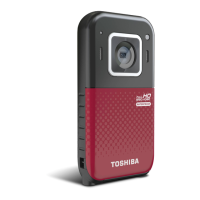
Toshiba CAMILEO BW20 - User Manual

Toshiba CAMILEO BW20
113 pages
Print Icon
To Next Page IconTo Next Page
Loading...
GMAA00395012
06/12
CAMILEO
®
BW20
User’s Guide
English/Español

Table of Contents

Questions and Answers

  • P
    pamelaschwartzAug 16, 2025
    How do I charge the battery of Toshiba Camcorder?
    • Z
      Zachary Gonzalez MDAug 16, 2025
      To charge the Toshiba Camcorder battery, use the AC adapter (sold separately) or the USB cable. Ensure the camcorder is turned OFF. A blinking light indicates charging is in progress, and a steady light indicates charging is complete. The light turns off automatically after the battery is fully charged in AC charging mode.
  • C
    cburgessAug 19, 2025
    What to do if my Toshiba Camcorder cannot take video or photo?
    • G
      gfordAug 19, 2025
      If your Toshiba Camcorder cannot take videos or photos, it might be because the memory is full. Try deleting unnecessary videos or photos, or insert a new Micro SD card. Also, ensure that the power is on by pressing the power button.
  • C
    Cody BergerAug 21, 2025
    Why my Toshiba Camcorder cannot turn on or the power turns off suddenly?
    • W
      William SmithAug 21, 2025
      If your Toshiba Camcorder won't turn on or the power suddenly turns off, the battery pack might be weak or depleted. Try recharging the battery pack. Also, make sure the power is on by pressing the power button.
  • D
    Dr. Melissa AlvarezAug 25, 2025
    Why do some indoor photos look blurry and dark on my Toshiba CAMILEO BW20 Camcorder?
    • M
      Miguel WallaceAug 25, 2025
      If some indoor photos taken with your Toshiba Camcorder look blurry and dark, it could be due to poor lighting. Try taking the photo in better lighting. Also, keep the camcorder and the subject steady for several seconds, or place the camcorder on a flat, steady surface or use a tripod.
  • B
    Brian DavenportAug 28, 2025
    What to do if files on memory card do not display smoothly on Toshiba Camcorder?
    • A
      alanlandryAug 28, 2025
      If the files on the memory card do not display smoothly and the LCD shows a “!” marking on your Toshiba Camcorder, it could mean the Micro SD card is low speed or contains corrupted files. Try formatting the Micro SD card using the camcorder. If the card has a problem and cannot be recognized, replace it with another one or replace the Micro SD card with a high-speed one.
  • B
    Brianna BensonAug 31, 2025
    What to do if my Toshiba CAMILEO BW20 Camcorder is frozen?
    • J
      julia19Aug 31, 2025
      If your Toshiba Camcorder is frozen or unresponsive, press the reset button on the underside of the camcorder.
  • J
    Jordan FritzSep 3, 2025
    How to fix unnatural colors in Toshiba CAMILEO BW20 Camcorder video or photo?
    • M
      Mark FrancoSep 3, 2025
      If the color of the video or photo is not natural on your Toshiba Camcorder, select the proper white balance option to match the light source.
  • M
    Monica BellSep 6, 2025
    What to do if Toshiba CAMILEO BW20 Camcorder cannot be turned on after plugging power adapter?
    • K
      Kelli HardingSep 6, 2025
      If your Toshiba Camcorder cannot be turned on after plugging in the power adapter, ensure that you are using the correct power adapter (sold separately) and that it's properly connected to the power outlet.
  • A
    ajohnsonSep 9, 2025
    How to correct the date on Toshiba Camcorder photos?
    • C
      chloe53Sep 9, 2025
      If the date imprinted on the photo is incorrect on your Toshiba Camcorder, set the date and time in the Setting menu.
  • X
    xwebbSep 12, 2025
    Why do many Autoplay windows pop out when connecting Toshiba CAMILEO BW20 to PC?
    • A
      Angelica MurraySep 12, 2025
      When the Toshiba Camcorder is connected to the PC via USB cable, and many Autoplay windows pop out, do not format the disk or delete the application inside; otherwise, the CAMILEO® UPLOADER application will not function.

Toshiba CAMILEO BW20 Specifications

General IconGeneral
Video Resolution1920 x 1080
Sensor TypeCMOS
Optical Zoom5x
Optical Sensor Resolution5 MP
Screen Size2.7 inches
Memory Card SlotYes
Effective Pixels5 MP
LCD Screen Size2.7 inches
Storage MediaSD/SDHC card
HDMI OutputYes
USBYes
Battery TypeLithium-ion
DisplayLCD
StorageSD/SDHC card
Battery LifeApprox. 2 hours
WaterproofYes
Zoom5x optical

Related product manuals