EN
Introduction Connections Basic Setup Playback
Editing
VCR Functions Others
Function Setup
Recording
59
5 To enter the title name, refer to
“Guide to Editing Title Names” on
this page.
When you finish entering the title name, press
[ENTER].
6 Select “Yes” using [U / D], then
press [ENTER].
The name you edited becomes the title.
7 Press [RETURN] and then [RETURN]
or [STOP S] to exit.
Writing on the disc starts.
It may take awhile to write the data on a disc.
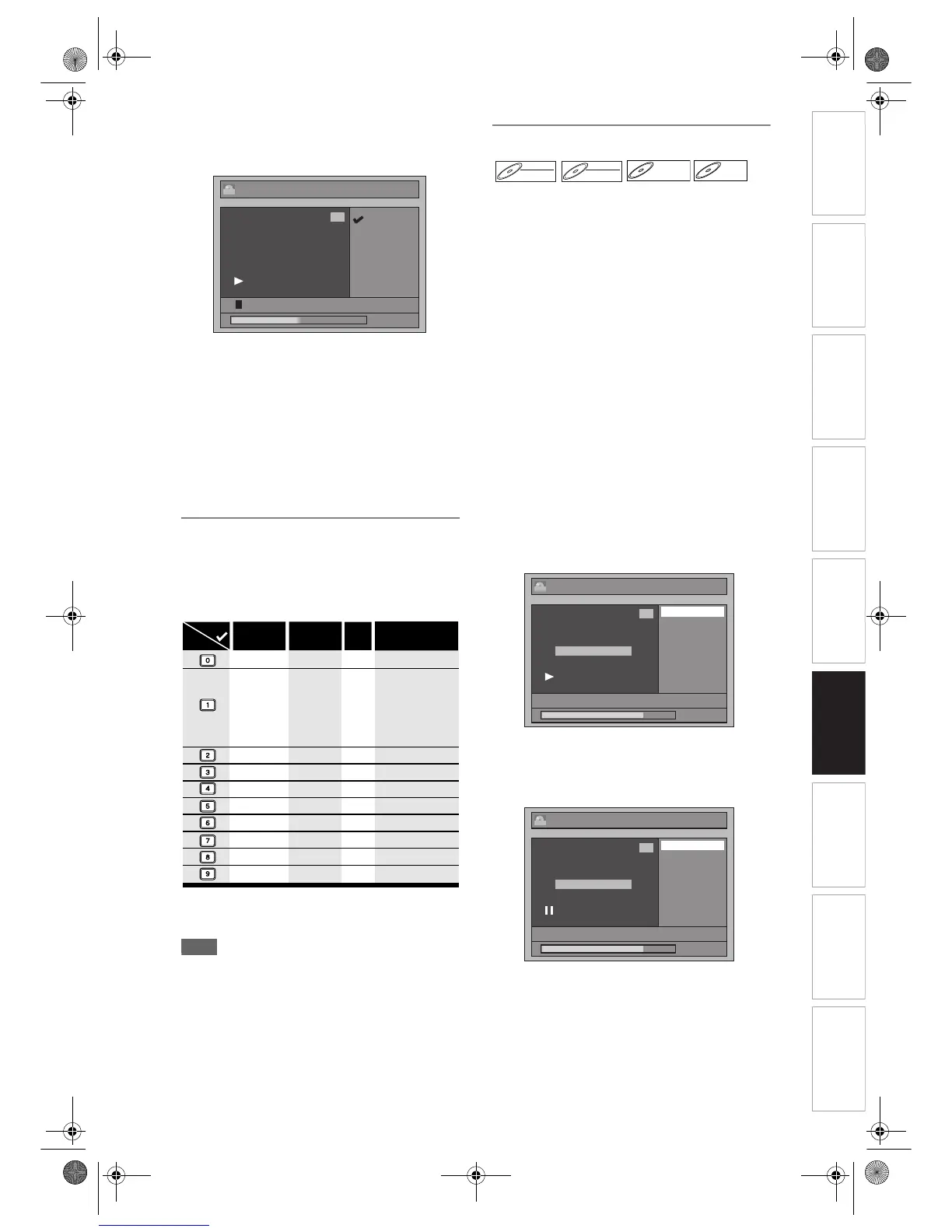
Guide to Editing Title Names
Step 1: Select the desired character set using
[U / D], then press [ENTER].
Step 2: Using the list below as a guide, press
[the Number buttons] repeatedly until the
desired letter appears.
• Characters set will be changed to the “@!?”
automatically if you press [1] after you selected the
“ABC” or “abc” mode.
Note
• To delete letters, press [CLEAR] repeatedly. Press
and hold [CLEAR] to delete all letters.
•Press [L / P] to move the cursor to the left or right.
• You can enter up to 30 letters.
• Unrecognisable characters will be replaced with
asterisks (*). If you delete them, adjoining
characters may change to asterisks (*) or other.
Setting or Clearing Chapter Markers
You can add chapter markers to a title. After a title is
marked with chapters, you can use the chapter
search feature.
You can set a chapter marker anywhere you want.
You cannot set more than 999 chapter markers in the
Playlist.
Press [DVD] first.
1 Follow the steps 1 to 3 in “Editing
Title Name” on page 58.
2 Select “Chapter Mark” using [U / D],
then press [ENTER].
3 Use [SKIP B / F], [REV r],
[FWD f], [PLAY P] and [PAUSE p]
to find the point where you will
create a new chapter marker.
Or, use [SKIP B / F] to find a
chapter marker that you wish to
delete.
4 Select “Add” or “Delete” accordingly
using [U / D], then press [ENTER].
e.g.) VR mode DVD-RW disc Original
You cannot delete the first chapter of a title.
5 Select “Yes” using [U / D], then
press [ENTER].
e.g.) VR mode DVD-RW disc Original
A chapter marker is added.
Adding a chapter marker:
If you select “Add” at step 4, a new chapter marker is
created at the point you specified.
Deleting a chapter marker:
If you select “Delete” at step 4, the chapter marker
you selected is deleted.
Edit -
Edit Title Name
1
ORG
0 : 00 : 59
A B C
a b c
1 2 3
@ ! ?
1/01/07 12:00 P01 LP
0
ABC
DEF
GHI
JKL
MNO
PQRS
TUV
WXYZ
abc
def
ghi
jkl
mno
pqrs
tuv
wxyz
! ” # $ % & ’ ( )
∗
+ , - . / : ; < = >
? @ [ ] ^ _ { | }
2
3
4
5
6
7
8
9
0
1
ABC
abc @ ! ?
123
––
–
–
–
–
–
–
–
–
<space> <space> <space>
Press
Select
DVD-RW



 To Next Page
 Loading...