8.Install Disc
102 Installing the printer drivers by using the individual installers
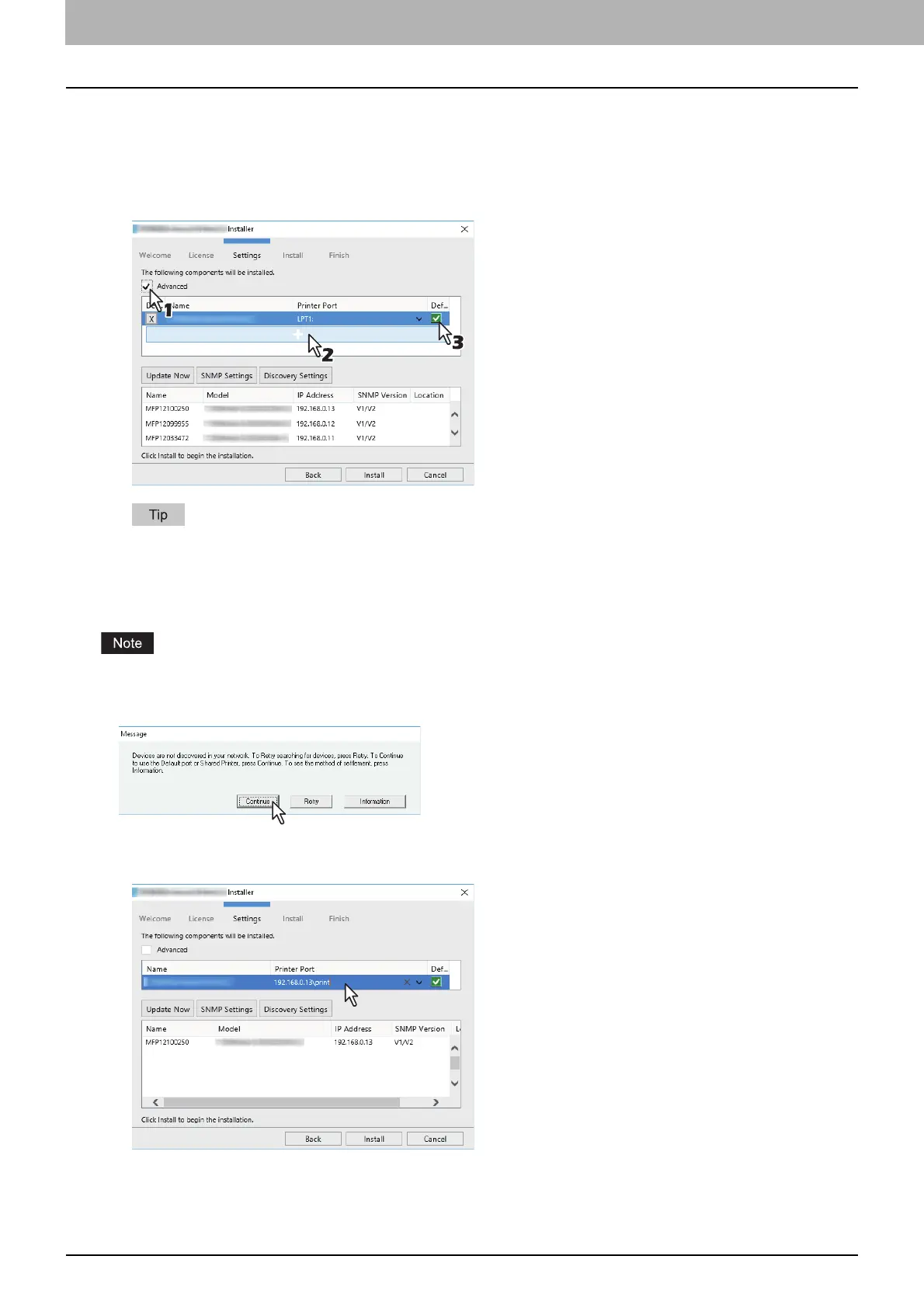
When adding another equipment from the results
1
Select the [Advance] check box.
2
Click the equipment to be added from the results and then [+].
3
Check the [Default] check box of the equipment used as the default printer.
Remove any equipment in which no printer driver is installed by clicking [X].
SMB printing
Install a printer driver by specifying the SMB port manually.
Before starting the configuration, make sure that this equipment is connected to a network and also that its power
is turned ON.
If this equipment is not discovered over the network, a dialog box indicating this appears.
6
Enter a network path shown below in [Printer port].
\\<IP address>\print
7
Click [Install].



 To Next Page
 Loading...