2.PRINTING FROM WINDOWS
Setting Up Print Options 69
2 PRINTING FROM WINDOWS
Setting: [Advanced] tab
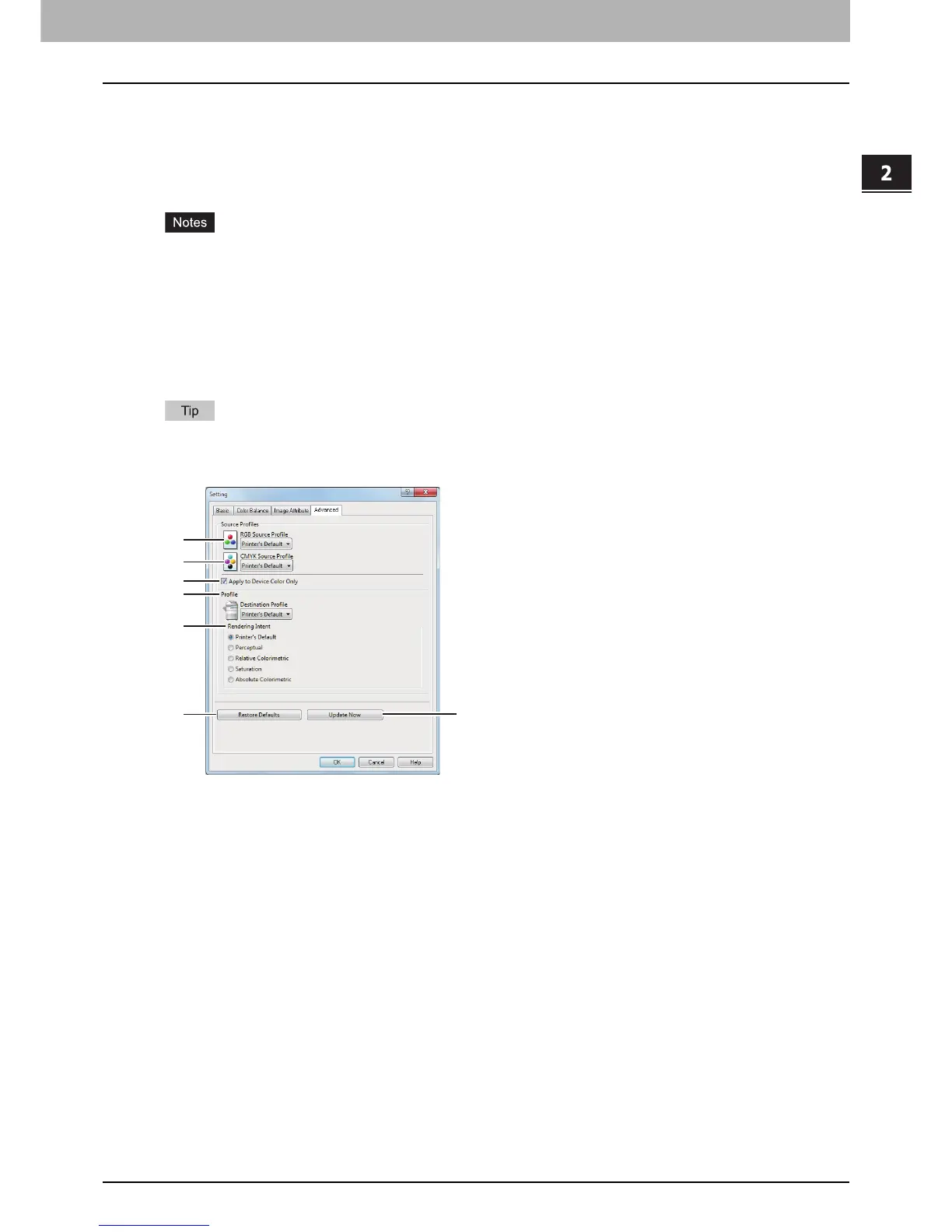
In the [Advanced] tab of the [Setting] dialog box, you can set the functions below.
The color profile data of this equipment may be updated. If the SNMP communication between this equipment
and your computer is available, open the [Advanced] tab menu and then click [Update Now] to obtain the
updated color profile data.
This option is available only when you have a multifunctional digital color system (color MFP). The
setup items differ depending on the model. For setup items other than below, refer to the corresponding
Printing Guide / User’s Manual Advanced Guide.
The [Advanced] tab menu is displayed when [Advanced] is selected in [Image Quality]. The [Advanced]
option is available only for the printer drivers below.
- Universal Printer 2 (PostScript)
- Universal PS3
- Universal XPS
Color profiles can also be set from the TopAccess menu. For the detailed instructions on how to set color
profiles from the TopAccess menu, refer to the TopAccess Guide.
1) RGB Source Profile
This selects the RGB source profile. When you obtained color profile data from this equipment, the RGB
source profile data of this equipment appear.
2) CMYK Source Profile
This selects the CMYK source profile. When you obtained color profile data from this equipment, the
CMYK source profile data of this equipment appear.
3) Apply to Device Color Only
Select this check box when you give priority to color profiles embedded in the image.
4) Destination Profile
This selects the destination profile. When you obtained color profile data from this equipment, the
destination profile data of this equipment appear.
5) Rendering Intent
This selects the method for color space conversion when you print images.
- Printer’s Default — Color space conversion is performed according to the default profile.
- Perceptual — This is recommended for photo images.
- Relative Colorimetric — More original colors can be retained than those when you select [Perceptual].
- Saturation — This is recommended when the vividness of colors is more important than their correct
reproduction. It is useful for graphic charts.
- Absolute Colorimetric — Original colors can be retained even on colored paper.








 To Next Page