2.PRINTING FROM WINDOWS
Setting Up Print Options 75
2 PRINTING FROM WINDOWS
7) Angle
Enter the degree of angle for rotating the watermark text. The angle can be set from -90 to 90 degrees in
units of 1 degree. You can also set the degree of the angle by moving the scroll bar.
8) Solid
Select this to print a solid type of watermark.
9) Draw as Outline
Select this to print a outline type of watermark.
10)Transparency
Select this to print a transparent watermark. When you select this, set the brightness from 0 (darker) to
100% (lighter) in units of 1%. You can also set the brightness using the scroll bar.
11)[Restore Defaults]
Click this to restore the settings displayed in the [Watermark] dialog box to the original factory defaults.
Multiple Overlays
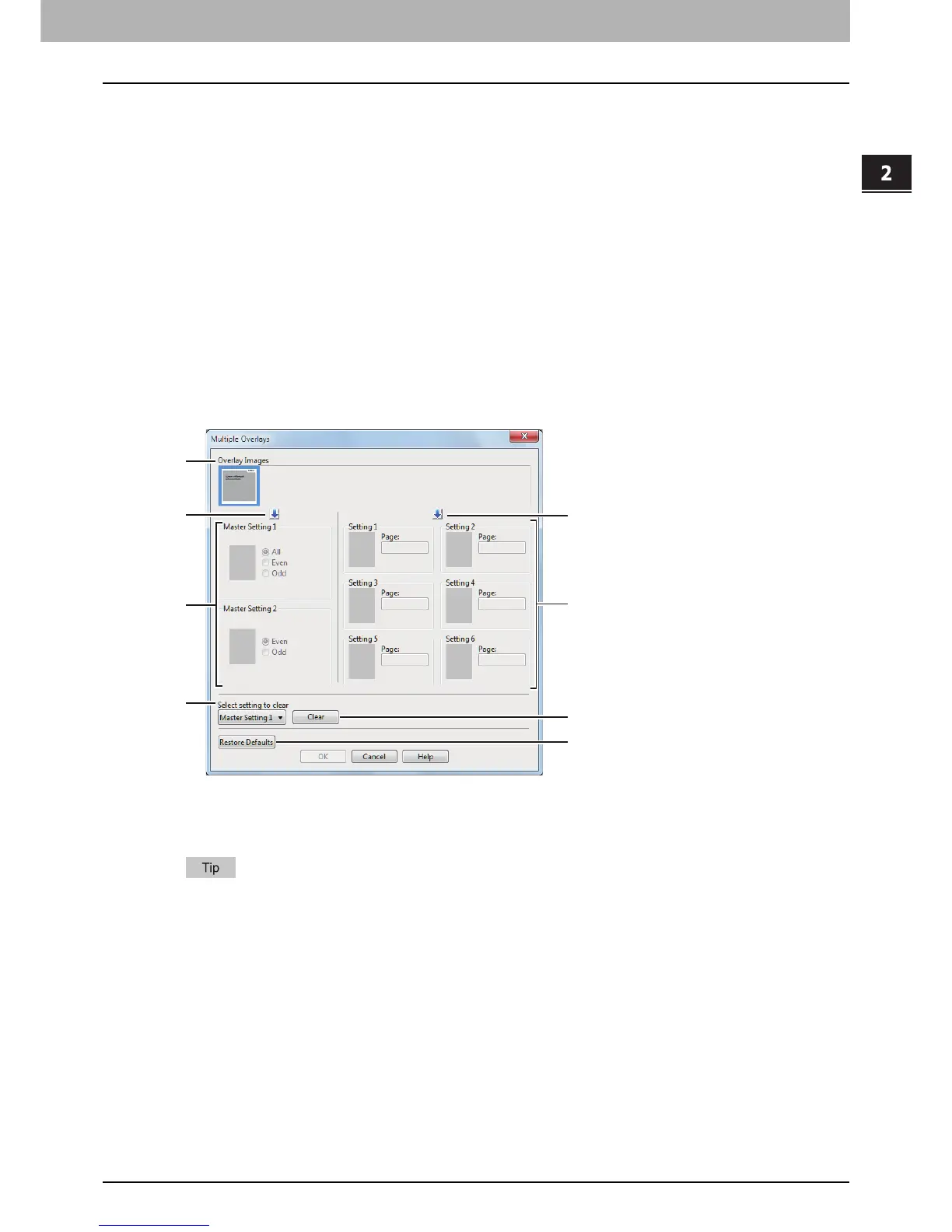
If you click [Details] when [Multiple Overlays] or the desired overlay is selected in the [Overlay Image] box, the
[Multiple Overlays] dialog box appears. Set which overlay image is applied to which page in this dialog box.
1) Overlay Images
The registered overlay images are displayed in a thumbnail. Select the desired overlay image.
You can drag and drop an overlay image in the thumbnail to the desired overlay group (Master Setting
1/2 or Setting 1/2/3/4/5/6) to set directly. If another overlay image is already set in the selected group,
the overlay image is overwritten.
2) [ ] (Master Setting)
This sets the overlay image selected in the [Overlay Images] box in the [Master Setting] field. Selection is
switched in the order of [Master Setting 1] to [Master Setting 2] every time you click this.
3) [ ] (Setting)
This sets the overlay image selected in the [Overlay Images] box in the [Setting] field. Selection is switched
in the order of [Setting 1], [Setting 2], [Setting 3], [Setting 4], [Setting 5] and [Setting 6] every time you click
this.








 To Next Page