EasyManua.ls Logo

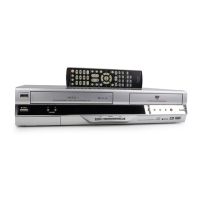
Toshiba RDXV50KF - User Manual

Toshiba RDXV50KF
84 pages
Print Icon
To Next Page IconTo Next Page
Loading...
1
EN
SECAMPA L
DUBBING
VCR REC
VCR HDD DVD HDD DVD
HDD & DVD / VIDEO CASSETTE RECORDER
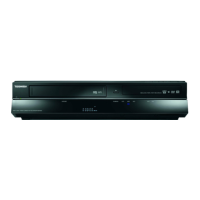
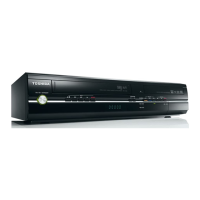
RDXV50KF
OWNER’S MANUAL
Introduction Connections Playback Editing OthersFunction SetupRecording VHS Functions
Basic Setup /
TV View Operation
© 2010 Toshiba Corporation
For Customer Use:
Carefully read the Model No. and Serial No. located at the
back of the unit and enter the information below. Retain
this information for future reference.
Model No. __________________________
Serial No. __________________________
E3TK7FD_EN.book Page 1 Wednesday, February 17, 2010 8:18 PM

Table of Contents

Questions and Answers

  • E
    Erin OlsonAug 19, 2025
    How to troubleshoot Toshiba RDXV50KF DVD VCR Combo when there is no picture, sound or menu on the screen?
    • S
      Sharon CruzAug 19, 2025
      If you're experiencing a blank screen with no picture, sound, or menu, first check that all connections are securely and correctly made. Inspect the cables for any damage. Ensure that you've selected the correct external input channel on your TV. Also, verify that you have completed the “Channel” setting.
  • G
    Gregg WhiteAug 21, 2025
    Why won't my Toshiba RDXV50KF DVD VCR Combo turn on?
    • D
      Daniel CollierAug 22, 2025
      If your Toshiba DVD VCR Combo isn't powering on, make sure the AC power cord is securely connected. Also, check the remote control batteries, as weak batteries can prevent the unit from turning on.
  • P
    pennybarnesAug 25, 2025
    Why does my Toshiba RDXV50KF DVD VCR Combo turn on automatically?
    • W
      wendy52Aug 25, 2025
      The Toshiba DVD VCR Combo might be turning on automatically because it is set to turn on 2 seconds before a timer recording.
  • J
    John HardyAug 26, 2025
    Why can't I switch the DV audio signal on my Toshiba RDXV50KF DVD VCR Combo?
    • J
      Jennifer ThomasAug 26, 2025
      When recording with the DVC, the recording audio signal can be set to 12 bits or 16 bits. However, when 16-bit recording mode is selected, the audio signal cannot be switched. To record an audio signal, set it to 12 bits.
  • S
    scottbernardAug 28, 2025
    Why certain DVC functions do not operate on my Toshiba DVD VCR Combo?
    • D
      Debra ShermanAug 28, 2025
      Some functions may not operate depending on the type of DVC. For example, if the DVC does not support slow playback mode, the slow playback function is disabled. With DV (AV3), the disc display menu does not appear unless disc playback is executed.
  • A
    Amanda HernandezAug 30, 2025
    Why can't I perform clock and channel settings on my Toshiba RDXV50KF?
    • S
      Sarah KingAug 30, 2025
      If you are unable to set the clock or channel, it may be because a recording is currently in progress. These operations are disabled during recording.
  • R
    Ricky WeeksSep 1, 2025
    How to fix disc error on Toshiba RDXV50KF?
    • A
      amayoSep 1, 2025
      If you see a 'Disc Error' message on your Toshiba DVD VCR Combo, it could be due to a couple of reasons. First, you might have inserted a disc that the unit can't play. Make sure you're using a standard disc. Another common issue is inserting the disc upside down. The labeled side should always face up.
  • A
    Andrew CastroSep 3, 2025
    What to do if my Toshiba RDXV50KF DVD VCR Combo says disc is full?
    • K
      Katherine WilliamsSep 4, 2025
      If your Toshiba DVD VCR Combo displays a 'Disc is full' error, it means there's no more space to record on the disc. The solution is to insert a recordable disc that has enough free space. Alternatively, you can delete any unnecessary original titles from the disc to free up space.
  • P
    Pamela OrrSep 5, 2025
    Why does my Toshiba DVD VCR Combo say region error?
    • H
      hvillegasSep 6, 2025
      If your Toshiba DVD VCR Combo shows a 'Region Error,' it means the DVD-video you're trying to play is not authorized for playback in your region. To resolve this, use a DVD-video with region codes 2 or ALL.
  • A
    amy45Sep 8, 2025
    What to do if Toshiba RDXV50KF DVD VCR Combo says cannot record on this disc?
    • B
      brittany01Sep 8, 2025
      If your Toshiba DVD VCR Combo displays the message 'Cannot record on this disc,' there are several possible reasons: * You might be trying to record onto a disc that isn't recordable or doesn't meet the recording requirements. Ensure you're using a recordable disc that meets the necessary requirements. * The disc could be dirty. Try cleaning it with a cleaning cloth. * The disc might be damaged. In this case, you'll need to replace it. * If you're trying to record onto a VR mode DVD-RW disc that already contains recordings from another recorder, the disc may need to be formatted.

Summary

Introduction

Precautions

Safety warnings to prevent fire, electric shock, and eye injury from laser.

Connections

Connecting to a TV

Instructions for connecting the unit to a TV via Antenna, SCART, Component, and HDMI.

Using an HDMI Compatible Port

Guide to connecting and using HDMI for video and audio output.

Connecting to External Equipment

Connecting various external audio-video devices to the unit.

Basic Setup; TV View Operation

Initial Setting

Step-by-step guide for initial setup, language, and country selection.

Channel Setting

Procedures for tuning and setting up TV channels, including auto and manual tuning.

TV View Operation

Selecting channels and audio modes for TV viewing.

Recording

Information on DVD Recording

Details on disc types, formats, and recording capabilities.

Restrictions on Recording

Information on copy protection and limitations for recording.

Making Discs Playable in Other DVD Players (Finalise)

Finalising discs for compatibility with other players.

Basic Recording and One-touch Timer Recording (OTR)

Performing basic recording and setting up one-touch timer recordings.

Timer Recording

Detailed instructions for setting up timed recordings.

Playback

Basic Playback

General playback procedures for HDD and DVD content.

Playing Back an HDD; DVD-RW; DVD-R;DVD+RW; DVD+R Disc

Steps to play back various disc formats.

Playing Back an Audio CD or a Disc with MP3;JPEG; DivX Files

Playing back audio, image, and video files from discs.

Playing Back a USB Device with MP3; JPEG;DivX Files

Playing back media files from a USB device.

DivX VOD

Accessing purchased or rented DivX VOD content.

Special Playback

Features like resume playback, fast forward/reverse, and pause.

Chasing Playback during Recording

Playing back recorded content while recording continues.

Search

Functions for searching titles, chapters, tracks, and by time.

Editing

Guide to a Title List

Overview of the title list for managing and editing recorded content.

Deleting Titles

Removing unwanted titles from HDD or discs.

Editing Title Names

Renaming titles for better organization.

Adding or Deleting Chapter Markers Manually

Manually adding or removing chapter markers.

Protecting Titles

Preventing accidental editing or deletion of titles.

Deleting Parts of Titles

Removing specific segments (scenes) from a title.

Function Setup

General Setting

Configuration options for playback, display, video, and system settings.

Parental Lock

Setting parental control levels for DVD playback.

HDMI

Configuring HDMI output settings.

DVB Setting

Settings for digital tuner operation, including parental locks and language.

VHS Functions

Playback

How to play back VHS tapes.

Basic Recording and One-touch Timer Recording (OTR)

Performing basic VHS recording and setting up one-touch timer recordings.

DVC to VHS Dubbing

Dubbing content from a DVC camcorder to VHS tapes.

Others

Troubleshooting

General troubleshooting guide for common unit problems.

Troubleshooting for Error Messages

Specific error messages and their corresponding solutions.

Language Code

A list of language codes used for various settings.

Specifications

Technical specifications for the unit's hardware and features.

Toshiba RDXV50KF Specifications

General IconGeneral
Analog signal format systemNTSC
Audio formats supportedMP3
Image formats supportedJPG
Audio decodersDolby Digital
HDD capacity160 GB
Disc types supportedCD-R, CD-RW, DVD+R, DVD+RW, DVD-R, DVD-RW
SCART ports quantity2
USB 2.0 ports quantityUSB 2.0 ports have a data transmission speed of 480 Mbps, and are backwards compatible with USB 1.1 ports. You can connect all kinds of peripheral devices to them.
Digital audio coaxial out1
Digital audio optical out0
Electronic Program Guide (EPG)Yes
Device typeDVD recorder
Form factorSet-top
Product colorBlack
Power consumption (standby)1 W
Power consumption (typical)48 W
Dimensions (WxDxH)435 x 388 x 99.5 mm
Weight and Dimensions IconWeight and Dimensions
Weight5800 g

Related product manuals