8 of 12
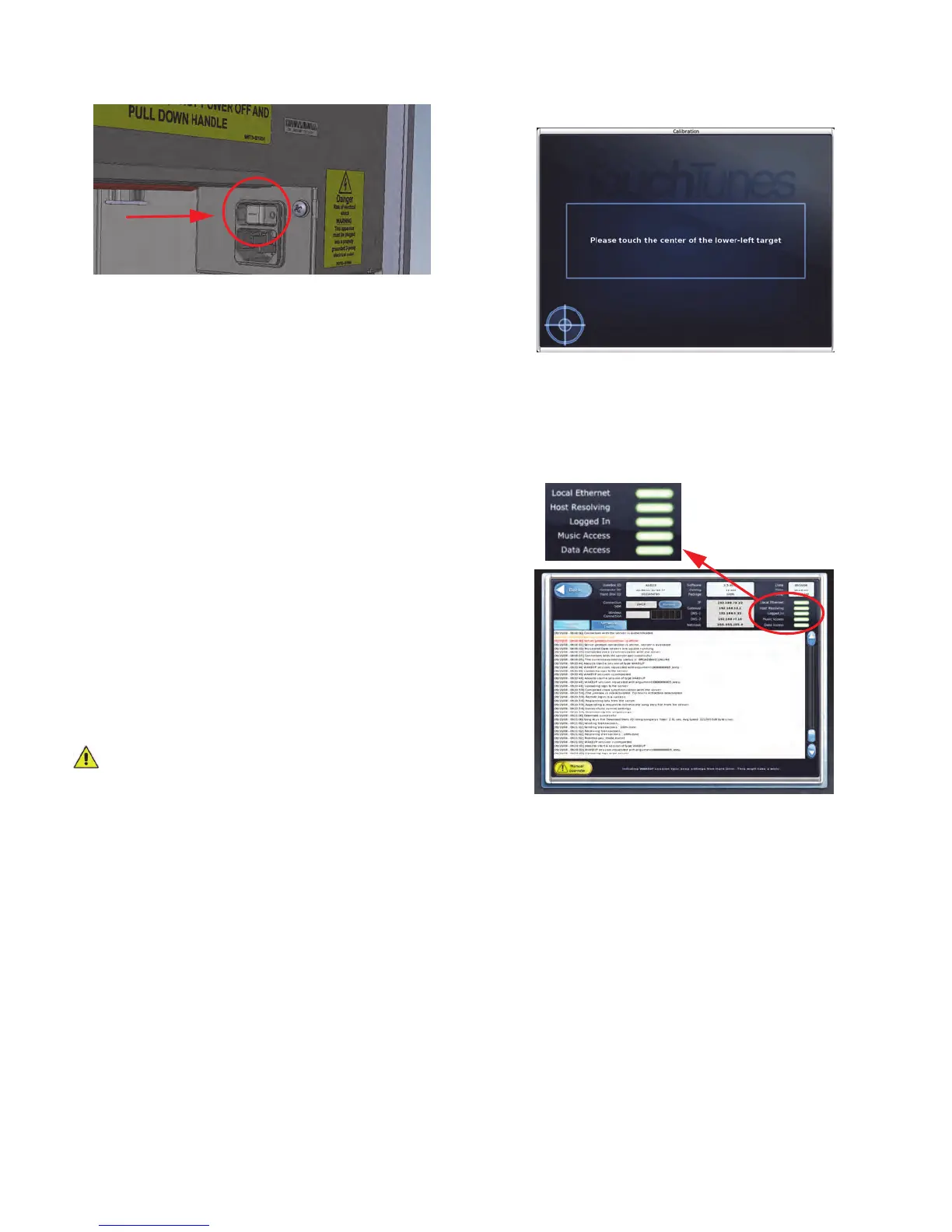
2. Set the power rocker switch on the Playdium’s power
strip to ON.
Step 11: Close the Payment Panel
1. Close the Playdium payment panel by gently pulling it
up and shut, then pressing on its front face to engage
the locking mechanism.
2. Secure the payment panel by using the key to lock its
case.
Step 12: Enable the Screen
When you power up Playdium for the first time, it
automatically goes into night mode: the computer and
other internal components of Playdium are running, but
the touchscreen, audio system and lights for Playdium are
disabled. Bring Playdium out of night mode and activate its
screen before setting it up.
This is done by pressing the power button on the bottom of
the jukebox.
When you press this button, the touchscreen, lights and
audio system for Playdium are activated.
The Software initialization screen appears indicating that
Playdium is starting the installation process.
You can now use the touch screen to activate Playdium
and configure its settings using the system software.
Follow the prompts on the screen to complete activation.
Step 13: Activate Playdium
WARNING: Booting the system can take up to ten
(10) minutes, and the screen can be blank for up to 90
seconds during the installation procedure.
It is extremely important that you do not power down
or attempt to reboot Playdium during this procedure,
or you risk corrupting and rendering the hard drive
unusable.
Activating Playdium involves calibrating the touch screen,
and configuring its settings by following the on-screen
instructions.
Calibrate the Touch Screen
After the software installation process completes, the first
calibration screen appears.
Initial Settings
In the settings screens, you select the settings for
Playdium, such as primary language, calling window and
type of broadband connection.
After you specify the settings, a Communications Network
status lights indicator with activity messages appears.
What the network status lights indicate:
• Local Ethernet: whether an ethernet cable is properly
connected to the jukebox, and the jukebox is receiving
a signal from it.
• Host Resolving: whether the jukebox is connected to
the internet.
• Logged In: whether the jukebox is logged into the
TouchTunes server. The jukebox must be able to log
into the TouchTunes server to receive activation
information and perform transactions, such as
returning daily sales information.
• Music Access: whether the jukebox can access
music from the TouchTunes server. The jukebox must
have music access to download new songs.


 To Next Page