Need help?
Do you have a question about the TP-Link Aginet AXE7800 and is the answer not in the manual?
Connect modem, router, and power, then verify LED status for correct hardware setup.
Connect your computer and access the router via web browser to complete initial configuration.
Switch the router to Access Point mode to extend an existing network using step-by-step instructions.
Manage your network easily through the Aginet app by downloading and installing it from app stores.
Details on the function of WPS, Wi-Fi, and Reset buttons on the router.
Description of LED indicators for Power, 2.4GHz, 5GHz, 6GHz, Internet, Ethernet, USB, and WPS.
Utilize the USB port for easy file and media sharing with multiple devices.
Answers to common issues like accessing the management page or forgetting passwords.
Guidelines for safe operation, disposal, recycling, and compliance with EU and UK regulations.
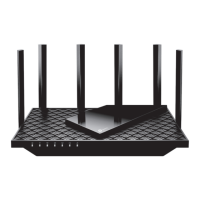
This document describes the setup, configuration, and features of the TP-Link AXE7800 Tri-Band Wi-Fi 6E Router, designed to provide high-speed wireless connectivity and network management capabilities. It also outlines how to use the device in an Access Point mode and provides information on its USB features, LED indicators, button functionalities, and frequently asked questions.
The TP-Link AXE7800 Tri-Band Wi-Fi 6E Router serves as a central hub for your home or office network, enabling internet access and local network communication for multiple devices. It supports the latest Wi-Fi 6E standard, offering tri-band connectivity (2.4GHz, 5GHz, and 6GHz) for enhanced performance and reduced congestion. The router can function as a primary router, connecting directly to your modem to provide internet access, or it can be configured as an Access Point to extend an existing wired network with wireless capabilities.
As a primary router, it connects to your internet service provider's modem via its WAN port, distributing internet access wirelessly and through its LAN ports. The router is equipped with multiple Ethernet ports (LAN1, LAN2, LAN3) for wired connections and a WAN port for internet input. A USB 3.0 port is also included, expanding its functionality for file sharing and media serving. The device is designed for easy setup, guiding users through a quick installation process that involves connecting hardware, verifying LED indicators, and configuring network settings via a web browser or the Aginet app.
In Access Point mode, the router transforms into a wireless extender, connecting to an existing wired router via its 2.5G WAN port. This allows it to broadcast a Wi-Fi signal, expanding the coverage of your current network without creating a separate subnet. This mode is particularly useful for larger homes or offices where a single router might not provide adequate wireless coverage. The setup for Access Point mode involves connecting the device to the existing wired router, accessing its web management page, and selecting the "Access Point" operation mode.
The router's tri-band capability means it operates on three distinct frequency bands: 2.4 GHz, 5 GHz, and 6 GHz. The 2.4 GHz band offers broader coverage and better penetration through walls, suitable for general internet use and older devices. The 5 GHz band provides faster speeds and lower latency, ideal for demanding applications like online gaming and 4K video streaming. The 6 GHz band, leveraging the Wi-Fi 6E standard, offers even higher speeds and lower latency in environments with compatible devices, as it operates in a less congested spectrum. This multi-band approach allows the router to efficiently manage traffic and provide optimal performance for a diverse range of connected devices.
The router is designed for user-friendly operation, starting with a straightforward hardware connection process. Users are instructed to connect their modem to the router's WAN port, connect the power adapter, and then power on the router. LED indicators provide visual feedback on the status of the power, Wi-Fi bands (2.4GHz, 5GHz, 6GHz), internet connection, and Ethernet ports, allowing users to quickly verify proper hardware setup.
Initial configuration can be done either through a web browser or the Aginet app. For web browser setup, users connect a computer to the router (wired or wirelessly using the default SSID and password found on the device label), open a browser, and navigate to http://tplinkwifi.net or http://192.168.0.1. The interface prompts users to create a password and then guides them through a Quick Setup wizard to complete the initial network configuration, including setting up Wi-Fi names and passwords.
The Aginet app offers an alternative and convenient way to manage the router. Available on both Apple App Store and Google Play, the app allows users to set up, monitor, and control their network from a smartphone or tablet. This includes managing connected devices, configuring Wi-Fi settings, and performing other administrative tasks remotely. The app simplifies network management, making it accessible even for users who are less familiar with traditional web interfaces.
The USB 3.0 port on the router significantly enhances its utility by enabling various sharing features. Users can connect a USB storage device (like a hard drive or flash drive) to the router to create a centralized storage solution. This allows for local storage sharing, where files and media can be accessed by all devices connected to the network. Additionally, the router can function as a media server, streaming content from the connected USB drive to compatible devices such such as smart TVs, game consoles, or media players. For remote access, the router supports FTP server functionality, allowing users to access their files from outside the local network over the internet. These features transform the router into a versatile home server, facilitating content sharing and remote data access.
The router also includes physical buttons for quick actions. The WPS (Wi-Fi Protected Setup) button allows for easy and secure connection of WPS-compatible devices without needing to enter the Wi-Fi password manually. The Wi-Fi button can be pressed for more than two seconds to toggle the wireless function on or off, providing a quick way to control Wi-Fi availability. These buttons offer convenient shortcuts for common tasks, enhancing the user experience.
The router incorporates several features to facilitate maintenance and troubleshooting. LED indicators are crucial for diagnosing issues. For example, if the Internet LED is orange, it indicates that the internet connection is not available, prompting users to check their modem or internet service provider. If the Wi-Fi LED is off, it suggests that the wireless function might be disabled, and users can press the Wi-Fi button to re-enable it. These visual cues help users quickly identify the source of a problem.
The web management page and the Aginet app provide comprehensive tools for network monitoring and configuration. Users can access detailed network status, view connected devices, and modify various settings. This includes changing Wi-Fi passwords, configuring advanced network settings, and updating firmware. Regular firmware updates are important for security and performance, and the router's interface typically provides an option to check for and install new firmware versions.
For troubleshooting common issues, the manual provides a FAQ section. For instance, if a user cannot access the web management page, the FAQ suggests rebooting the router, checking IP settings, trying a different browser, or disabling/enabling the network adapter. If internet access is lost, it advises checking modem connections, verifying internet functionality with a direct connection to the modem, and configuring WAN settings or MAC clone settings through the router's interface.
In cases where users forget their wireless password, the manual explains that the default password can be found on the router's label. If the password has been changed, it can be retrieved or reset via the web management page. For more severe issues or forgotten web management page passwords, the router can be restored to its factory default settings. This can be done by pressing and holding the physical Reset button on the router for more than five seconds until the Power LED blinks, or by using the "Factory Restore" option within the "System Tools > Backup & Restore" section of the web management page. Resetting the router will erase all custom configurations and revert it to its original settings, requiring a re-setup.
The device also includes safety information, advising users to keep the device away from water, fire, humidity, and hot environments. It warns against disassembling, repairing, or modifying the device and recommends using only the provided or recommended chargers and USB cables. These guidelines are crucial for ensuring the longevity and safe operation of the device. The manual also provides information on EU and UK Declarations of Conformity, and GNU General Public License Notice, ensuring transparency regarding regulatory compliance and open-source software usage.
 General
| Wi-Fi Standard | Wi-Fi 6E (802.11ax) |
|---|---|
| Frequency Bands | 2.4 GHz, 5 GHz, 6 GHz |
| Maximum Wi-Fi Speed | 7800 Mbps |
| USB Ports | 1x USB 3.0 port |
| Working Modes | Router Mode, Access Point Mode |
| Memory | 512 MB RAM, 128 MB Flash |
| Ethernet Ports | 1x 2.5 Gbps WAN/LAN port, 4x Gigabit LAN ports |
| Processor | 1.7 GHz Quad-Core |
| Security | WPA3 |
| VPN Support | Yes |
| Mesh Support | Yes |
| Antennas | 6 external antennas |

 To Next Page