100
T8. What can I do if I cannot find my wireless network or I cannot connect
the wireless network?
¾ If you fail to find any wireless network, follow the steps below:
1. Make sure the wireless function is enabled if you’re using a laptop with built-in
wireless adapter. You can refer to the relevant document or contact the laptop
manufacturer.
2. Make sure the wireless adapter driver is installed successfully and the wireless
adapter is enabled. You can refer to the relevant document or contact the wireless
adapter manufacturer.
¾ If you can find other wireless network except your own, follow the steps below:
1. Check the Wi-Fi LED indicator on your wireless router/modem;
2. Make sure your computer/device is still in the range of your router/modem, move
closer if it is currently too far away;
3. Go to Basic > Wireless page, and check the wireless settings, double check your
Wireless Name and the SSID is not hidden.
4. Connect to wireless network.
¾ If you can find your wireless network but fail to connect, follow the steps below:
1. Authenticating problem, password mismatch.
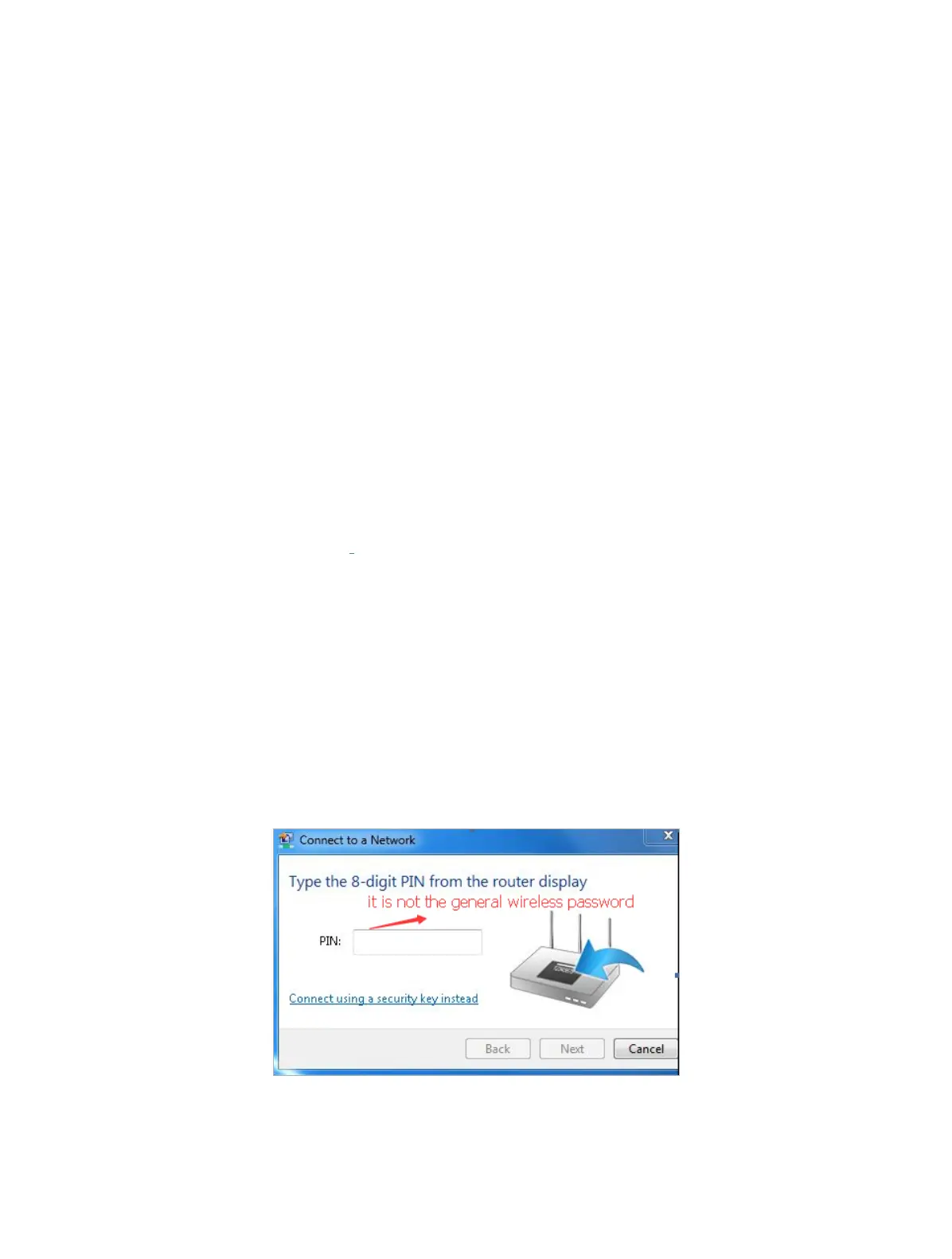
1 ) Sometimes it will ask you to type in a PIN number when you connect to the
wireless network for the first time. This PIN number is different from the Wireless
Password/Network Security Key, usually you can only find it on the label of your
modem router.
2 ) If you cannot find the PIN or PIN failed, you may choose “Connecting using
a security key instead”, and then type in the Network Security Key/Wireless
Password;













 To Next Page