15
Chapter 4
Set Up Internet Connections
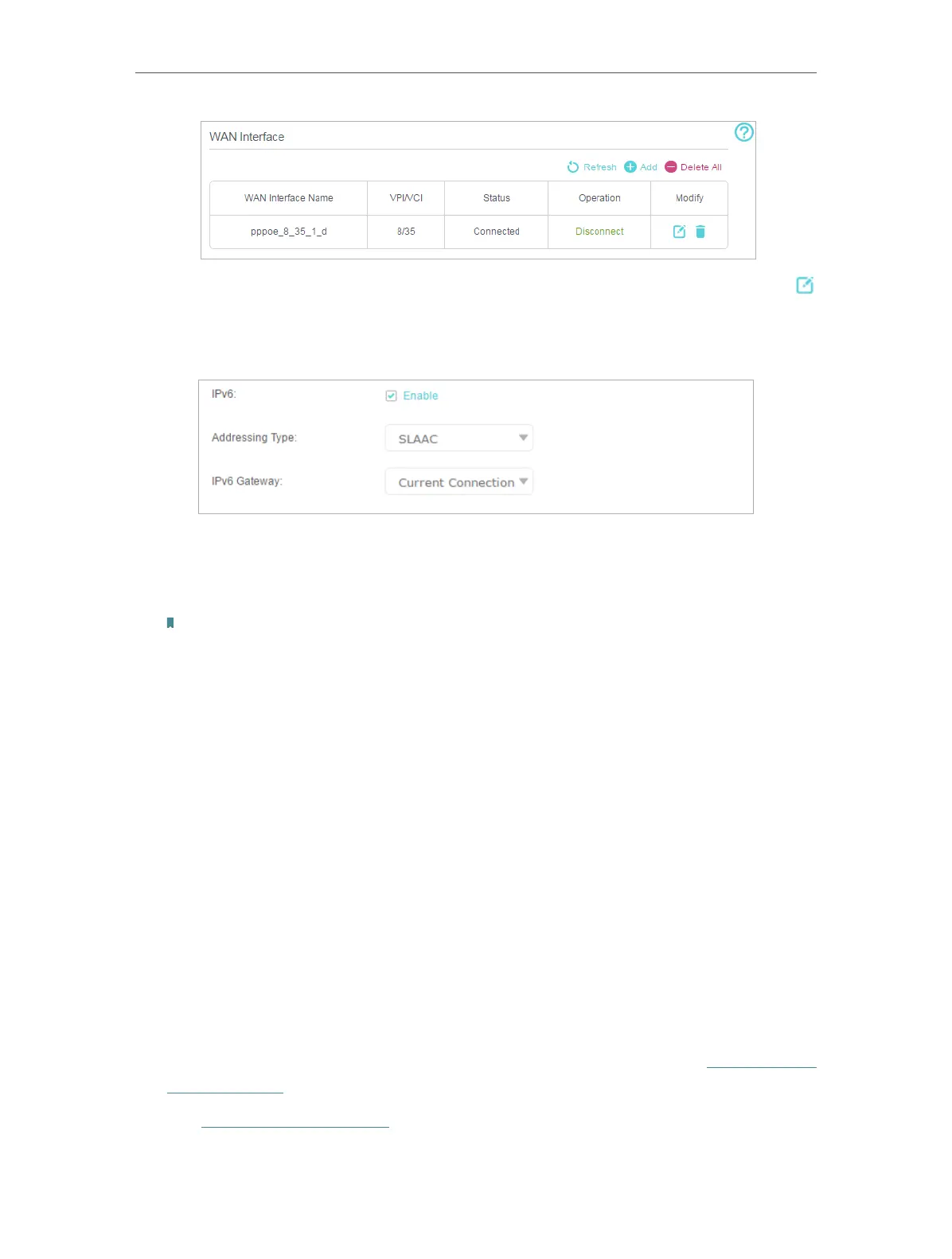
4. Select your WAN Interface Name (Status should be Connected) and click the
(Edit) icon.
5. Scroll down the page, enable IPv6, and configure the IPv6 parameters.
• Addressing Type: Consult your ISP for the addressing type, DHCPv6 or SLAAC.
SLAAC is the most commonly used addressing type.
• IPv6 Gateway: Keep the default setting as Current Connection.
Note: If your ISP has provided the IPv6 address, click Advanced to reveal more settings. Check to use IPv6
specified by ISP and enter the parameters provided by your ISP.
6. Click OK to make the settings effective. Now IPv6 service is available for your
network.
4. 5. Wireless Router Mode
The modem router supports two operation modes: DSL Modem Router Mode and
Wireless Router mode. The modem router uses the DSL Modem Router Mode by
default, and you can change the mode according to your needs.
If you already have a modem or your internet comes via an Ethernet jack on the wall, you
can set up the modem router as a regular wireless router to share the internet.
1. Find the WAN port (labeled as “WAN” or “LAN4/WAN”) on the modem router, and
connect it to your existing modem or the Ethernet jack on the wall. Then connect
the power adapter and turn on the modem router. If you connect an existing modem,
reboot it to get the modem router connected to the internet.
2. Connect your computer to the modem router. For details, refer to Connect Your
Modem Router.
3. Visit http://tplinkmodem.net, and log in with the password you set for the modem
router.













 To Next Page