8
Chapter 2
Connect the Hardware
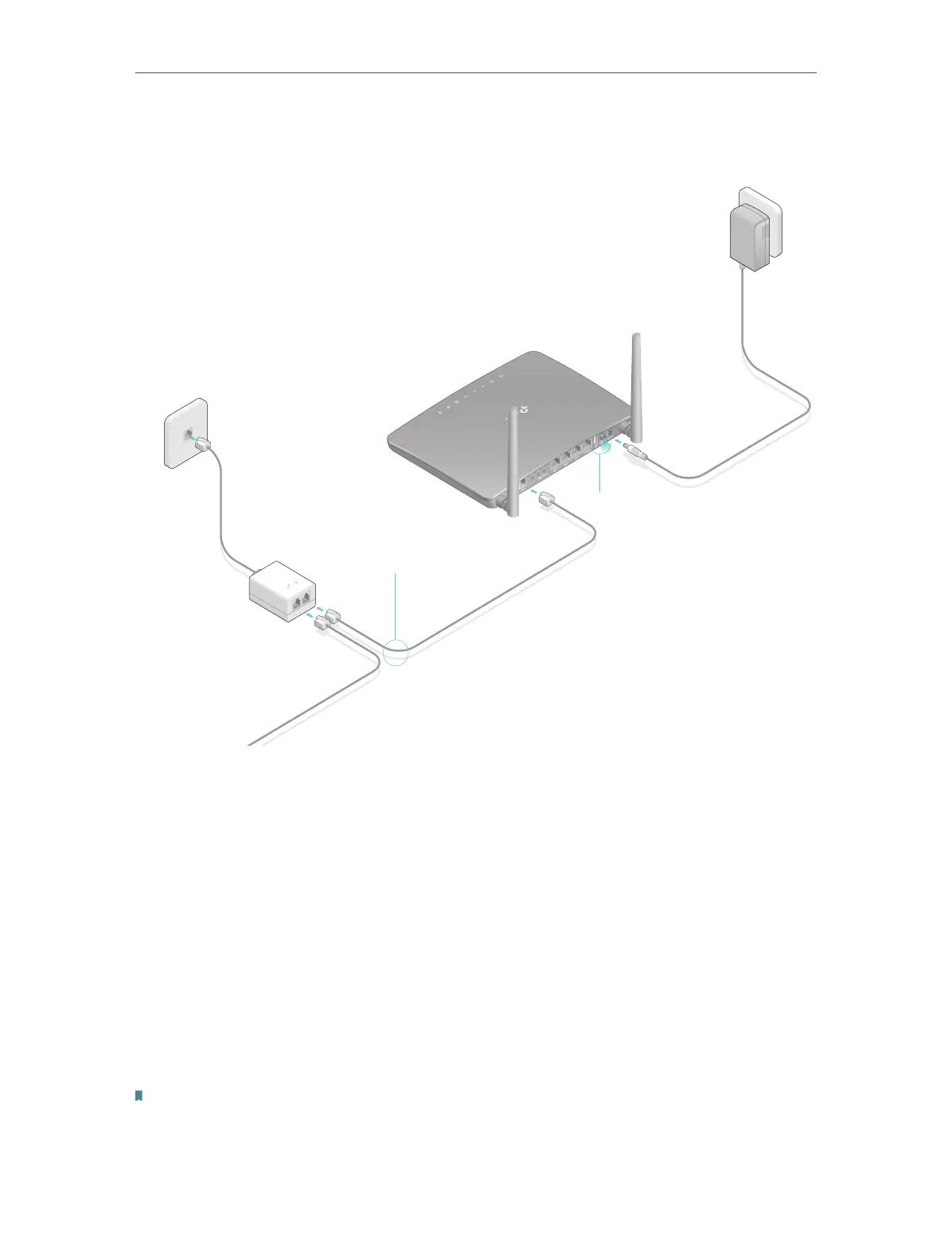
1. Connect the ADSL line and power adapter. The electrical outlet shall be installed
near the device and shall be easily accessible.
ADSL Splitter
Phone Jack
Power Adapter
Modem Router
Connect the modem
router to the ADSL splitter.
Connect the power adapter to
the modem router and push in
to turn on.
3
Connect the ADSL splitter to
the phone jack.
WPS
PHONE MODEM
LINE
2
1
Connect to the phone (Optional)
2. Connect your computer to the modem router.
Method 1: Wired
Connect your computer’s Ethernet port to the LAN port on the modem router via the
Ethernet cable.
Method 2: Wirelessly
Use the default SSID (Wireless Network Name) and Wireless Password printed on the
product label of the modem router to connect wirelessly.
Method 3: Use the WPS button
Wireless devices that support WPS, including Android phones, tablets, most USB
network cards, can be connected to your router through this method. (WPS is not
supported by iOS devices.)
Note:
The WPS function cannot be configured if the wireless function of the router is disabled. Also, the WPS function will be
disabled if your wireless encryption is WEP. Please make sure the wireless function is enabled and is configured with the
appropriate encryption before configuring the WPS.













 To Next Page