36
Chapter 8
USB Settings
2. Enable Authentication for Data Security
It is strongly recommended that you set and apply a sharing account for data
security.
1 ) Visit http://tplinkmodem.net, then log in with the password you set for the
modem router.
2 ) Select Advanced > USB Settings > Sharing Access.
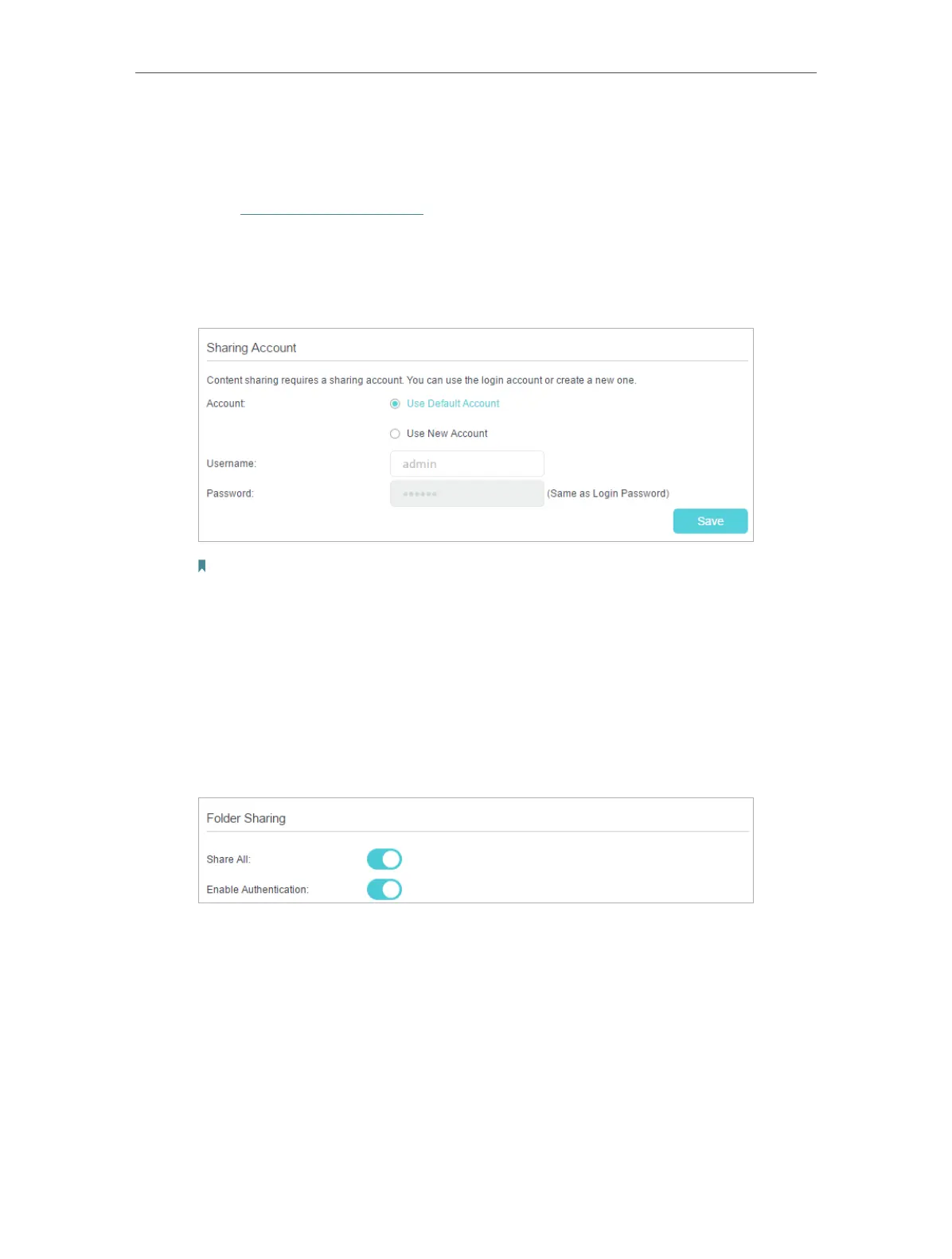
3 ) Choose to use the default Account (admin) or use a new account and click Save.
Note:
For Windows users, do not set the sharing username the same as the Windows username. Otherwise,
Windows credential mechanism may cause the following problems:
• If the sharing password is also the same as the Windows password, authentication will not work since the Windows
will automatically use its account information for USB access.
• If the sharing password is different from the Windows password, the Windows will be unable to remember your
credentials and you will always be required to enter the sharing password for USB access.
4 ) Enable Authentication to apply the sharing account.
• If you leave Share All enabled, click the button to enable Authentication for all
folders.
• If Share All is disabled, enable Authentication for specific folders.













 To Next Page