Need Help?
Q1. What should I do if I cannot access the web management page?
• Reboot your router and try again.
•
If the computer is set to a static IP address, change its settings to obtain an IP address automatically.
• Make sure http://tplinkmodem.net or http://192.168.1.1 is correctly entered in the web browser.
• Use another web browser and try again.
• Disable and enable the active network adapter in use.
Q2. What should I do if I cannot access the internet?
• Verify that your SIM card is an LTE or WCDMA card.
• Verify that your SIM card is in your internet service provider’s service area.
• Verify that your SIM card has sufficient credit.
• Launch a web browser, log in to the web management page, and check the following:
1) Go to Advanced > MBB > PIN Management to verify if PIN is required. If it is, enter the correct PIN
provided by your ISP, and click SAV E.
2) Go to Advanced > Network > Internet to verify the parameters provided by your ISP are correctly
entered. If the parameters are incorrect, click Create Profile and enter the correct parameters, then
select the new profile from the Profile Name list.
3) Go to Advanced > MBB > Data Settings to verify if the Total/Monthly Used exceeds the
Total/Monthly Allowance. If it does, click Correct and set Total/Monthly Used to 0 (zero), or disable
Data Limit.
4) Go to Advanced > Network > Internet to verify that Mobile Data is enabled. If it is not, enable it to
access the internet.
5) Confirm with your ISP if you are in a roaming service area. If you are, go to Advanced > Network >
Internet to enable Data Roaming.
Q3. How do I restore the router to its factory default settings?
• With the router powered on, press and hold the WPS/RESET button on the rear panel of the router until
the Power LED starts flashing, then release the button. Wait until the router reboots.
• Log in to the web management page of the router, and go to Advanced > System > Backup & Restore,
click FACTORY RESTORE and wait until the reset process is complete.
Q4. What should I do if I forget my web management page password?
• Refer to Q3 to reset the router, then create a new password to log in.
Q5. What should I do if I forget my wireless network password?
• The default wireless password is printed on the product label of the router.
• Connect a computer directly to the router via an Ethernet cable. Log in to the router's web management
page and go to Wireless to retrieve or reset your wireless password.
For technical support, replacement services, user guides, and other information, please visit
https://www.tp-link.com/support, or simply scan the QR code.
Safety Information
• Keep the device away from water, re, humidity or hot environments.
• Do not attempt to disassemble, repair, or modify the device. If you need
service, please contact us.
• Do not use damaged charger or USB cable to charge the device.
• Do not use any other chargers than those recommended.
• Do not use the device where wireless devices are not allowed.
• Adapter shall be installed near the equipment and shall be
easily accessible.
EU Declaration of Conformity
TP-Link hereby declares that the device is in compliance with the essential requirements and other relevant provisions of directives
2014/53/EU, 2009/125/EC, 2011 /65/EU and (EU) 2015/863.
The original EU declaration of conformity may be found at https://www.tp-link.com/en/support/ce/
UK Declaration of Conformity
TP-Link hereby declares that the device is in compliance with the essential requirements and other relevant provisions of the Radio
Equipment Regulations 2017.
The original UK declaration of conformity may be found at https://www.tp-link.com/support/ukca/
Congure the Router via Tether App
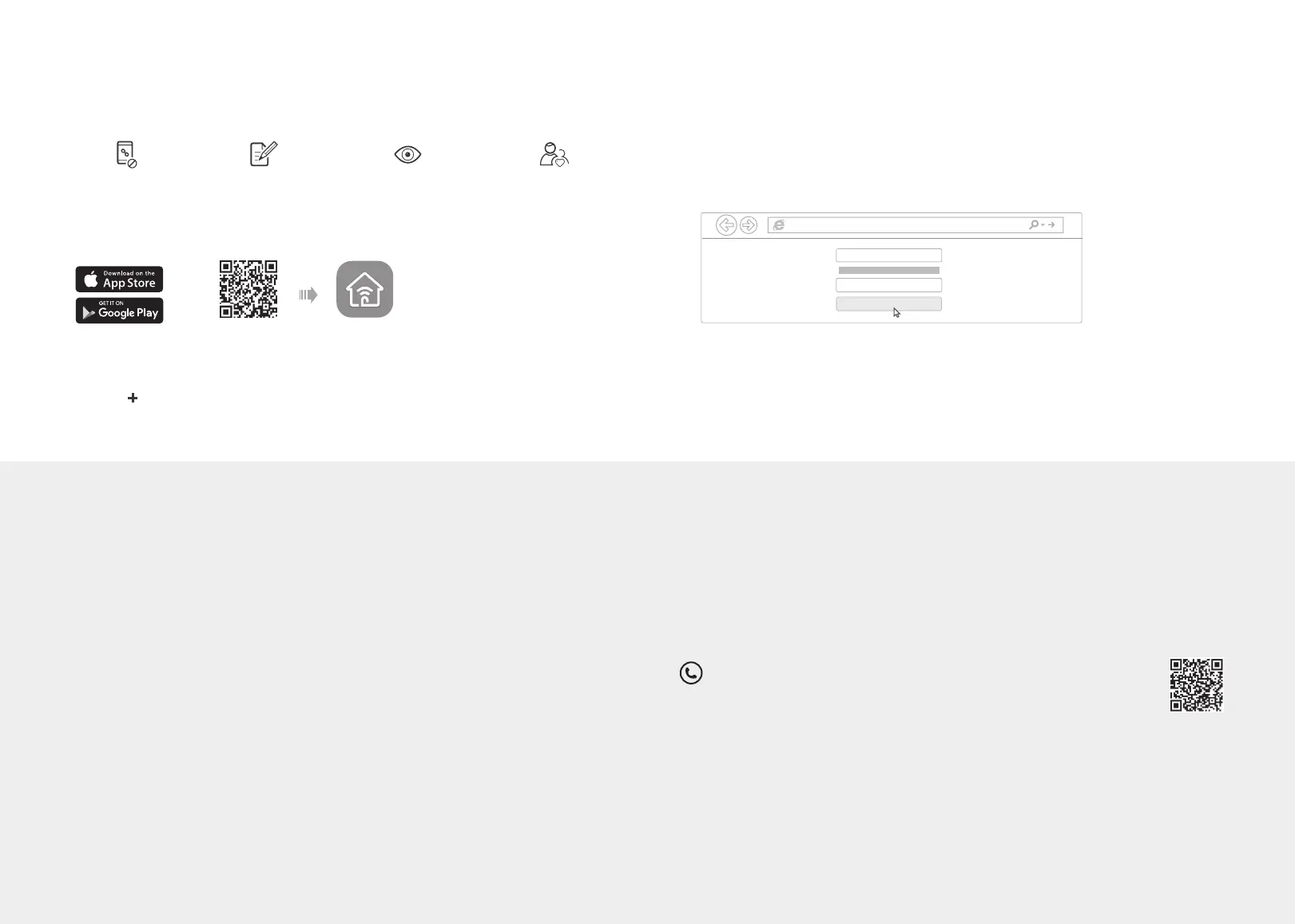
The TP-Link Tether app provides a simple, intuitive way to access and manage your router.
View information about clients
connected to your router
Block unwelcome users from
accessing your network
Set up Parental Controls
with access time
Change basic wireless
network settings
Note: If you don’t have an account, create one rst.
1. Download the TP-Link Tether app.
2. Open the Tether app and log in with your TP-Link ID.
3. Tap the icon in the Tether app and select 3G/4G Router.
Follow the steps to complete the setup.
or
Scan for Tether Tether
How to begin?
Customize the 4G LTE Router
Note: The router can also be used (or configured) in Wireless Router Mode for DSL/Cable/Fiber
connections. For more advanced configurations, please refer to the user guide on TP-Link
official website at www.tp-link.com.
Note: If the login page does not appear, please refer to Q1 of Need Help? in this guide.
2. Launch a web browser and type in http://tplinkmodem.net or http://192.168.1.1.
Create a new password for future logins.
3. Follow the step-by-step instructions of the Quick Setup to complete the initial
conguration.
1. Make sure your computer is connected to the router (wired or wireless).
http://tplinkmodem.net
HighMiddleLow
Let’s Get Started
Conrm Password
New Password


 To Previous Page
 Loading...