3
Chapter 1
Get to Know about Your Adapter
1. 1. Product Overview
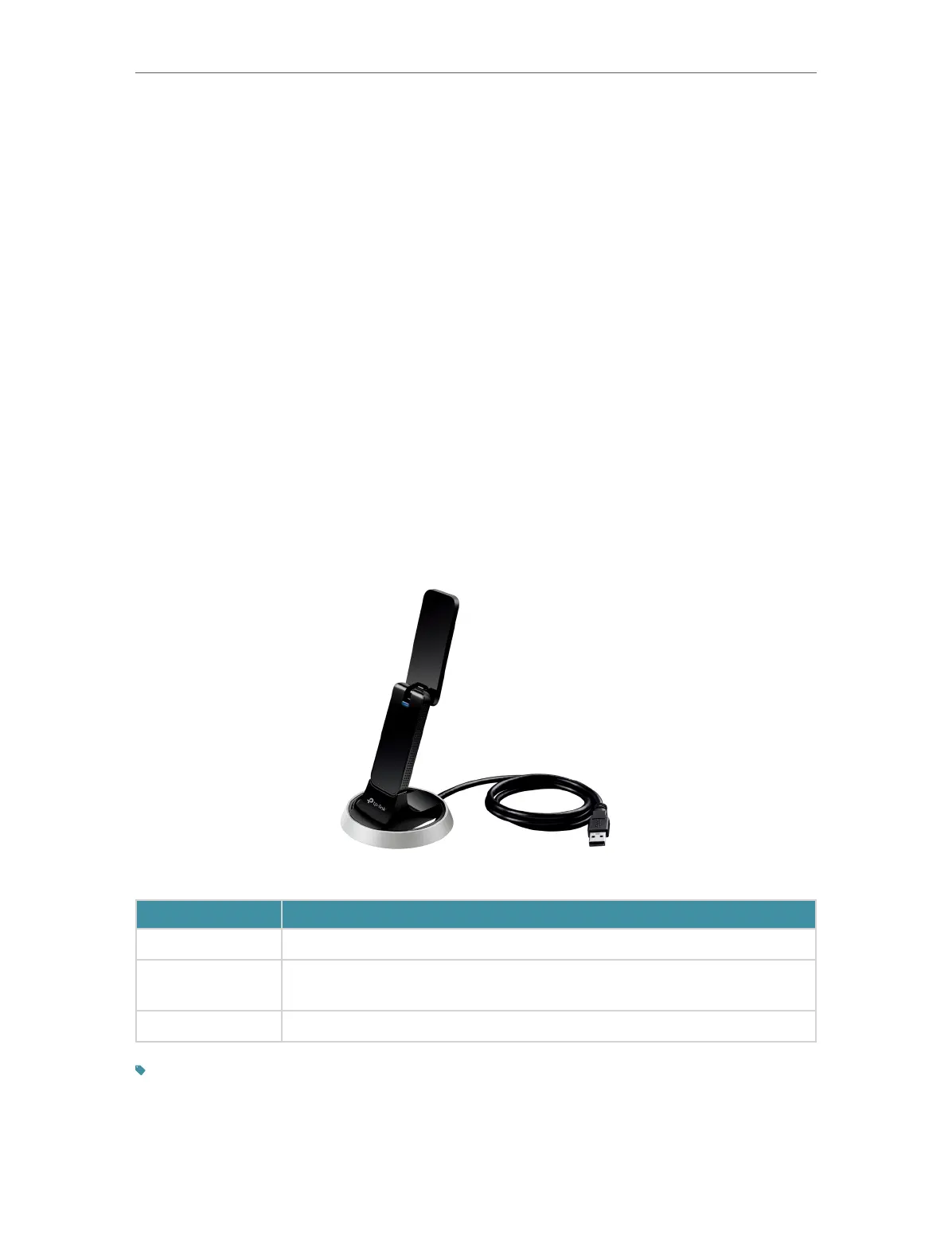
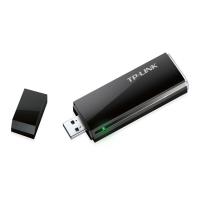
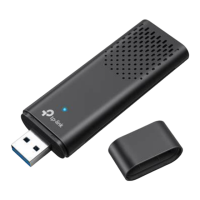
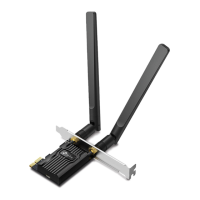
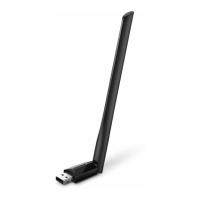
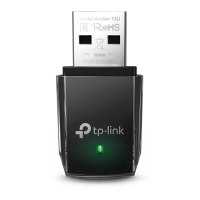
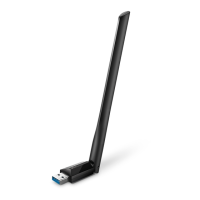
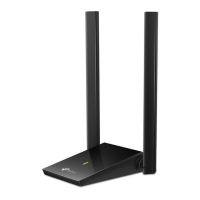
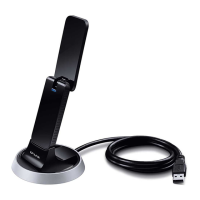
TP-Link Wireless USB Adapter connects your computer to a Wi-Fi network for smooth
HD video, voice streaming and online gaming.
•
Compatible with 802.11 ac/
a/b/g/n products
• Beamforming technology delivers a more targeted and highly efficient wireless
connections
• High gain antennas ensure superior range and stability
• Equipped with a USB 3.0 cradle for flexible deployment
• With WPS button, the adapter provides secured connection at the push of a button
• Supports ad-hoc and infrastructure mode
• Supports 64/128 bit WEP, WPA-PSK/WPA2-PSK
• Supports Windows, Mac and Linux
1. 2. LED Status
You can check the adapter’s working status by following the LED Explanation table.
Status
Indication
Off The driver has not been installed.
Flashing Slowly
The driver has been installed but no data is being transmitted or received.
The WPS connection is in process.
Solid On Data is being transmitted or received.
Tips:
If the LED is off, try these troubleshooting tips:
1. Check if the adapter is recognized and enabled or not. Refer to Troubleshooting-T2 for detailed instructions.
2. Remove and reconnect the adapter.
3. Reinstall the software, if necessary.



 To Next Page