14
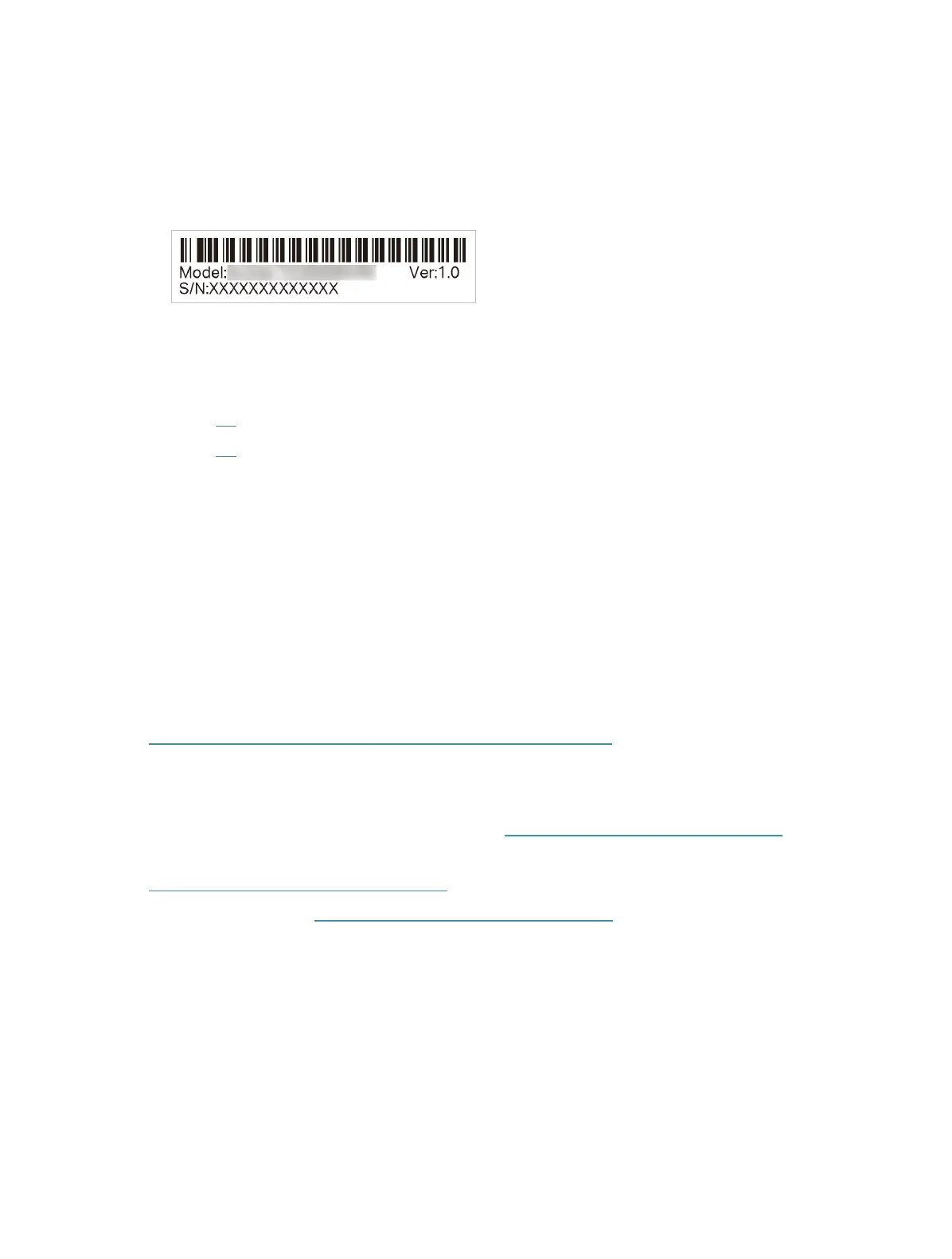
T5. How to find the hardware version of the adapter?
• The hardware version printed on the product label on the package or the adapter.
There is a character string “Ver:X.Y” (for example, Ver:1.0) in the Serial Number field,
and the number X is the hardware version of the adapter.
T6. What do I do when the LEDs on the antenna base are off?
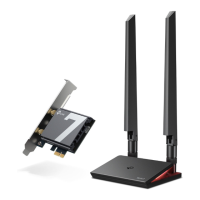
• Make sure the magnetized antenna base is properly connected to the adapter.
• Refer to T1 to check if the adapter is detected.
• Refer to T2 to check if you have installed the driver for your adapter successfully.
• Ensure that the two SMA male connectors on the adapter are not in contact with any
other metal parts or conductors to prevent short circuits.
• Locate the network icon in the bottom right corner of your desktop on your
computer and make sure you have enabled the Wi-Fi Radio signal. If not, click the
network icon on the taskbar and select the Wi-Fi button to turn on the Wi-Fi.
• Single press the LED button to turn on the LED.
T7. How do I update my operating system?
• Refer to the official website to download Win 11:
https://www.microsoft.com/software-download/windows11/
For more detailed instructions:
Can’t find the hardware version of the adapter: https://www.tp-link.com/faq-46.html
Can’t find or connect to the wireless networks:
https://www.tp-link.com/faq-2253.html
Can’t install the driver: https://www.tp-link.com/faq-2252.html



 To Next Page