13
Chapter 2
Set Up Internet Connection
Note:
If you want to customize the extended network name, refer to Configure Wireless Network.
If you cannot find the network names with _EXT in your Wi-Fi network list, this means
that the extender has been connected to a EasyMesh router and automatically copied
its wireless settings. For more information, refer to EasyMesh with Seamless Roaming.
4. Relocate your extender for optimal Wi-Fi coverage and performance.
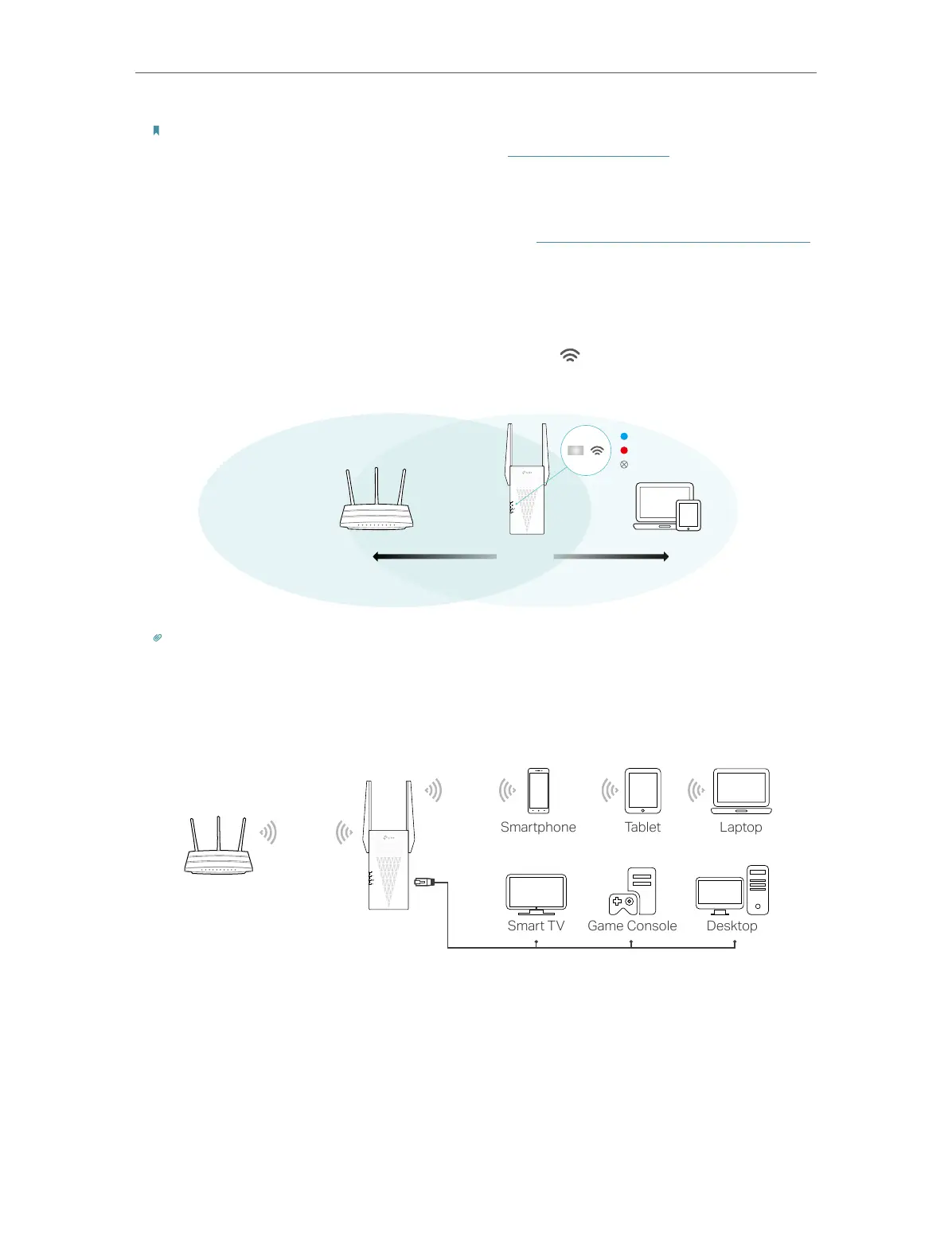
1 ) Plug in the extender about halfway between your router and the Wi-Fi dead zone.
The location you choose must be within the range of your router.
2 ) Wait for about 2 minutes until the Signal LED turns solid blue. If it doesn’t,
relocate the extender closer to the router to achieve better signal quality.
Router Devices
Halfway
Suitable location
Too far from router
No connection
Tip:
To minimize signal interference, please choose a location which is far away from Bluetooth devices and other
household electronic devices, such as cordless phones, microwave ovens and baby monitors.
5. Enjoy! Connect your devices to the extender wirelessly or via an Ethernet cable, then
enjoy the internet.


 To Next Page