12
Chapter 2
Set Up Internet Connection
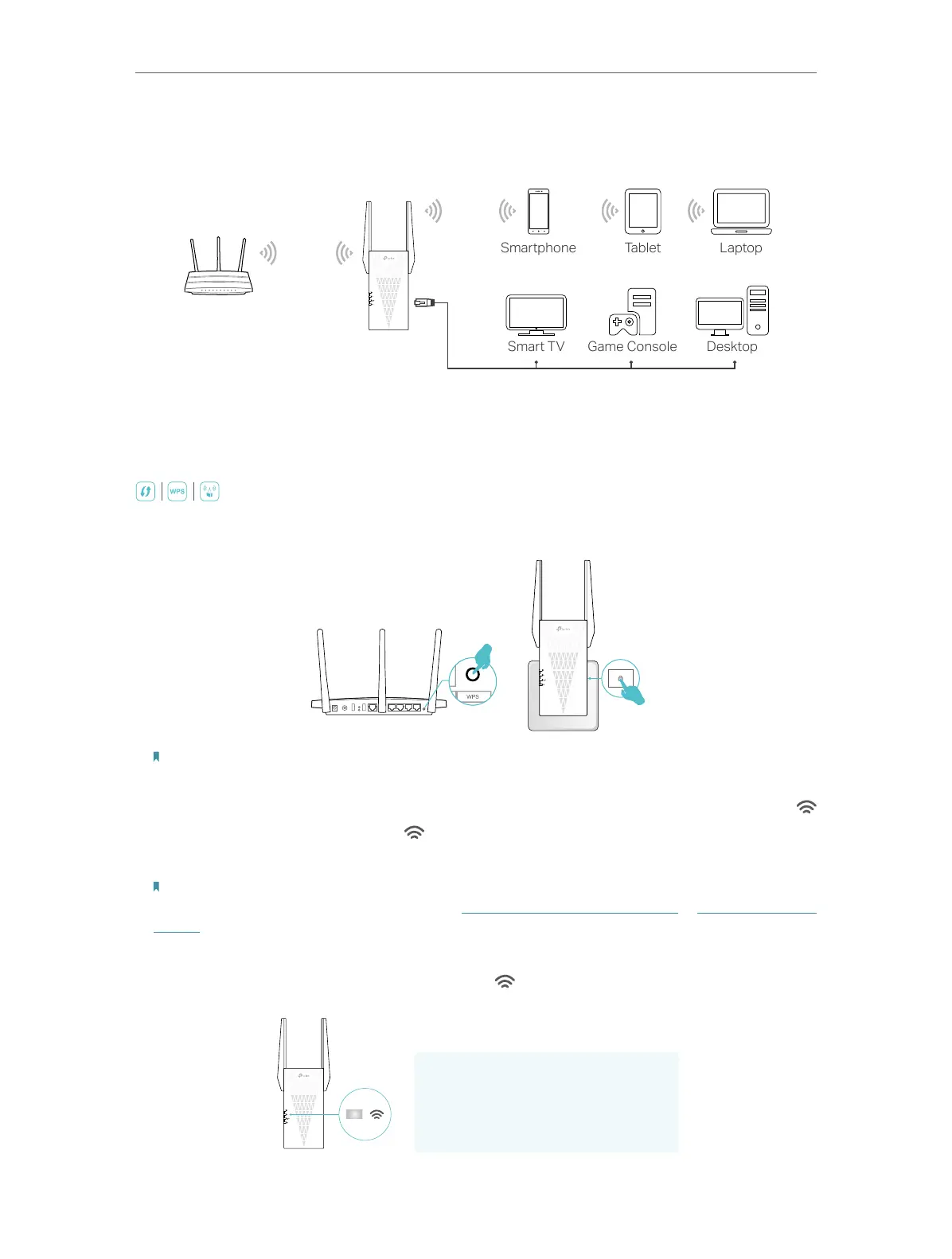
8 ) Enjoy! Connect your devices to the extender wirelessly or via an Ethernet cable,
then enjoy the internet.
2. 2. 3. Method 3: Via the WPS Button
Use this way if your router has a WPS button. The button might look like one of these:
.
1. Activate the WPS function on your router by pressing the WPS button.
Note:
If you don’t know how to do it, refer to your router’s user manual, or you can use other methods to set it up.
2. Within 2 minutes, press the WPS button on the extender for 1 second, and the
LED starts blinking. Wait for the LED, 2.4GHz LED and 5GHz LED to turn solid blue,
indicating a successful connection.
Note:
If the LED does not turn solid on, try again or refer to Method 1: Via the TP-Link Tether App or Method 2: Via a Web
Browser.
3. If the extender connects to a dual band router, repeat steps 1 and 2 above to connect
to the other band. Wait until the Signal LED turns solid on, and the setup is done.
Extended Network Names:
Router’s network name with
_EXT
at the end
or
Same as your EasyMesh router
Passwords:
Same as your router
Solid On


 To Next Page