39
Chapter 7 Manage Your Extender
1. Visit http://www.tplinkrepeater.net, and log in with your TP-Link ID or the password
you set for the extender.
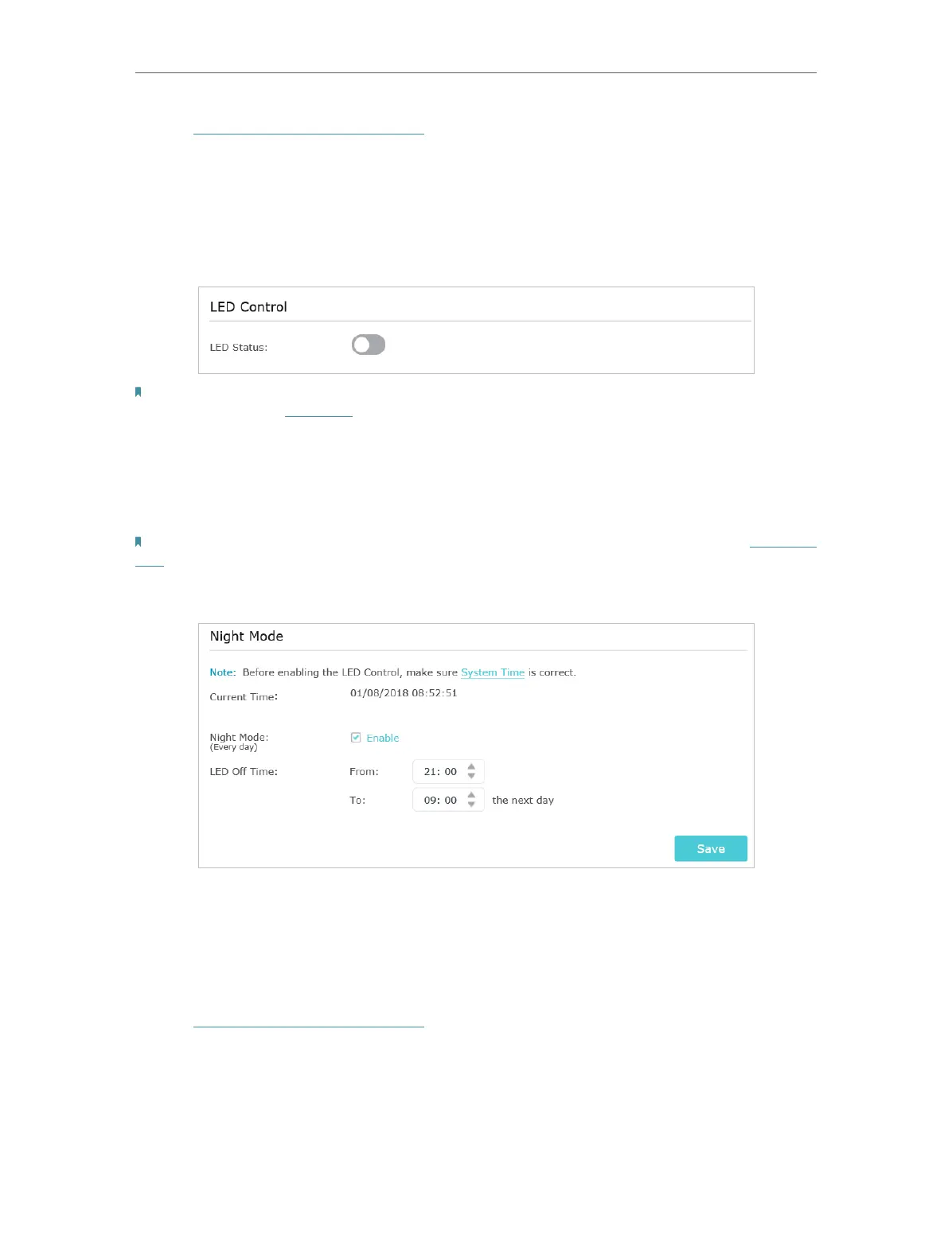
2. Go to Settings > System Tools > LED Control.
• To turn off the LEDs:
Disable LED Status.
Note: The LED Status will turn back on after restarting the extender. If you want to keep the LED off after restarting,
it is recommended to set Night Mode.
• To specify a time period when LEDs are off:
1. Select Night Mode.
2. Specify the LED off time period.
Note: The effective time schedule for Night Mode is based on the system time of the extender. Refer to Set System
Time to get the correct system time.
3. Click Save.
7. 3. Set Power Schedule
The Power Schdule feature allows you to specify a time period during which the
extender is off.
1. Visit http://www.tplinkrepeater.net, and log in with your TP-Link ID or the password
you set for the extender.
2. Go to Settings > Advanced Settings > Power Schedule.
• To specify a time period when the extender is off:
1. Click Add.


 To Next Page