42
Chapter 7 Manage Your Extender
1. Visit http://www.tplinkrepeater.net, and log in with your TP-Link ID or the password
you set for the extender.
2. Go to Settings > System Tools > Backup & Restore.
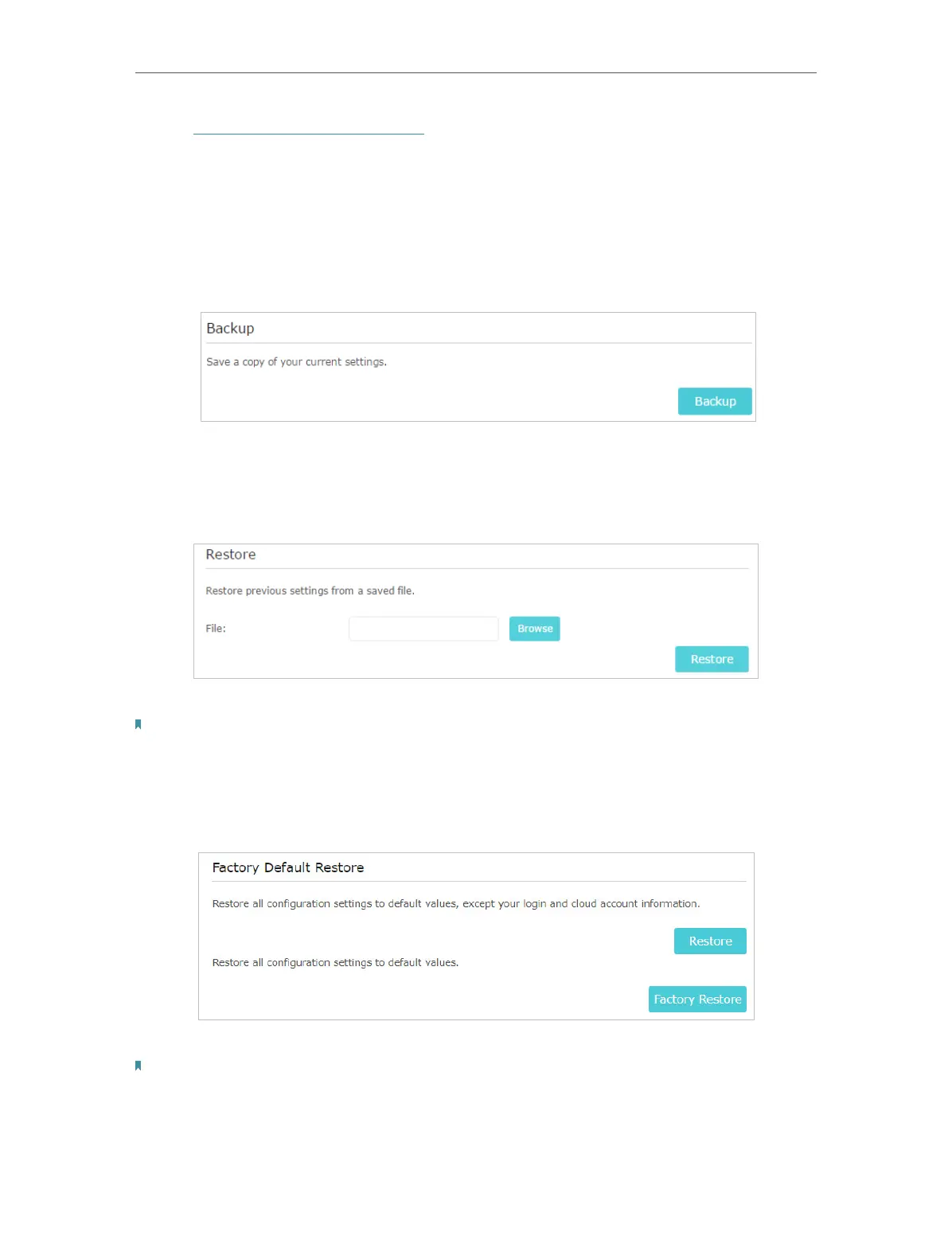
• To backup configuration settings:
Click Backup to save a copy of the current settings to your local computer. A ‘.bin’ file of
the current settings will be stored on your computer.
• To restore configuration settings:
1. Click Browse to locate the backup configuration file stored on your computer, and
click Restore.
2. Wait a few minutes for the restore and reboot.
Note: During the restore process, do not power off or reset the extender.
• To reset the extender to factory default settings:
1. Click Factory Restore to restore all configuration settings to default values, or click
Restore if you want to keep you login and cloud account information.
2. Wait a few minutes for the reset and reboot.
Notes:
• During the reset process, do not power off the extender.
• We strongly recommend you backup the current configuration settings before resetting the extender.


 To Next Page