EasyManua.ls Logo

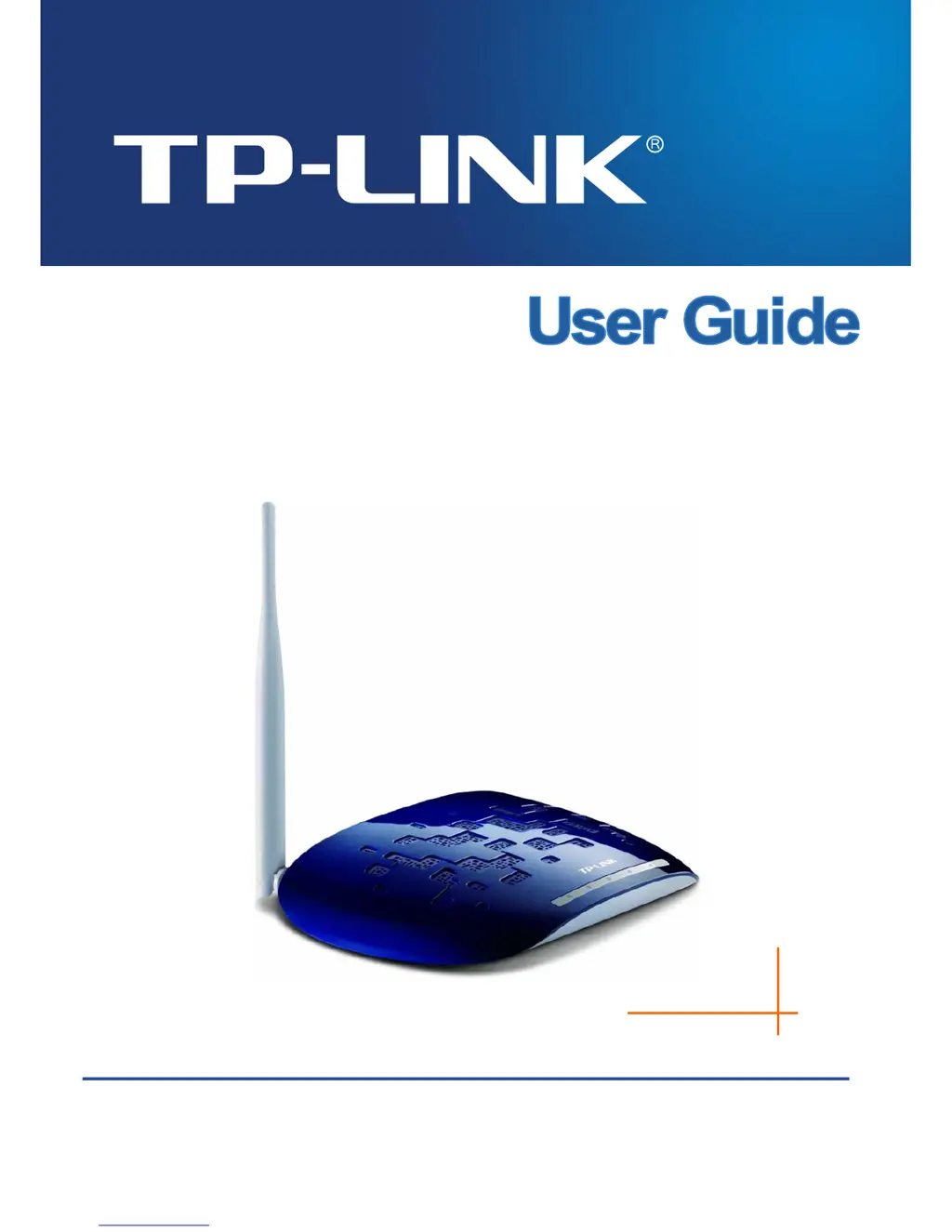
TP-Link TL-WA730RE - User Manual

TP-Link TL-WA730RE
68 pages
Print Icon
To Next Page IconTo Next Page
Loading...
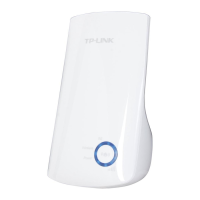
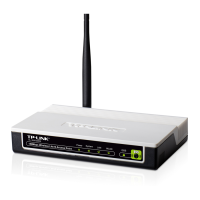
TL-WA730RE
150Mbps Wireless N Range Extender
Rev: 2.0.0
1910010693

Other manuals for TP-Link TL-WA730RE

Questions and Answers

  • L
    lrobinsonJul 26, 2025
    What to do if I cannot access TP-Link TL-WA730RE configuration page?
    • D
      Deanna GibsonJul 26, 2025
      If you cannot access the web-based configuration page of your TP-Link Extender, first assign a static IP address 192.168.0.100 to your computer before logging in. After configuring the settings, try logging into the web-based configuration page again. If you still cannot access the page, restore your Access Point’s factory default settings and reconfigure your Access Point following the instructions.
  • C
    Chase LoganJul 31, 2025
    What to do if I forget my TP-Link TL-WA730RE Extender password?
    • C
      courtneylopezJul 31, 2025
      If you forget your password for the TP-Link Extender, you have a few options. You can restore the Access Point’s configuration to its factory default settings. Alternatively, try using the default username and password: admin, admin. You might also try to reconfigure your AP by following the instructions.
  • A
    alexander93Aug 5, 2025
    How to reset TP-Link TL-WA730RE to factory settings?
    • C
      Christine MyersAug 5, 2025
      To restore your TP-Link Extender's Access Point configuration to its factory default settings, power on the Access Point, then use a pin to press and hold the RESET button on the rear panel for more than 8 seconds before releasing it.
  • K
    Kelly MaysAug 10, 2025
    Why are no LEDs lit on my TP-Link TL-WA730RE?
    • C
      Catherine MasseyAug 10, 2025
      If no LEDs are lit on your TP-Link Extender, ensure the power cord is securely connected. Also, verify that the power adapter is connected to a functioning electrical outlet and that the outlet's switch is turned on. Finally, make sure you're using the correct TP-Link power adapter that came with your extender.
  • J
    Jill GrahamAug 15, 2025
    What to do if the LAN LED is not lit on TP-Link Extender?
    • S
      Shirley WatsonAug 15, 2025
      If the LAN LED isn't lit on your TP-Link Extender, there may be a hardware connection problem. Here are a few things to check: * Make sure the cable connectors are securely plugged in at both the extender and the network device (hub, switch, or router). * Ensure the connected device is turned on. * Verify you're using a standard Category 5 Ethernet patch cable. If your network device supports Auto Uplink™ (MDI/MDIX), you can use either a crossover or normal patch cable.
  • A
    Ann MartinezAug 19, 2025
    How to fix 'can not access Range Extender with a wireless capable computer' TP-Link?
    • M
      Maria ToddAug 19, 2025
      If you can't access the TP-Link Range Extender with a wireless computer, it might be a configuration issue. First, restart the computer with the wireless adapter to ensure TCP/IP changes take effect. Also, check the computer's TCP/IP settings to ensure they are correct for your network; the usual setting for Windows is 'Obtain an IP address automatically' in Network Properties. Finally, the Range Extender’s default values may not work with your network, so check for conflicts with other devices.

Summary

Chapter 2 Hardware Installation

Chapter 3 Quick Installation Guide

3.1 Quick Setup

Guides users through a simplified, step-by-step process to configure the TL-WA730RE using a web-based utility.

Chapter 4 Configure the Device

4.1 Login

Details the process of accessing the device's web-based management interface via a web browser.

4.3 Quick Setup

Refers to the simplified setup process, directing users to the relevant section for quick configuration.

4.7 Wireless

Details advanced wireless settings, security, MAC filtering, and radio configurations for optimal performance.

4.9 System Tools

Provides tools for device management, diagnostics, firmware upgrades, backup, and reboot.

Appendix C: Troubleshooting

T1. Restore Factory Defaults

Instructions on how to reset the Access Point's configuration to its original factory settings.

TP-Link TL-WA730RE Specifications

General IconGeneral
Ethernet LAN (RJ-45) ports1
Storage temperature (T-T)40 - 70 °C
Operating temperature (T-T)0 - 40 °C
Storage relative humidity (H-H)5 - 95 %
Operating relative humidity (H-H)10 - 90 %
CertificationCE, FCC
On/off switchYes
Product colorBlue, White
Wi-Fi standards802.11b, 802.11g, Wi-Fi 4 (802.11n)
Cabling technology10/100Base-T(X)
Security algorithms128-bit WEP, 152-bit WEP, 64-bit WEP, WPA, WPA-PSK, WPA2, WPA2-PSK
Networking standardsIEEE 802.11b, IEEE 802.11g, IEEE 802.11n
Type-
Maximum transfer distance- m
Windows operating systems supportedWindows 2000, Windows 7 Home Basic, Windows 7 Home Basic x64, Windows 7 Home Premium, Windows 7 Home Premium x64, Windows 7 Professional, Windows 7 Professional x64, Windows 7 Starter, Windows 98SE, Windows NT, Windows Vista Business, Windows Vista Business x64, Windows Vista Enterprise, Windows Vista Enterprise x64, Windows Vista Home Basic, Windows Vista Home Basic x64, Windows Vista Home Premium, Windows Vista Home Premium x64, Windows Vista Ultimate, Windows Vista Ultimate x64, Windows XP Home, Windows XP Home x64, Windows XP Professional, Windows XP Professional x64
Output current0.6 A
Output voltage9 V
Power over Ethernet (PoE)No
Sustainability certificatesRoHS
Weight and Dimensions IconWeight and Dimensions
Depth125 mm
Width181 mm
Height36 mm

Related product manuals