EasyManua.ls Logo

TP-Link TL-WPA4220 - User Manual

TP-Link TL-WPA4220
46 pages
Print Icon
To Next Page IconTo Next Page
Loading...
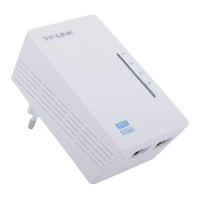
TL-WPA4220
AV600 Powerline Wi-Fi Extender
REV1.1.1
1910011631

Other manuals for TP-Link TL-WPA4220

Questions and Answers

  • K
    Kaylee StewartAug 17, 2025
    What to do if the Ethernet LED does not light up on TP-Link TL-WPA4220?
    • J
      jstarkAug 17, 2025
      If the Ethernet LED on your TP-Link Extender doesn't light up, first ensure the Ethernet cable (RJ45) is properly connected to both the extender's Ethernet port and your computer's LAN card or Cable/xDSL Ethernet port. Also, verify that your computer's LAN card is correctly installed and configured, and that your Cable/xDSL broadband access is working properly. If the issue persists, contact your local dealer for technical support.
  • M
    micheal11Aug 19, 2025
    How to fix TP-Link Extender Powerline LED not lighting up?
    • T
      Timothy WilsonAug 19, 2025
      If the Powerline LED on your TP-Link Extender isn't lighting up, try these steps: double-click to enable the Management Utility and click the “Rescan” tab so it can detect all other Powerline Extenders. Try plugging the extender into a nearby power outlet, and make sure it's plugged directly into a wall socket, not a power strip. You can also try to re-establish the connection using the Pair button method described in section 5.2, or reset the device to its factory default values. If the Powerline LED still doesn't light up, contact your local dealer for technical support.
  • M
    Michael AlexanderAug 22, 2025
    Why is the Power LED not lighting up on my TP-Link TL-WPA4220?
    • C
      christopher71Aug 22, 2025
      If the Power LED on your TP-Link Extender isn't lighting up, make sure the extender is properly plugged into a working power outlet. Try plugging another device into the outlet to confirm it's active. If it's already plugged in, try re-plugging it. If the Power LED still doesn't light up, contact your local dealer for technical support.
  • F
    farnoldAug 25, 2025
    What to do if the Powerline LED on my TP-Link Repeater doesn't light up?
    • T
      Tammy BurgessAug 26, 2025
      If the Powerline LED on your TP-Link Repeater doesn't light up, here are a few things you can try: 1. Plug the powerline Ethernet adapter into a nearby power outlet to see if the Powerline LED illuminates. 2. Ensure the device is connected directly to a wall socket, not a power strip. 3. Try re-establishing the connection by following the steps outlined in section “5.2 Setting Up a Powerline Network with the Pair Button”. 4. As a last resort, reset the device to its factory default settings.
  • G
    Gregory OsbornAug 27, 2025
    What to do if the Ethernet LED is not lit on TP-Link Repeater?
    • L
      Logan HillAug 27, 2025
      If the Ethernet LED on your TP-Link Repeater isn't lighting up, check these items: 1. Make sure the Ethernet cable (RJ45) is securely connected to both the powerline extender’s Ethernet port and your computer's LAN card or Cable/xDSL Ethernet port. 2. Verify that your computer's LAN card is correctly installed and configured.
  • A
    Allen SchultzAug 31, 2025
    How to fix a TP-Link Repeater when the Power LED does not light up?
    • C
      Casey ChandlerAug 31, 2025
      If the Power LED on your TP-Link Repeater isn't on, please check: 1. That the powerline extender is correctly plugged into a working power outlet. 2. That the outlet is active by plugging in another electrical device. 3. Try re-plugging the powerline extender into the power outlet.
  • H
    Haley ReyesSep 2, 2025
    What to do if the Powerline LED on my TP-Link TL-WPA4220 doesn't light up?
    • P
      Patrick WilliamsSep 2, 2025
      If the Powerline LED on your TP-Link Extender doesn't light up, try the following: 1. Plug the extender into a nearby power outlet to see if the Powerline LED lights up. 2. Ensure the device is plugged directly into a wall socket, not a power strip. 3. Try to establish the connection again using the Pair button method. 4. Reset the device to its factory default settings.
  • M
    Martha FoxSep 5, 2025
    How to fix a TP-Link TL-WPA4220 when the Power LED doesn't light up?
    • M
      Margaret ArmstrongSep 5, 2025
      If the Power LED on your TP-Link Extender doesn't light up: 1. Make sure the extender is properly plugged into a working power outlet. 2. Verify the outlet is active by plugging in another electrical device. 3. Try re-plugging the extender into the power outlet.
  • D
    Danielle WagnerSep 7, 2025
    What to do if the Ethernet LED on my TP-Link Extender is not lighting up?
    • R
      Ryan ThompsonSep 7, 2025
      If the Ethernet LED on your TP-Link Extender isn't lighting up, check these things: 1. Ensure the Ethernet cable is correctly connected to both the extender's Ethernet port and your computer's LAN card or Cable/xDSL Ethernet port. 2. Confirm your computer's LAN card is properly installed and configured. 3. Verify that your Cable/xDSL broadband access is working and correctly configured.
  • S
    Stephanie SchmidtSep 10, 2025
    How to fix TP-Link TL-WPA4220 if the Power LED does not light up?
    • K
      Kristi HaynesSep 12, 2025
      If the Power LED on your TP-Link Extender isn't lighting up, ensure the extender is properly plugged into a working power outlet by testing the outlet with another device. Try re-plugging the extender. If the LED still doesn't light up, contact your local dealer for support.

Summary

Safety and Regulatory Information

CE Mark Warning

Warning regarding the product being a Class B product and potential radio interference.

RF Exposure Information

Information on the device's compliance with EU requirements for electromagnetic field exposure.

Explanation of Product Label Symbols

Describes symbols used on the product label for identification and guidance.

Important Safety Instructions

Chapter 1 Introduction

System Requirement

Lists the minimum hardware and software specifications needed for the device.

Conventions

Explains terminology and conventions used throughout the user guide.

Physical Interface and Indicators

Physical Interface

Details the physical ports and buttons on the TL-WPA4220 device.

LED Indicator

Explains the function and status of each LED indicator on the device.

Chapter 2 Hardware Connection

Before You Begin

Provides initial guidance and considerations before connecting the hardware.

Plug and Play

Describes the basic connection process for the powerline extender.

Wi-Fi Clone Button for Super Range Extension

Explains how to use the Wi-Fi Clone button to copy wireless settings.

Chapter 3 Configure the Device

Login

Details how to access the device's web-based management interface.

For Wired Connection

Steps to log in to the device via an Ethernet cable connection.

For Wireless Connection

Steps to log in to the device wirelessly.

Status and Network Configuration

Status

Displays the current status and configuration information of the powerline extender.

Network

Allows configuration of IP parameters for the powerline extender.

Wireless

Provides access to wireless network settings and configuration options.

Wireless Settings and Management

Wireless Settings

Configures basic parameters like SSID, channel, and mode for the wireless network.

Wireless Security

Enables configuration of WEP, WPA/WPA2 security for the wireless network.

Wireless MAC Filtering

Allows control of wireless access based on MAC addresses.

Wireless Advanced

Configures advanced wireless parameters for optimal performance.

Wireless Statistics

Shows transmission information and status of connected wireless stations.

Powerline Network Management

Network Settings

Configures network name and password for powerline devices.

Station Settings

Manages settings for remote powerline stations in the network.

System Tools and Utilities

Firmware Upgrade

Allows updating the device's firmware to the latest version.

Factory Defaults

Restores the device to its original factory default settings.

Backup & Restore

Saves and loads device configuration settings.

Reboot

Restarts the powerline extender device.

Password

Allows changing the device's login username and password.

System Log

Displays logs of system events and traffic for monitoring.

Chapter 4 Connecting to Wireless Network

In Windows 7

Step-by-step guide to connect to the wireless network using Windows 7.

In Windows Vista

Step-by-step guide to connect to the wireless network using Windows Vista.

In Windows XP

Step-by-step guide to connect to the wireless network using Windows XP.

In Windows 8 or Windows 10

Guide for connecting to the wireless network using Windows 8 or 10.

Chapter 5 Pair Button and Reset Button

Pair (Secure with 128 bits-AES)

Explains the pairing process for secure powerline communication using AES encryption.

Setting Up a Powerline Network with the Pair Button

Details how to create or join a powerline network using the pair button.

Reset

Instructions on how to reset the device to its factory default settings.

Appendix A: Troubleshooting Guide

Power LED Issues

Solutions for problems where the Power LED does not light up.

Ethernet LED Issues

Solutions for problems where the Ethernet LED does not light up.

Powerline LED Issues

Solutions for problems where the Powerline LED does not light up.

Appendix B: Specifications

TP-Link TL-WPA4220 Specifications

General IconGeneral
ModulationOFDM
Power plug-
Ethernet LANYes
Wi-Fi standards802.11b, 802.11g, Wi-Fi 4 (802.11n)
PowerLine standardHomePlug AV
Top Wi-Fi standardWi-Fi 4 (802.11n)
Security algorithms64-bit WEP, 128-bit WEP, WPA, WPA-PSK, WPA2, WPA2-PSK
Networking standardsIEEE 802.11b, IEEE 802.11g, IEEE 802.11n, IEEE 802.3, IEEE 802.3u
Built-in power socketNo
Ethernet LAN data rates10, 100 Mbit/s
Ethernet LAN (RJ-45) ports2
Maximum data transfer rate600 Mbit/s
Maximum operating distance300 m
Ethernet LAN interface typeFast Ethernet
WLAN data transfer rates supported11, 54, 300 Mbit/s
CertificationCE, FCC
Product colorWhite
Sustainability certificatesRoHS
Power consumption (standby)4.17 W
Power consumption (typical)5.086 W
Mac operating systems supportedmacOS
Windows operating systems supportedWindows 2000, Windows 2000 Professional, Windows 7 Home Basic, Windows 7 Home Basic x64, Windows 7 Home Premium, Windows 7 Home Premium x64, Windows 7 Professional, Windows 7 Professional x64, Windows 7 Starter, Windows 7 Starter x64, Windows 7 Ultimate, Windows 7 Ultimate x64, Windows 8, Windows 8 Enterprise, Windows 8 Enterprise x64, Windows 8 Pro, Windows 8 Pro x64, Windows 8 x64, Windows Vista Business, Windows Vista Business x64, Windows Vista Enterprise, Windows Vista Enterprise x64, Windows Vista Home Basic, Windows Vista Home Basic x64, Windows Vista Home Premium, Windows Vista Home Premium x64, Windows Vista Ultimate, Windows Vista Ultimate x64, Windows XP Home, Windows XP Home x64, Windows XP Professional, Windows XP Professional x64, Y
Storage temperature (T-T)-40 - 70 °C
Operating temperature (T-T)0 - 40 °C
Storage relative humidity (H-H)5 - 90 %
Operating relative humidity (H-H)10 - 90 %
Cables includedLAN (RJ-45)
Quantity per pack1 pc(s)
Weight and Dimensions IconWeight and Dimensions
Depth54 mm
Width94 mm
Height40 mm
Package depth136 mm
Package width190 mm
Package height100 mm
Package weight310 g

Videos

How to Set Up TP-Link TL-WPA4220 Powerline WiFi Extender

How to Reset the TP-Link TL-WPA4220 Powerline WiFi Extender

Related product manuals