6
Chapter 1
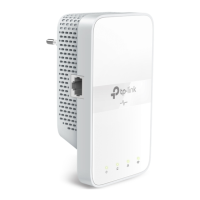
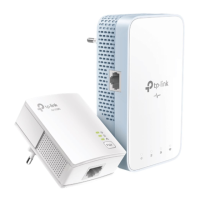
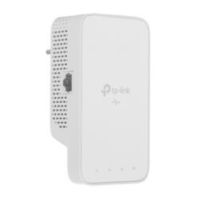
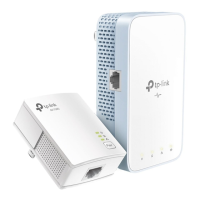
Get to Know Your Powerline Extender
Ethernet Port
Connect the Ethernet ports to your wired devices, such as a computer, a router or a
game console, via Ethernet cables.
Pair/Reset Button
Press and hold the button for 1 second to join a powerline network. Go to To Set Up a
New Secure Wireless Network for more information.
Press and hold the Pair button for at least 6 seconds, then release the button to reset
the adapter/extender to default settings.
LED On/Off Button
Press to turn on or off the LEDs.
Wi-Fi Button
Press and hold the button for 1 second to copy wireless settings from the main router
to the extender. Go to Wi-Fi Clone for more information.
Press and hold the button for about 5 seconds to turn the wireless function on or off.
The wireless function is on by default.
Plug
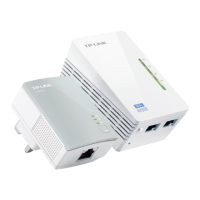
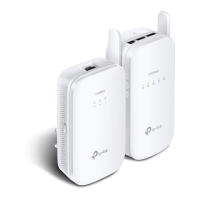
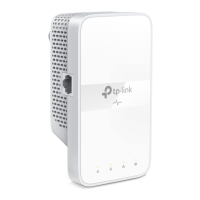
The powerline adapter has a Plug that can be connected to any standard power socket.
Note:
1. The provided plug may differ from the picture due to different regional power specifications.
2. Use the product in below directions.
3. Plug the product directly into a wall socket instead of a power strip.
Wall Outlet Power Strip




 To Next Page