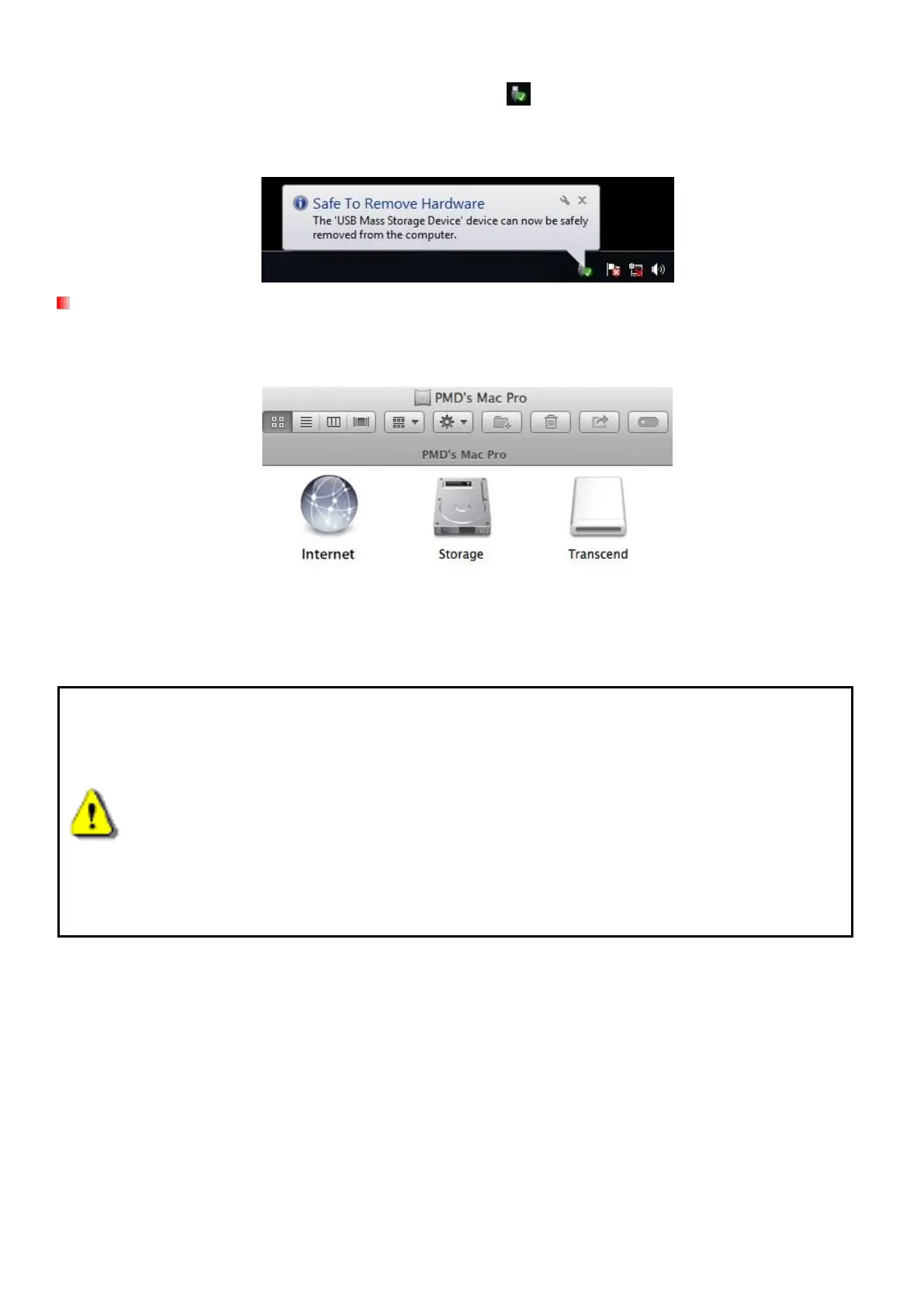
Proper removal of your DrivePro from Windows:
1. Click once on the Removable Hardware icon
in the system tray.
2. A Safely Remove Hardware window will pop up. Click to continue.
3. Unplug your DrivePro from the USB port.
macOS
®
X 10.14 or later
No drivers are required. Plug your DrivePro into an available USB port directly, and your computer
will automatically detect it.
Proper removal of your DrivePro from Mac OS:
Drag-and-drop the Disk icon corresponding to your DrivePro into the trashcan, and then unplug your
DrivePro from the USB port.
WARNING:
1. To prevent data loss, always follow the proper removal procedures when
disconnecting the DrivePro from your computer.
2. When the DrivePro is connected to a computer, it can only be used for
transferring files. You will not be able to use any of the DrivePro’s features at
this time. Please disconnect your DrivePro from the computer to resume
normal function.
3. NEVER use the “format” or “initialize disk” function while the DrivePro is
connected to your computer, even if prompted to do so.


 To Next Page