7. Transferring Files to a Computer
To transfer files between the DrivePro’s memory card and your computer:
Option 1: Take the microSD memory card out of the DrivePro, and insert to a compatible card
reader to transfer files to your computer.
Option 2:
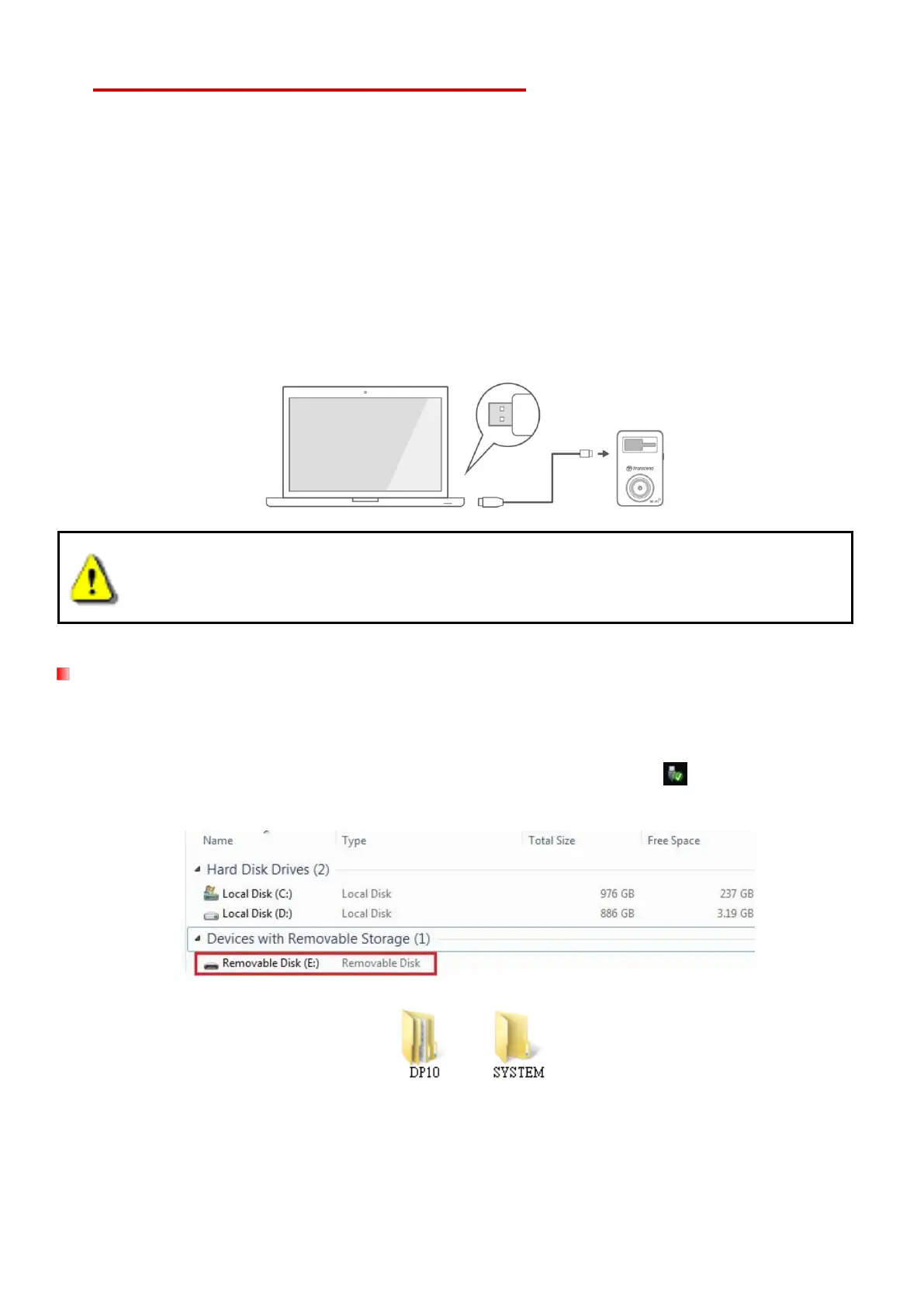
1. Insert the microSD memory card into the DrivePro.
2. Plug the small end of a USB (Micro-B) cable into the USB port located on the right-hand side
of the DrivePro.
3. Plug the large end of the cable into an available USB port on your desktop or laptop.
DrivePro package does not contain any USB cable.
Windows
®
7 / 8 / 8.1 / 10
No drivers are required for connecting the DrivePro to your desktop or laptop. Windows® Operating
Systems have built-in drivers to support your DrivePro. Upon successful connection to your
computer, a new Removable Disk drive with a newly assigned drive letter representing the DrivePro
will automatically appear in My Computer, and a Removable Hardware
icon will appear in the
Windows System Tray.
*Note: (E:) is an example drive letter – the letter in your “My Computer” window may differ.
Your DrivePro is now ready to transfer data just like an external hard drive. To transfer videos, simply
drag-and-drop files from the folder that represents the DrivePro.


 To Next Page