Italiano / Русский / Português / Ελληνικά / Türkçe / 한국어
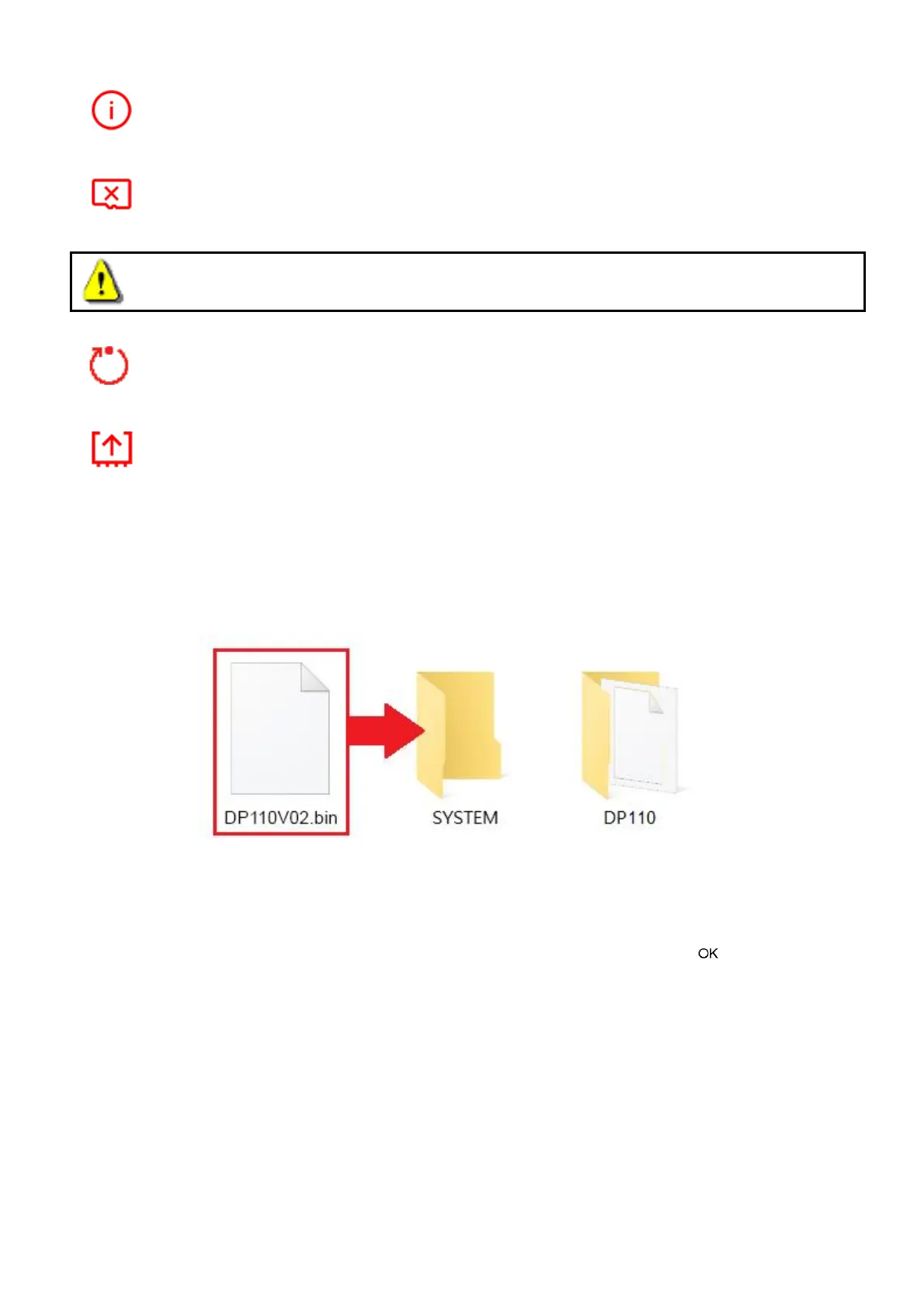
Information: Display the DrivePro’s current firmware version, card capacity and free
space.
Format Card: Format the microSD memory card.
Available options: Cancel / Confirm
WARNING: Formatting will erase all the data stored in the card.
Restore Defaults: Reset all settings to factory default settings.
Available options: Cancel / Confirm
Upgrade Firmware: Keep your DrivePro up-to-date with the latest version downloaded
from Transcend website http://www.transcend-info.com/Support/service. To prevent data loss, it
is recommended that you backup your data to another location before upgrading the firmware of
your DrivePro 110.
1. After downloading firmware from Transcend website, decompress it and then put the
DP110V02.bin file in the “SYSTEM” folder of the microSD memory card.
2. Insert the microSD memory card that contains the latest firmware version.
3. Connect the DrivePro to an external power outlet. Do NOT remove the USB cable
while the firmware is being upgraded.
4. Select “Upgrade Firmware” from the “Settings” menu and press to start the
firmware detection process. The DrivePro will automatically find the latest firmware file.
Note: The firmware upgrade will take about 1-2 minutes. Please do not turn off the
DrivePro while upgrading. The DrivePro will restart automatically after the upgrade is
completed.












 To Next Page