Connecting to the DrivePro using iOS and Android Devices︱
To wirelessly store DP220 video files using your iOS/Android device, you have to first connect to the
DrivePro’s dedicated wireless network.
(on your DrivePro)
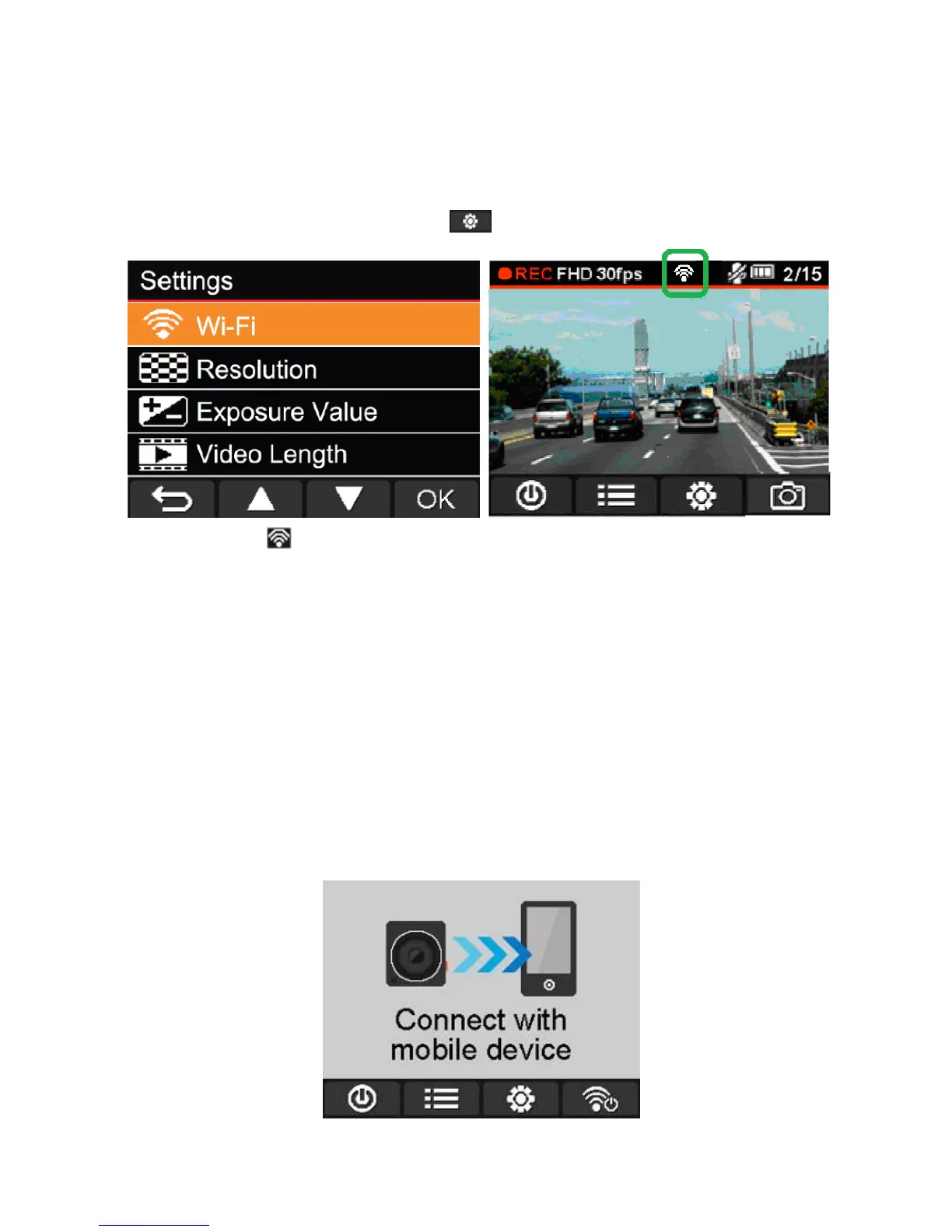
1. During video recording, press the button of the DrivePro to turn on the Wi-Fi function.
2. When the icon is displayed, you can connect your mobile device to the DrivePro.
3. After turning on the Wi-Fi, please wait around 10 seconds for the network to appear.
(on your iOS device)
4. Tap Settings to turn on Wi-Fi.
5. Select DrivePro 220 from Choose a Network.
6. Enter the Wi-Fi security key: “12345678”.
(on your Android device)
4. Tap System Settings to turn on Wi-Fi.
5. Select DrivePro 220 from Wi-Fi.
6. Enter the Wi-Fi security key: “12345678”.
To change the default SSID and to setup Wi-Fi security key, please see the Using the DrivePro App on iOS
and Android Devices/Settings section in this manual for detailed instructions.
When connected to the DrivePro, your mobile device will not have Internet access. Additionally, the DrivePro
function buttons (Browse/ Settings) will also be disabled. The following image will be displayed:








 To Next Page