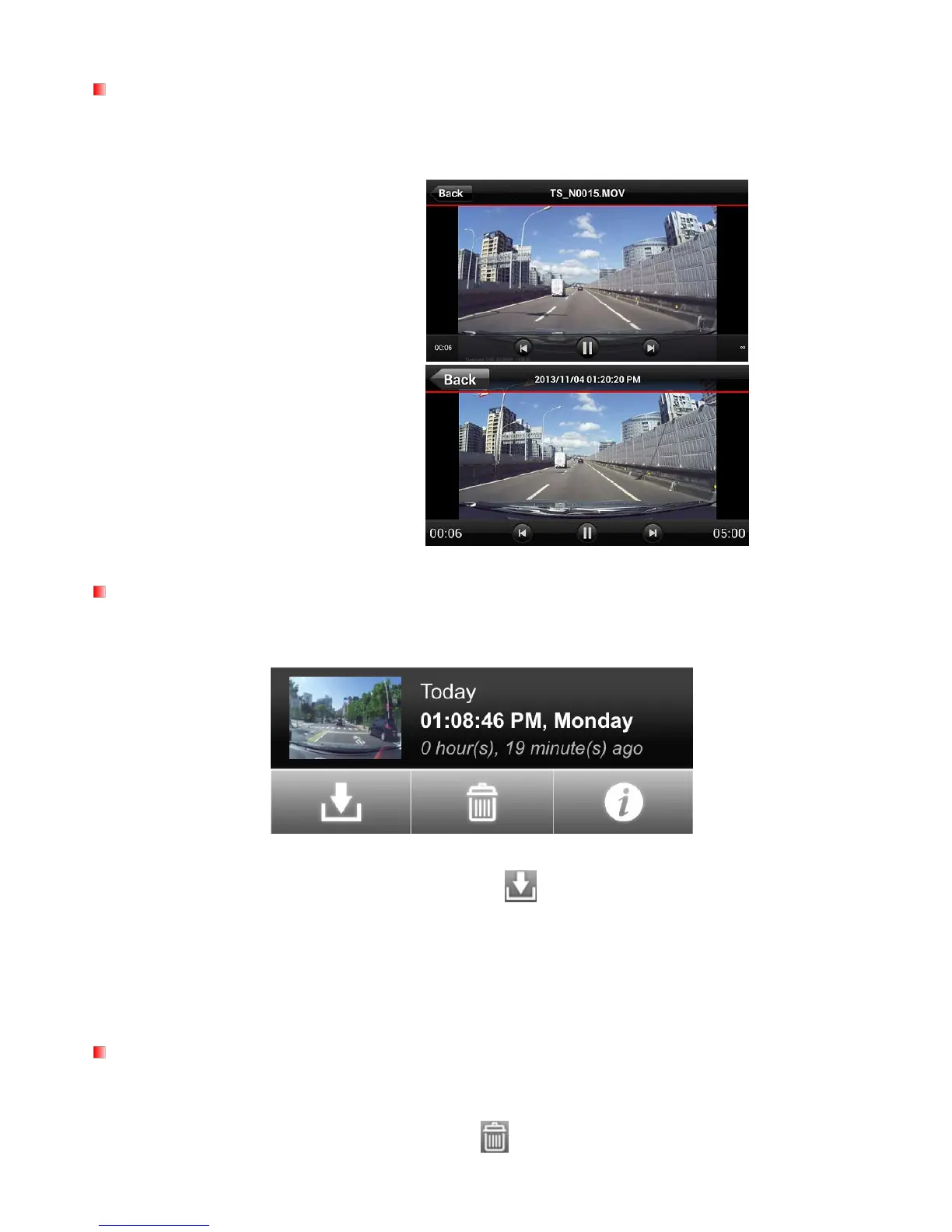
Playing Videos
Tap the thumbnail image of the desired video from the file list.
For iOS: Automatically play the selected file.
For Android: Automatically play the selected file.
2. From the file function bar, tap the download icon .
For iOS: The file will be downloaded to the Camera Roll in the iOS device.
For Android: The file will be downloaded to the /sdcard/DrivePro folder in the Android device.
Note: You can edit the default download path in Settings on your Android device.
Deleting Videos
1. Tap the information next to the thumbnail image of the desired video. The file function bar will appear
below the video file.
2. From the file function bar, tap the delete icon .


 To Next Page