31
Settings︱
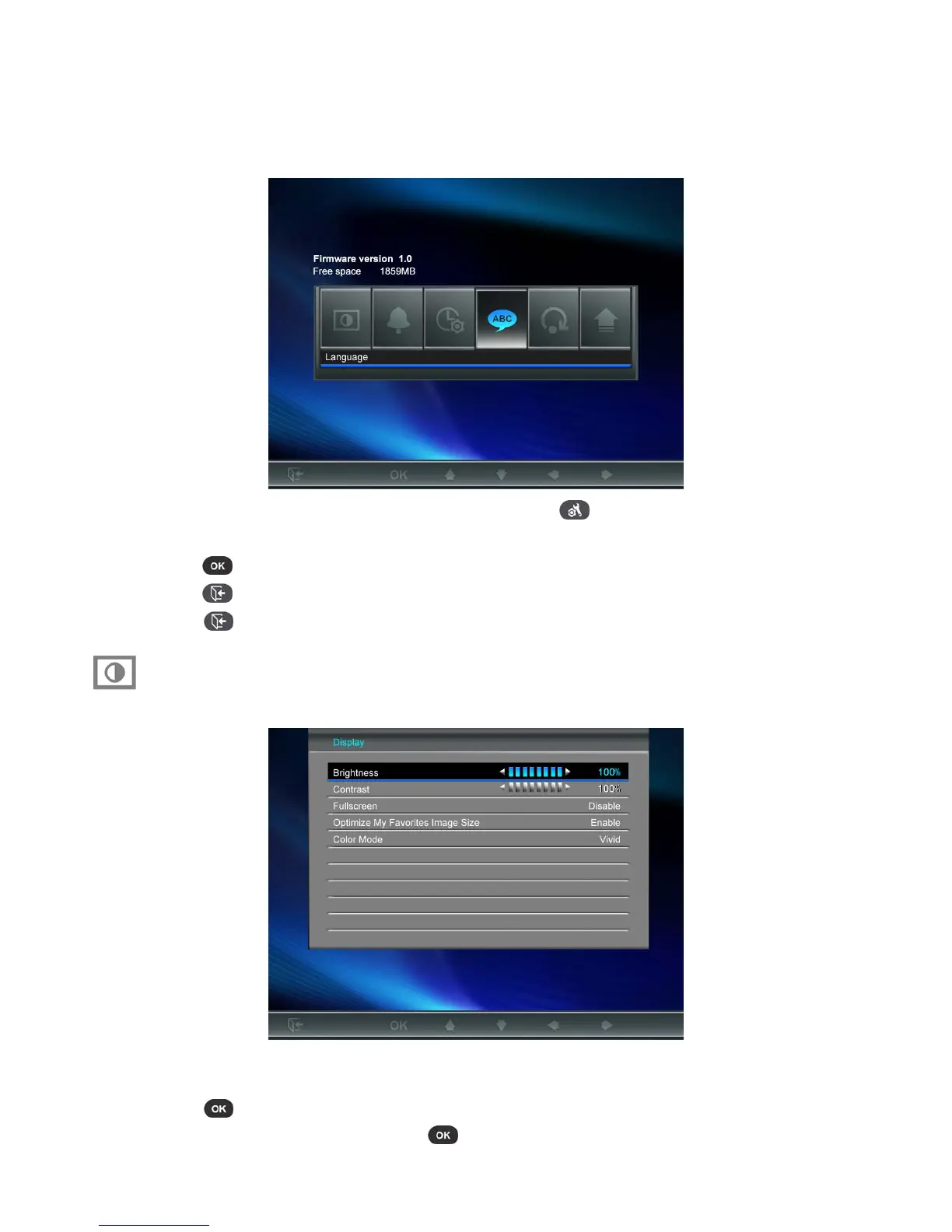
In the Settings menu, you can inspect your Photo Frame’s current device status –Firmware version, and free
space of My Favorites (onboard memory). You can also adjust Photo Frame’s interface settings like setting
the clock and changing languages.
1. Select the “Settings” icon from the Home menu or press
on the remote.
2. Use the LEFT and RIGHT buttons to highlight the desired menu option.
3. Press
to access the highlighted function or open its sub-menu.
4. Press
once to go back to the previous screen.
5. Press
again to revert to the Home menu.
Display
This menu lets you change the way photos are displayed on the Photo Frame’s screen.
1. Select Display from the Settings menu to open the Display settings menu, and use the UP and
DOWN buttons to highlight “brightness”, “contrast”, “fullscreen” and “orientation.”
2. Press
to modify the selected item (Brightness and Contrast changes take effect immediately)
3. After making your adjustments, press
to save.



 To Next Page