
 Need help?
Do you have a question about the TrekStor SurfTab xintron i 10.1. and is the answer not in the manual?
Essential safety rules for operating the device, including child supervision.
Covers hearing, road transport, display, USB, and ESD safety considerations.
Immediate actions required if the device becomes wet to prevent damage.
Advice on humidity, dust, charger use, and battery safety.
Guidelines for using suction cups and understanding memory capacity.
Describes ports like Micro-USB, audio out, and buttons like power, volume, home.
Instruction for first charge and note on battery life optimization.
Steps to power on the device and the initial configuration assistant.
Explains status bar, quick start, back, apps, and home icons.
How to navigate lists and move items on the screen.
Guidance on using fingers or a stylus for interaction.
Steps to add shortcuts and widgets to the home screen.
How to move and remove apps/widgets from the home screen.
Guide to setting up a screen lock for data security.
Steps to set up and manage multiple user profiles on the tablet.
Guide to connecting to WiFi networks and power saving tips.
Instructions for configuring and deleting email accounts.
Guide to downloading and installing applications from the Google Play Store.
Steps to remove self-installed apps; limitations on system apps.
Instructions for capturing photos and accessing basic editing features.
How to record videos and take panoramic images.
Using pinch-to-zoom for photos and videos.
How to connect to a PC and use external USB storage devices.
Steps to connect to other devices wirelessly via Bluetooth.
Instructions for wireless screen mirroring to a TV.
How to put the device into low-power standby mode.
Procedures for force restarting and entering recovery mode.
Steps for factory reset and how to exit recovery mode.
The correct method to shut down the device.
Details on the open-source software licenses used in the product.
Instructions for responsible disposal and recycling of the device and battery.
 General
| Stepping | B1 |
|---|---|
| Tjunction | 90 °C |
| Processor code | SR146 |
| Processor cache | 1 MB |
| Processor cores | 2 |
| Processor model | Z2580 |
| System bus rate | - GT/s |
| Processor family | Intel Atom® |
| Processor threads | 4 |
| Processor frequency | - GHz |
| Processor cache type | Smart Cache |
| Processor manufacturer | Intel |
| Processor package size | 14 x 14 mm |
| Conflict-Free processor | Yes |
| Processor front side bus | - MHz |
| Processor boost frequency | 2 GHz |
| Processor operating modes | 32-bit |
| Graphics & IMC lithography | 32 nm |
| Supported instruction sets | SSE2, SSE3, SSSE3 |
| Thermal Design Power (TDP) | - W |
| Internal memory | 1 GB |
| Internal memory type | DDR3-SDRAM |
| Storage media | Flash |
| Compatible memory cards | MicroSD (TransFlash), MicroSDHC |
| Internal storage capacity | 16 GB |
| Display diagonal | 10.1 \ |
| Touch technology | Multi-touch |
| Touchscreen type | Capacitive |
| Display resolution | 1280 x 800 pixels |
| Native aspect ratio | 16:10 |
| Graphics card | PowerVR SGX544 MP2 |
| Graphics card family | Imagination Technologies, Intel |
| Rear camera type | Single camera |
| Maximum video resolution | 1920 x 1080 pixels |
| Rear camera resolution (numeric) | 5 MP |
| Front camera resolution (numeric) | 2 MP |
| Ethernet LAN | No |
| Wi-Fi standards | 802.11b, 802.11g, Wi-Fi 4 (802.11n) |
| Top Wi-Fi standard | Wi-Fi 4 (802.11n) |
| Near Field Communication (NFC) | - |
| USB 2.0 ports quantity | 0 |
| Micro-USB 2.0 ports quantity | 1 |
| Audio formats supported | AAC, FLAC, MP3, OGG, WAV |
| Image formats supported | BMP, GIF, JPG, PNG |
| Video compression formats | H.263, H.264, MKV, MP4, MPEG4, VP8, WEBM |
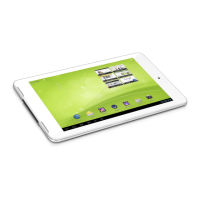
| Device type | Mobile tablet |
| Form factor | Slate |
| Product color | Aluminium, Black |
| Intel Smart Idle Technology version | 1.00 |
| Material | Aluminium, Plastic |
| Processor ARK ID | 70100 |
| Processor socket | FC-MB4760 |
| Battery capacity | - mAh |
| Battery life (max) | - h |
| Operating system version | 4.2.2 |
| Operating system installed | Android |
| Cables included | USB |
 Weight and Dimensions
| Depth | 8.7 mm |
|---|---|
| Width | 251 mm |
| Height | 161 mm |
| Weight | 615 g |


 To Next Page