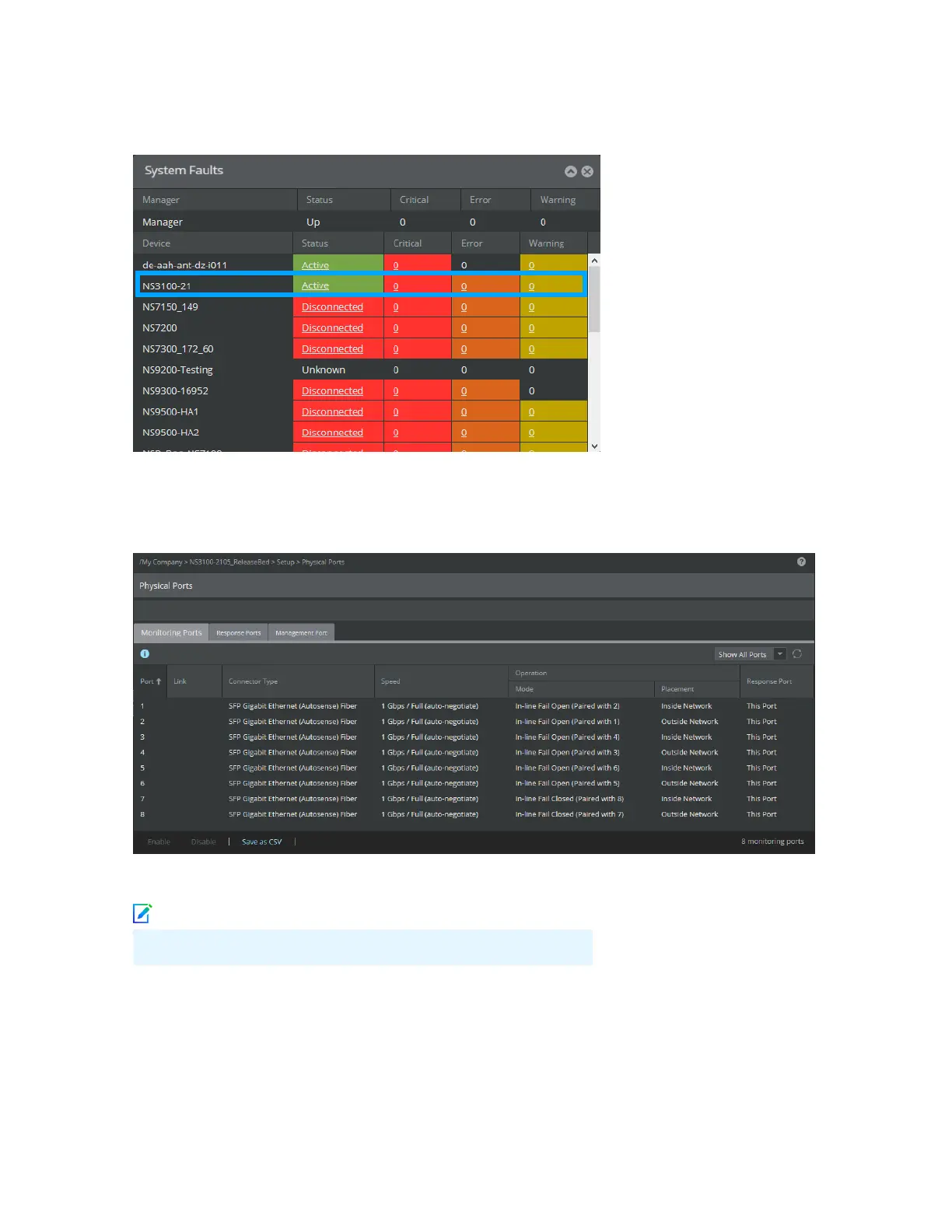
The Manager status displays as Up and Sensor status is Active.
c From the Manager, select Devices | <Admin Domain Name> | Devices | <Device Name> | Setup |
Physical Ports to open the ports page.
Note
<Device Name> indicates the name of the Sensor you added.
d A policy named Default Prevention is active upon the addition of the Sensor. To view this policy, select
Policy | <Admin Domain> | Intrusion Prevention | Policy Types | IPS Policies.
The Default Prevention policy contains attacks already congured with a "blocking" Sensor response
action. If any attack in the policy is triggered, the Sensor automatically blocks the attack. To tune this or
any other Trellix-provided policies, you can clone the policy and then customize it as described in Trellix
Intrusion Prevention System Product Guide.
14



 To Next Page