EasyManua.ls Logo

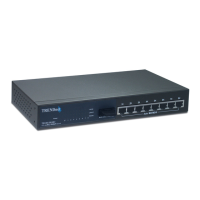
TRENDnet TE100 S800i - User Manual

TRENDnet TE100 S800i
9 pages
Print Icon
To Next Page IconTo Next Page
Loading...
TE100-S800i
TE100-S810Fi
Quick Installation Guide
Question and Answer IconNeed help?

Do you have a question about the TRENDnet TE100 S800i and is the answer not in the manual?

Summary

Before You Start

Package Contents

Lists all items included in the product package.

System Requirements

Details the necessary hardware and software for setup.

How to Connect

Connect Power Cord

Connect the AC power cord to the switch's power port.

Connect Network Cable

Connect network cables to the switch and your PC.

Verify Power Status

Ensure the PWR LED indicator shows a solid green light.

Using the Switch

Accessing Control Panel

Navigate to Windows Control Panel via the Start menu.

Opening Network Connections

Double-click the Network Connection icon in Control Panel.

Accessing Connection Properties

Right-click Local Area Connection and select Properties.

Configuring IP Properties

Change IP address to 192.168.16.222 and subnet mask.

Accessing Web Interface

Open a web browser and enter the switch's IP address.

Entering Login Credentials

Enter username 'root' and password 'root' to log in.

Selecting Configuration Option

Choose the correct option to configure the SNMP switch.

Troubleshooting

No LED Lights Issue

Troubleshooting steps for when no LEDs are illuminated.

Web Page Access Problem

Solutions for inability to access the switch's web interface.

Factory Reset Troubleshooting

Resolving issues after performing a factory reset.

Summary

Before You Start

Package Contents

Lists all items included in the product package.

System Requirements

Details the necessary hardware and software for setup.

How to Connect

Connect Power Cord

Connect the AC power cord to the switch's power port.

Connect Network Cable

Connect network cables to the switch and your PC.

Verify Power Status

Ensure the PWR LED indicator shows a solid green light.

Using the Switch

Accessing Control Panel

Navigate to Windows Control Panel via the Start menu.

Opening Network Connections

Double-click the Network Connection icon in Control Panel.

Accessing Connection Properties

Right-click Local Area Connection and select Properties.

Configuring IP Properties

Change IP address to 192.168.16.222 and subnet mask.

Accessing Web Interface

Open a web browser and enter the switch's IP address.

Entering Login Credentials

Enter username 'root' and password 'root' to log in.

Selecting Configuration Option

Choose the correct option to configure the SNMP switch.

Troubleshooting

No LED Lights Issue

Troubleshooting steps for when no LEDs are illuminated.

Web Page Access Problem

Solutions for inability to access the switch's web interface.

Factory Reset Troubleshooting

Resolving issues after performing a factory reset.

TRENDnet TE100 S800i Specifications

General IconGeneral
Switching Capacity1.6Gbps
Ports8 x 10/100 Mbps
Power Supply5V DC
StandardsIEEE 802.3, 802.3u
Jumbo FrameNo

Related product manuals